Supplied Media
Introduction
Supplied media has been updated to make it easier for our clients to send us their video files. Previously clients needed to login to media manager with a username and password.
With this updated version, it's been baked into our platform. Clients just need an Asset TV / Insure TV account and once they've been given supplied media permissions, they can upload videos directly to Media Manager 3.
All you need to do is put in a request to the web team with the user's email address and the team they need to be on. Once this is done, follow the instructions below to get a client to send us their videos.
Instructions
Step 1. Login to Asset TV / Insure TV as normal.
Step 2. Open the user menu in the top right and click 'Supplied Media'.
| UK | US | Insure TV |
|---|---|---|
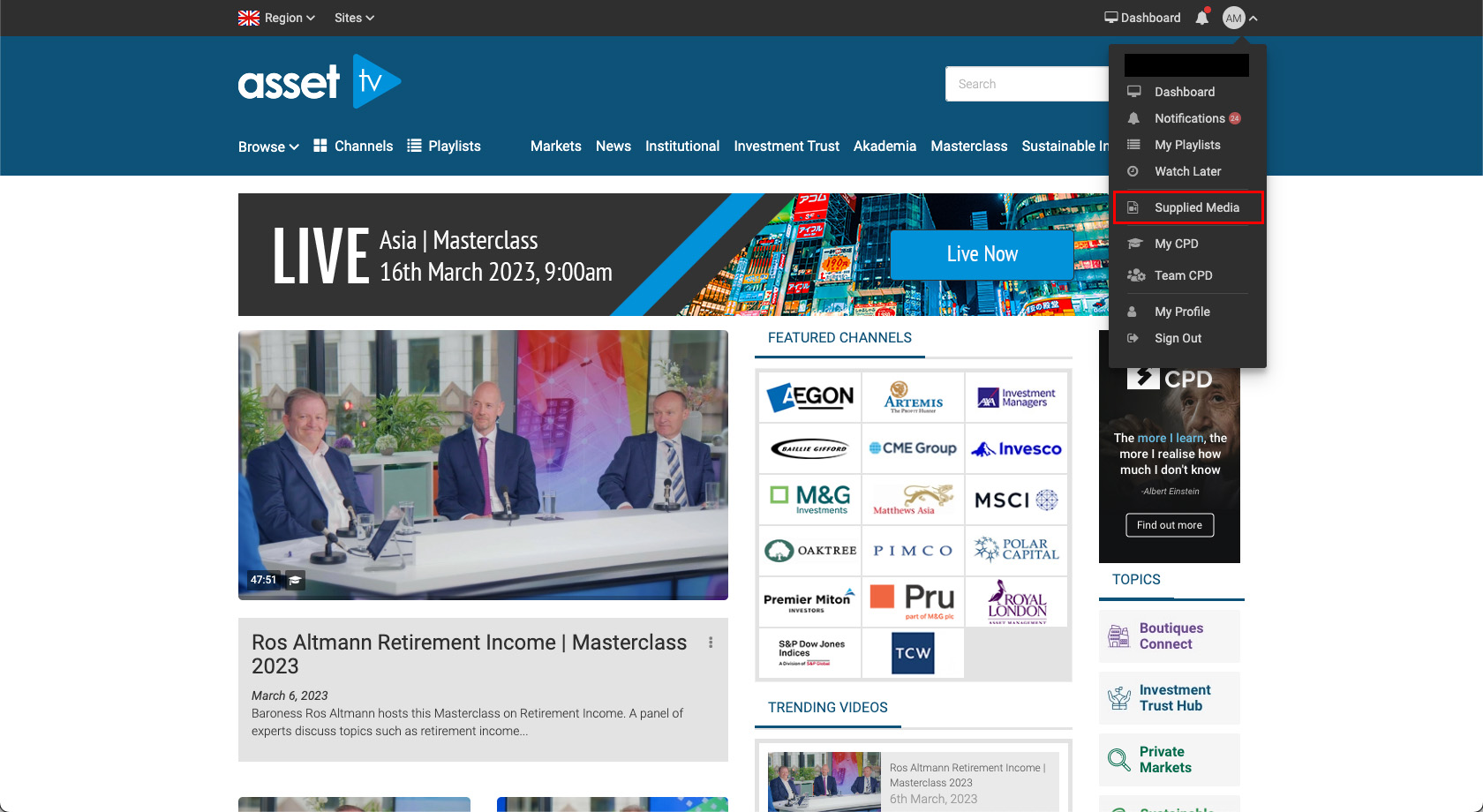 |
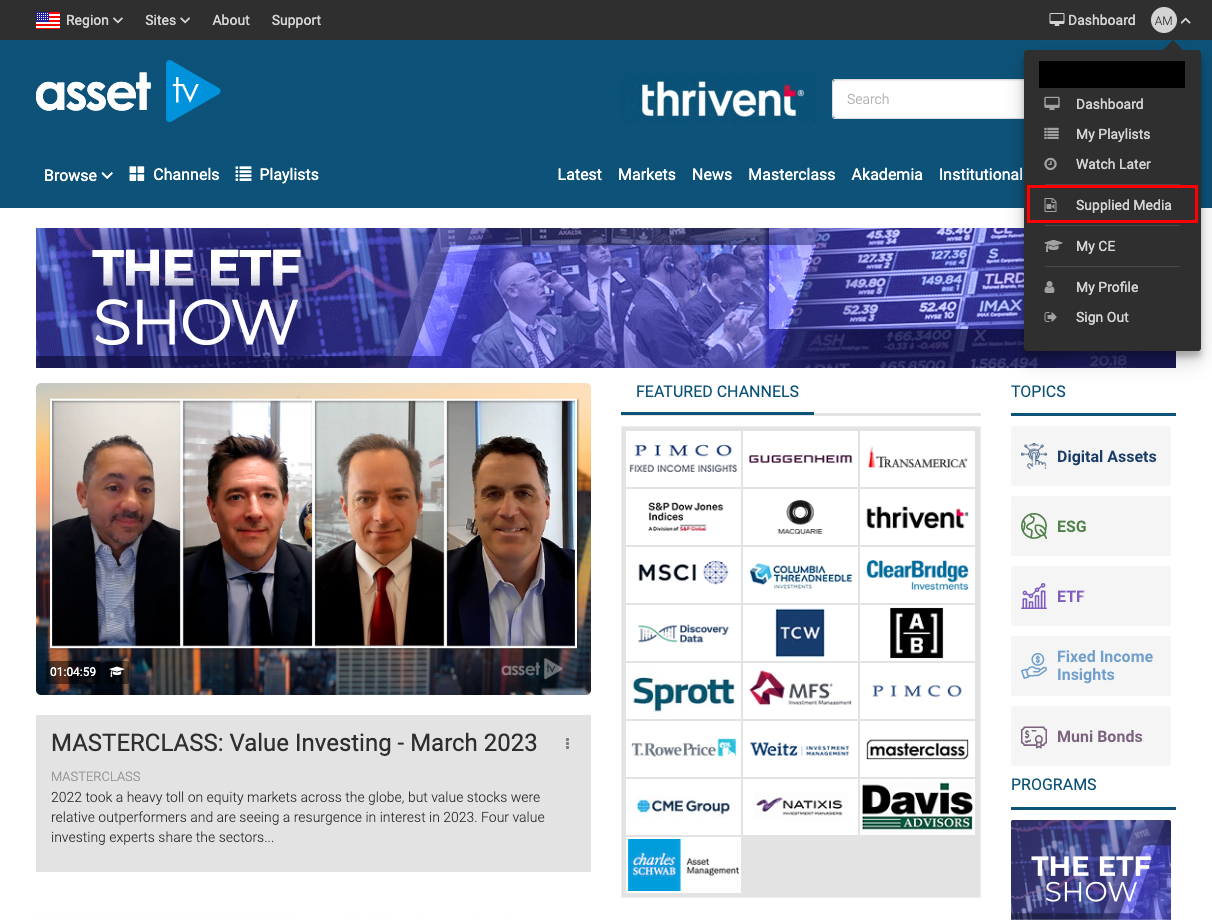 |
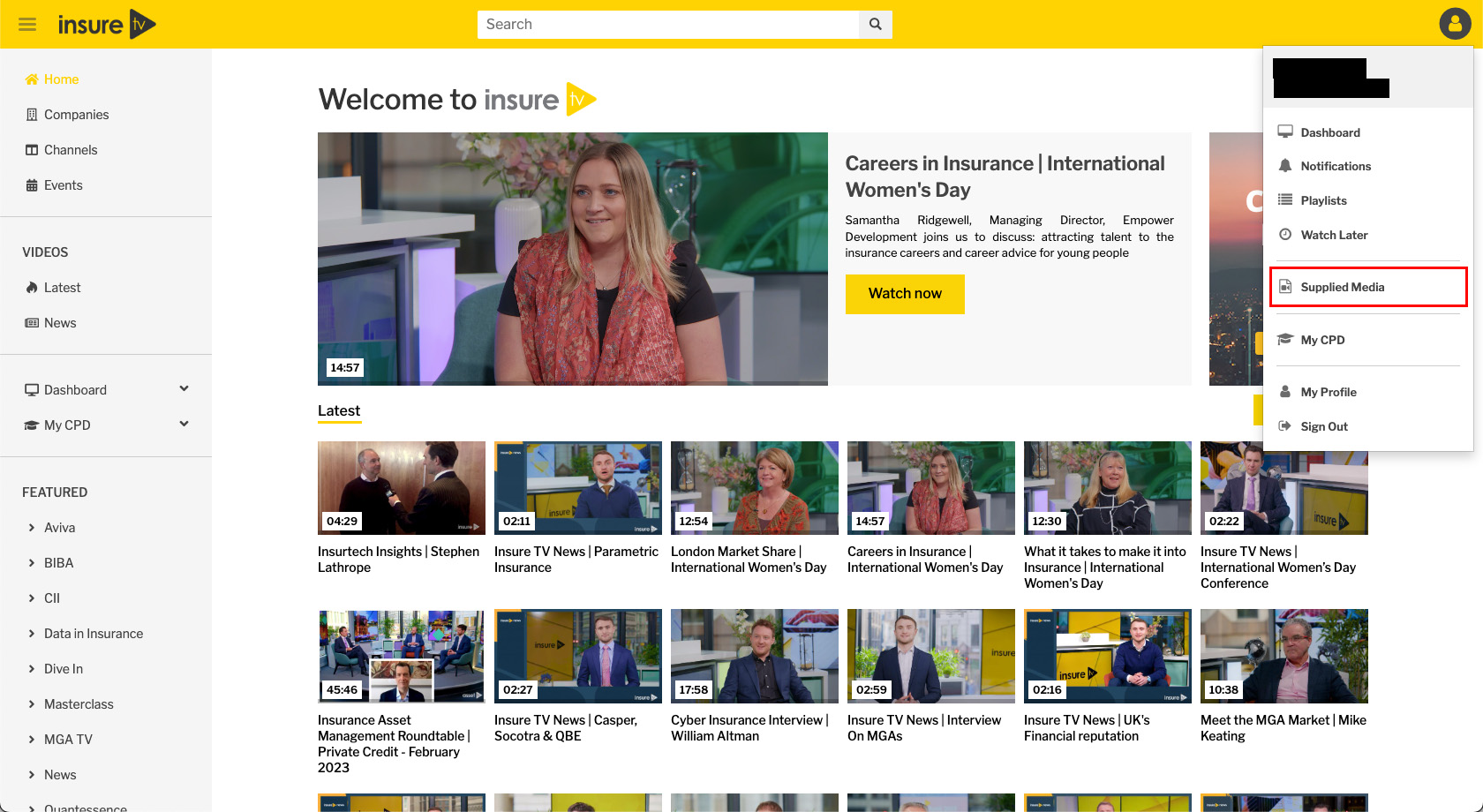 |
Warning
If you do not see an upload box, there will normally be a message saying user not assigned to team, if this is the case get in touch with the webteam and they'll update this for you.
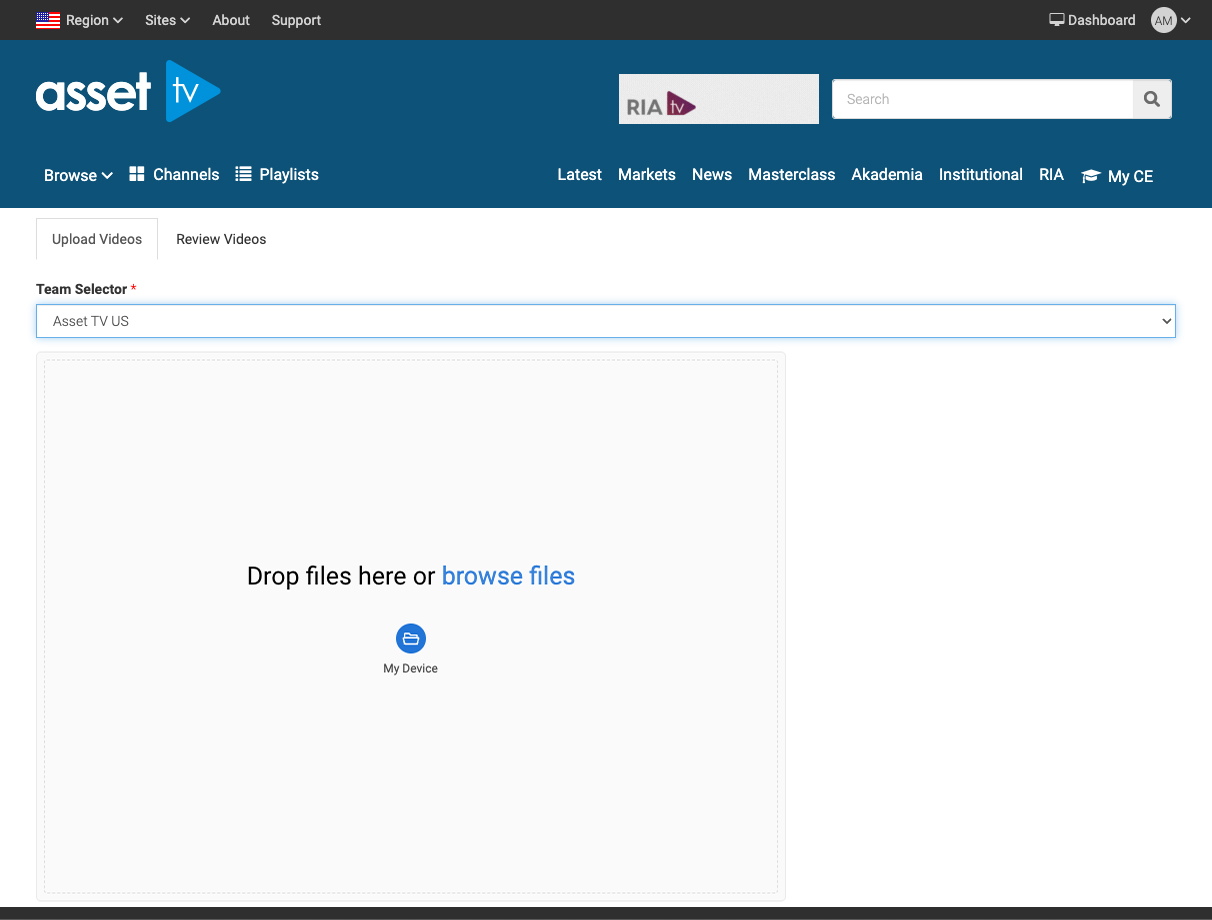
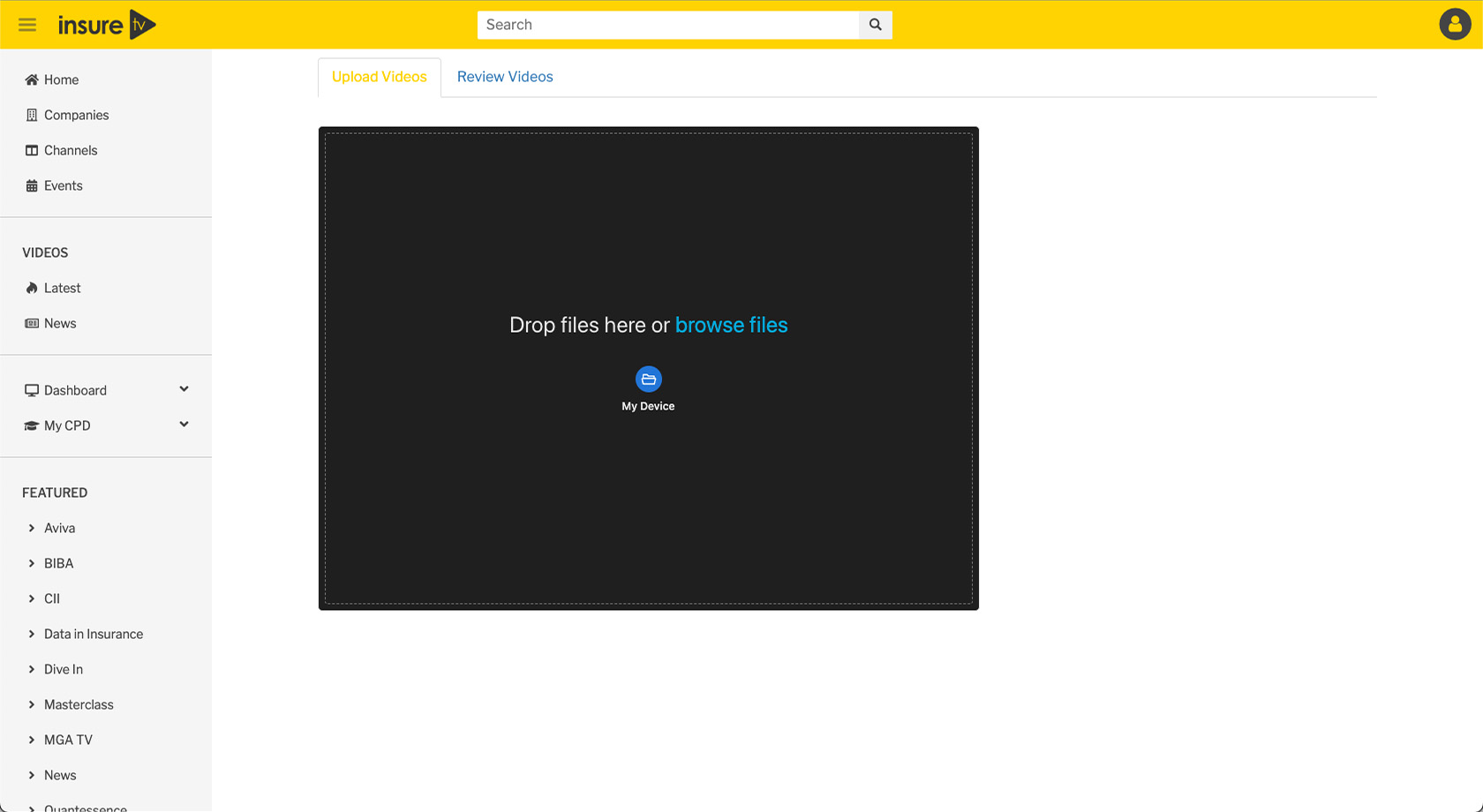
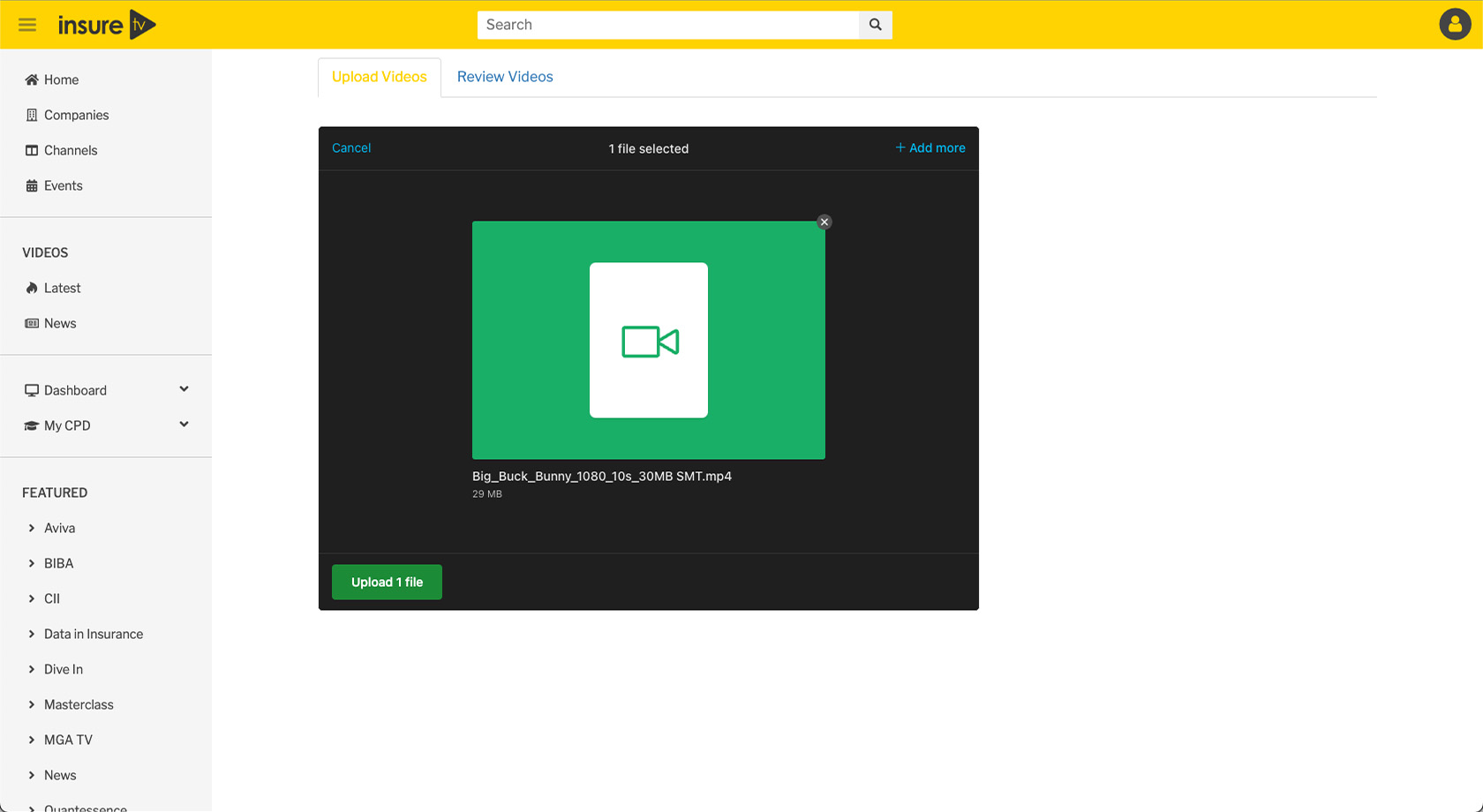
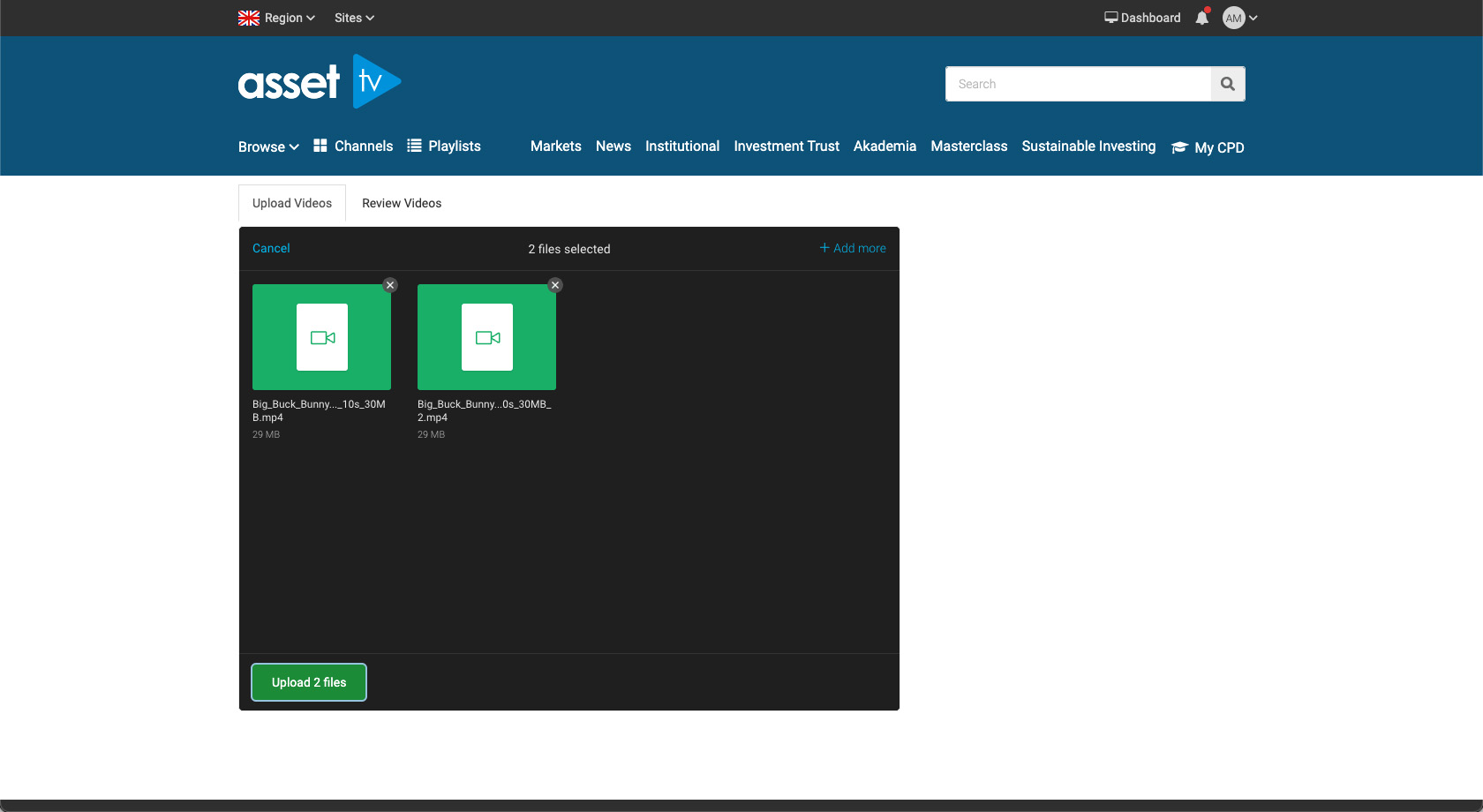
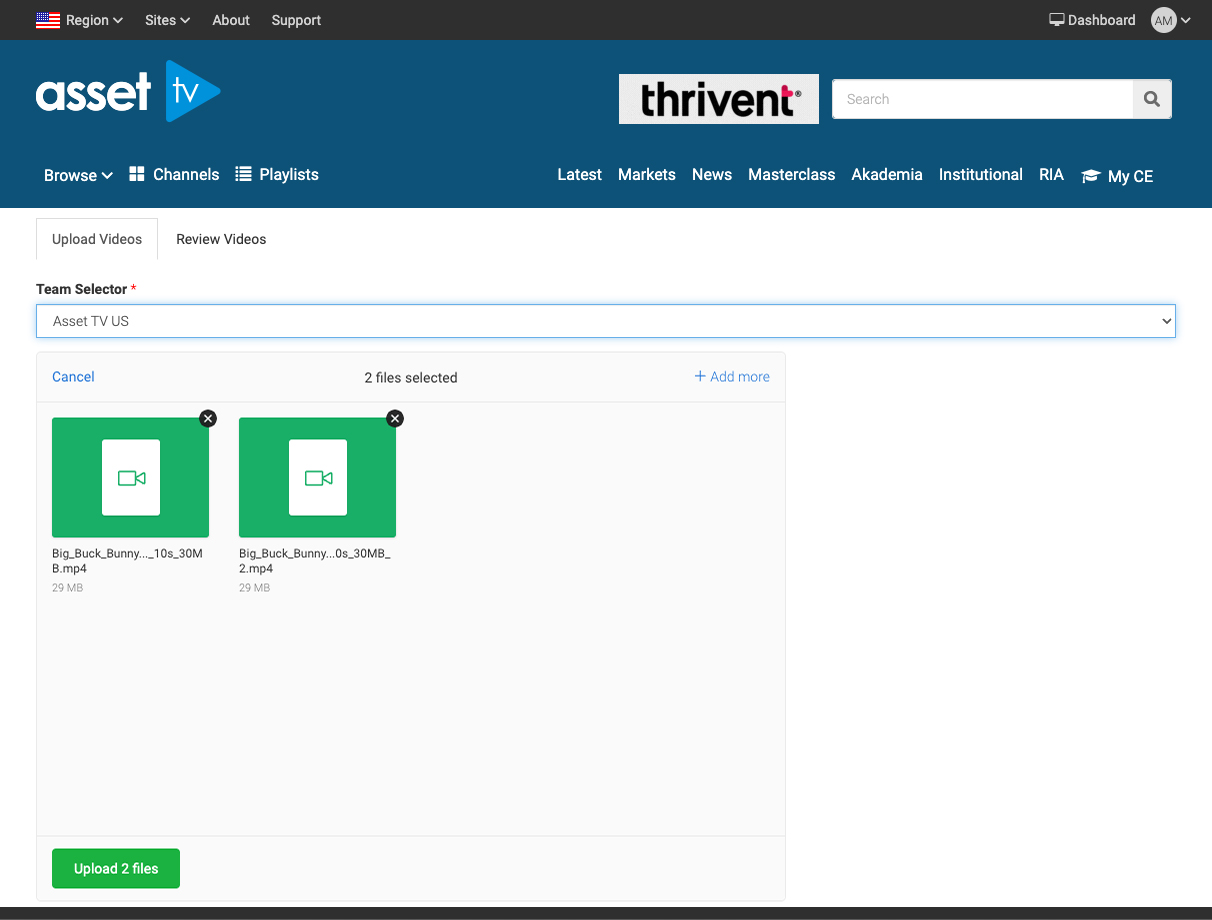
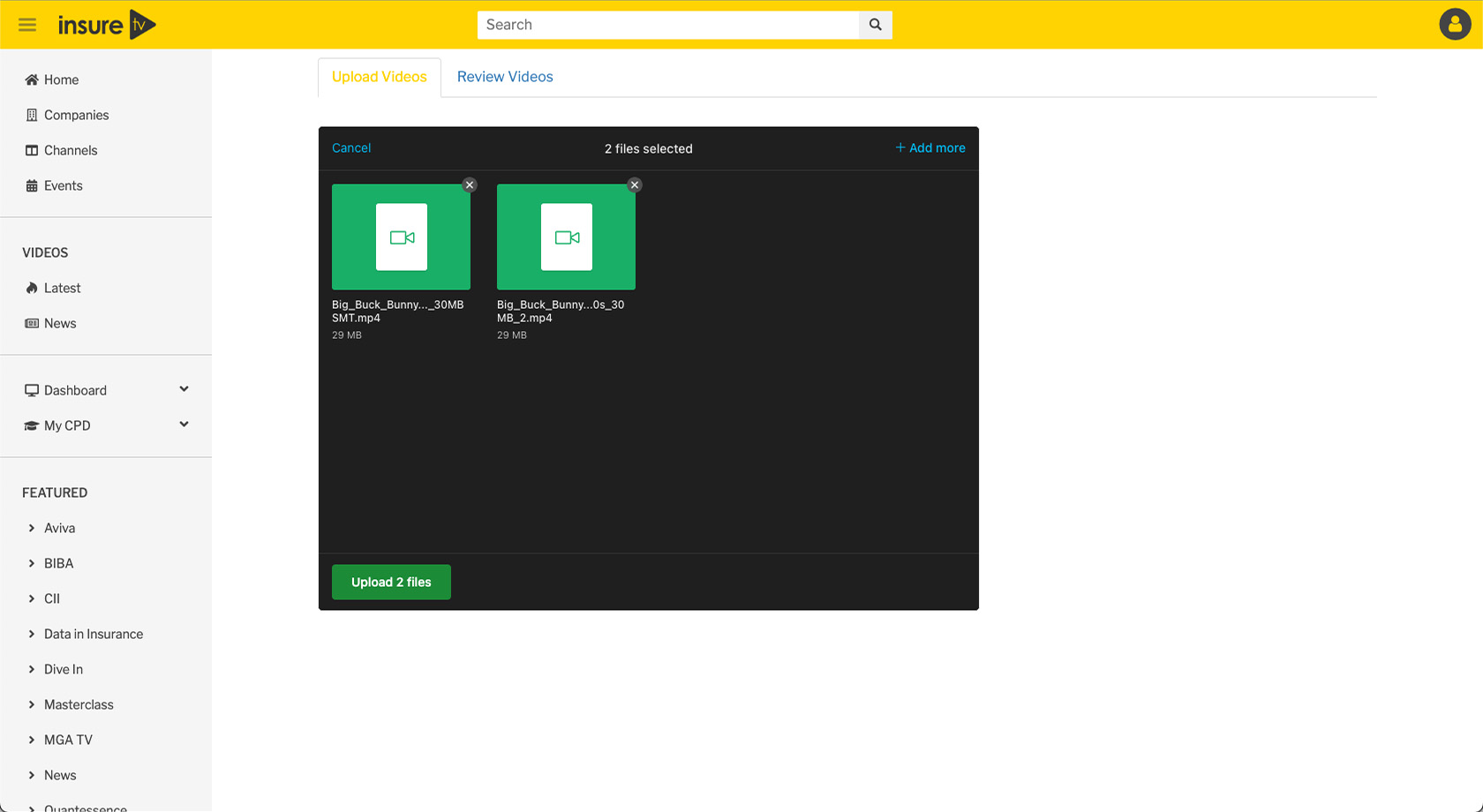
Step 3. Add your video(s) to the upload box; you can either drag a video from your computer, or browse for the video file.
| UK | US | Insure TV |
|---|---|---|
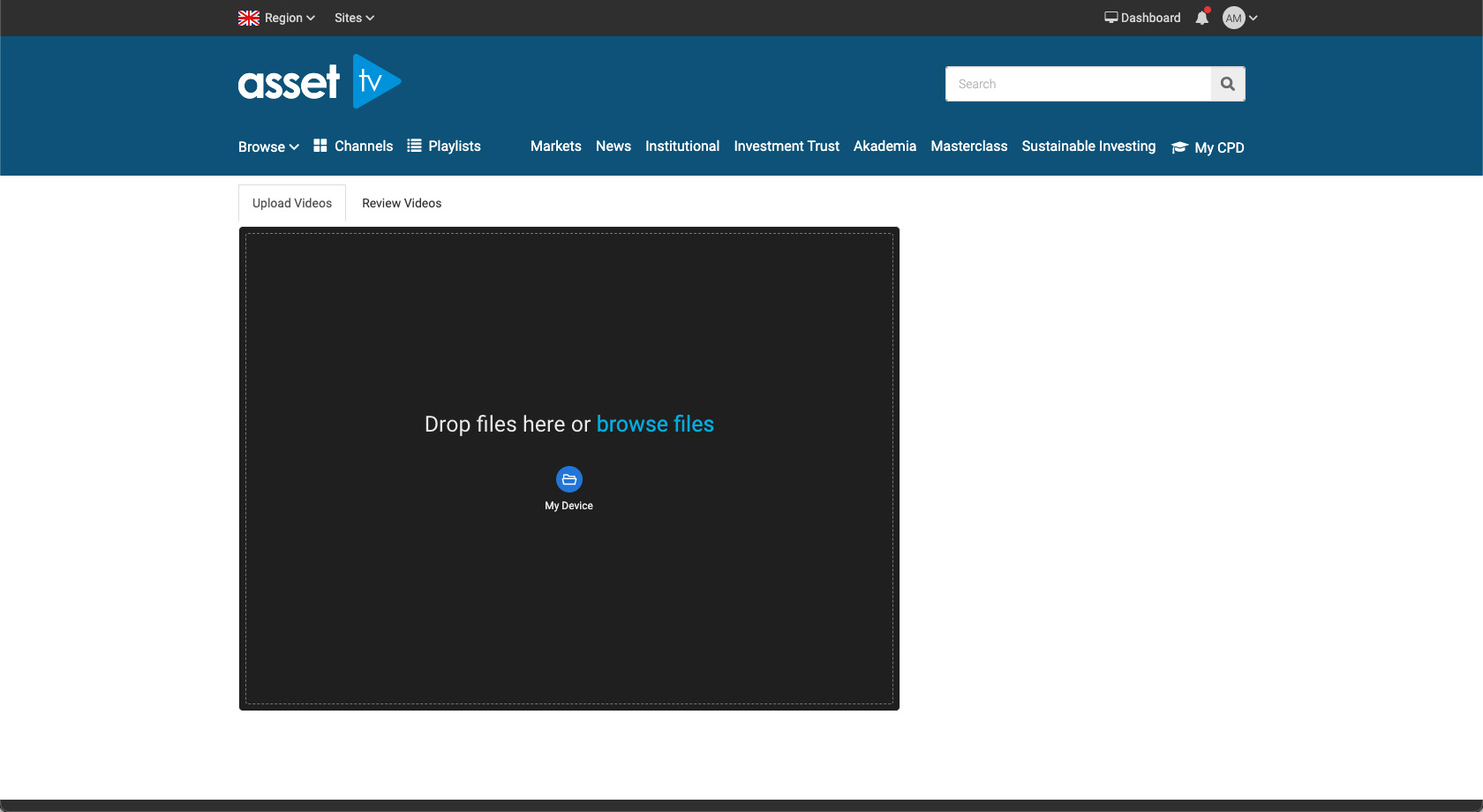 |
 |
 |
Tip
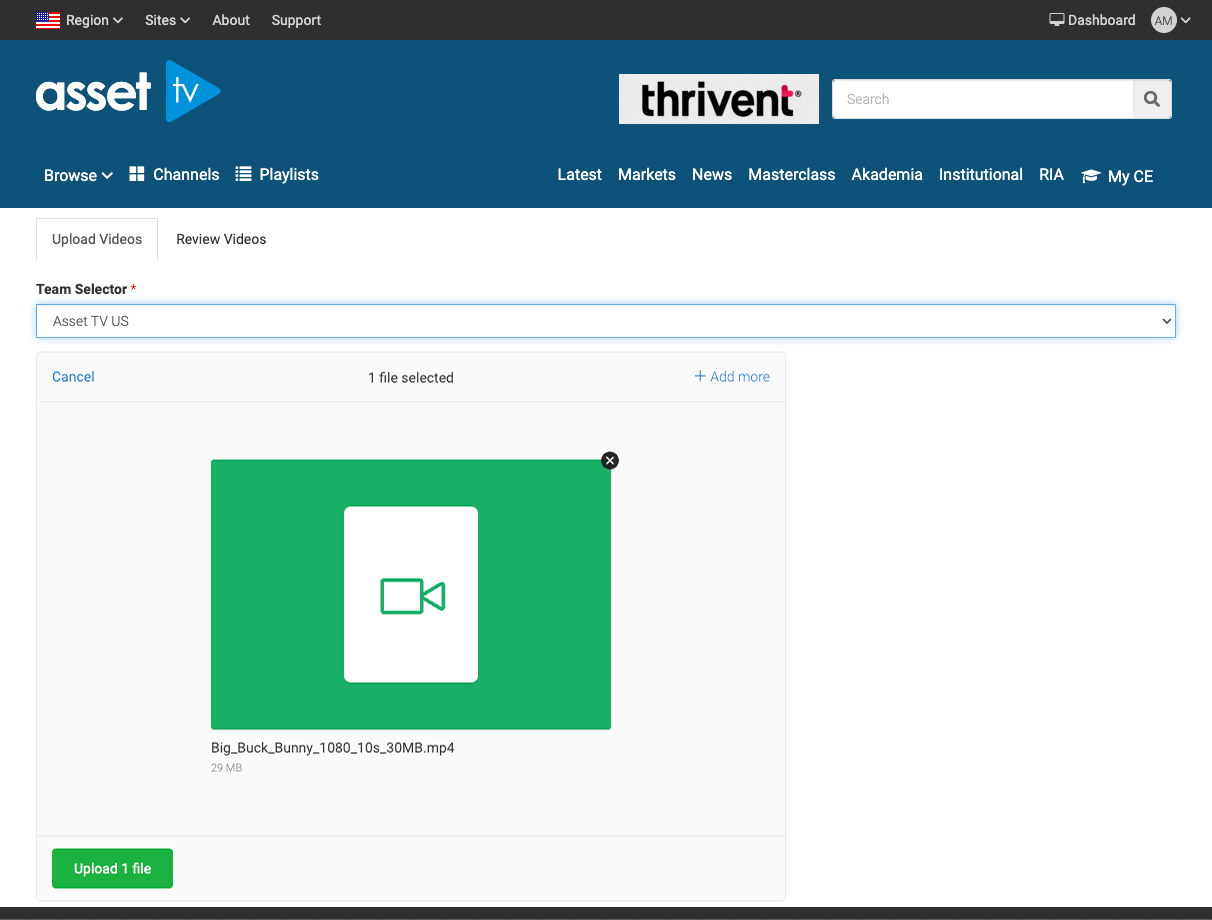
If you're assigned to multiple teams, select which team you'd like to upload these videos to.
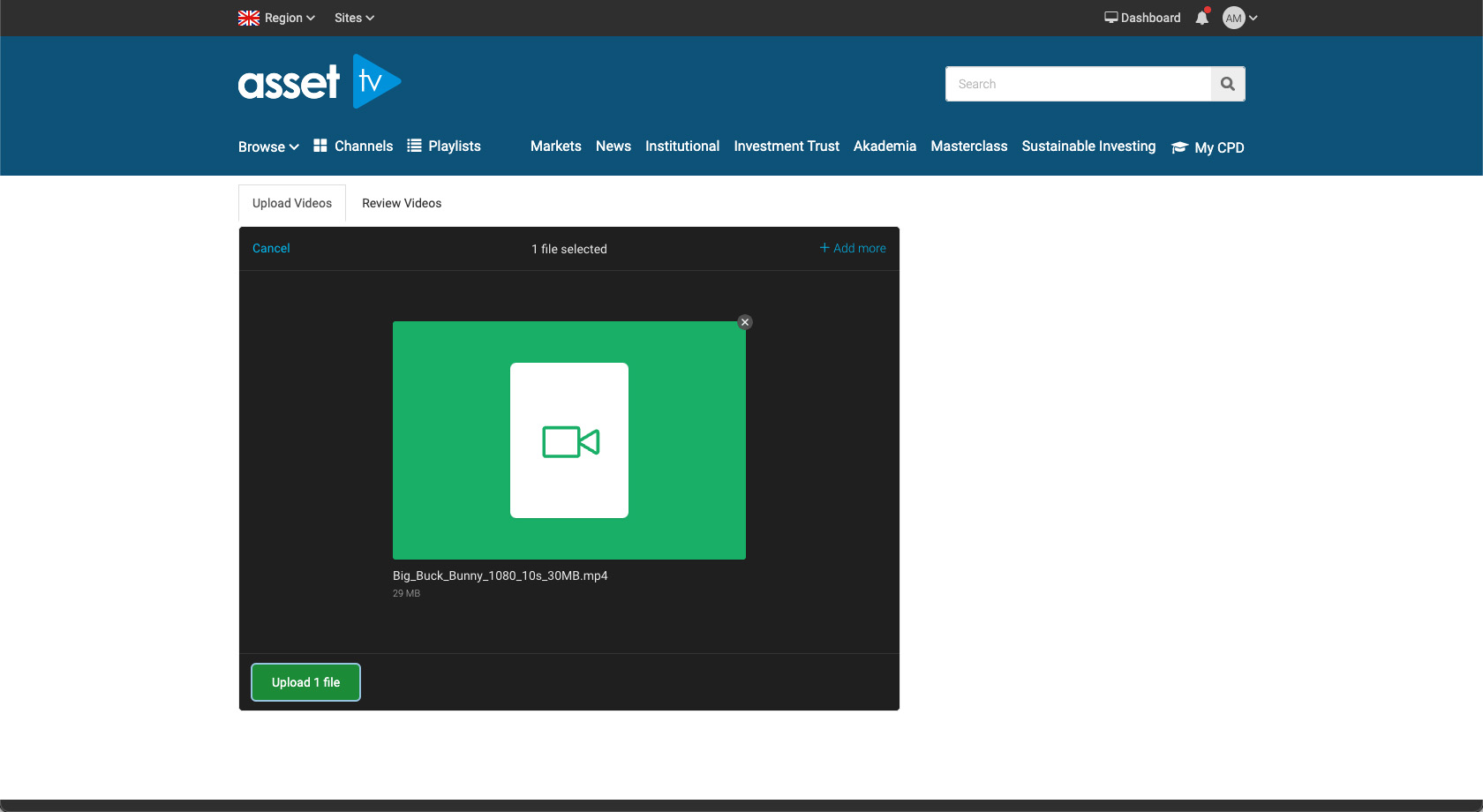
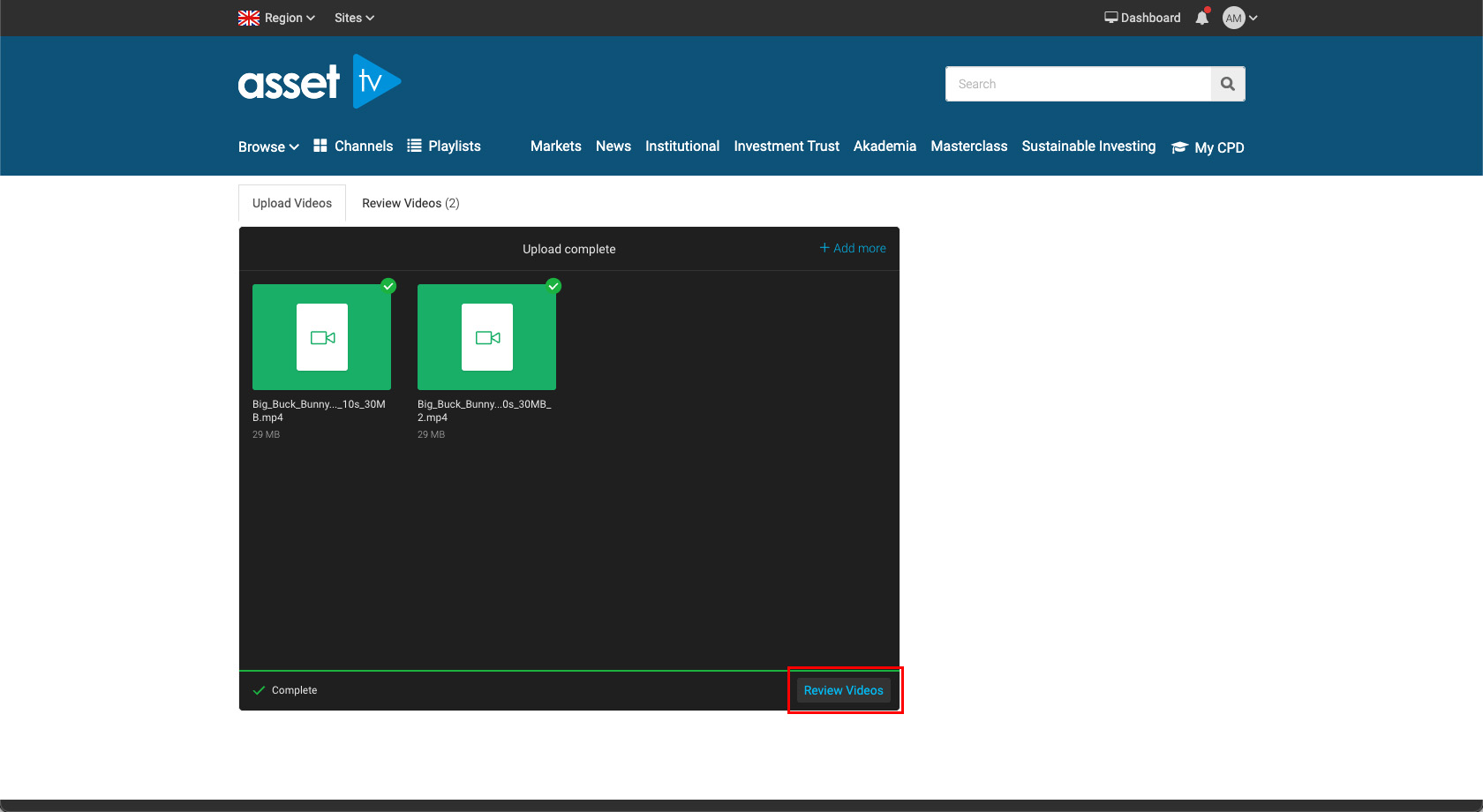
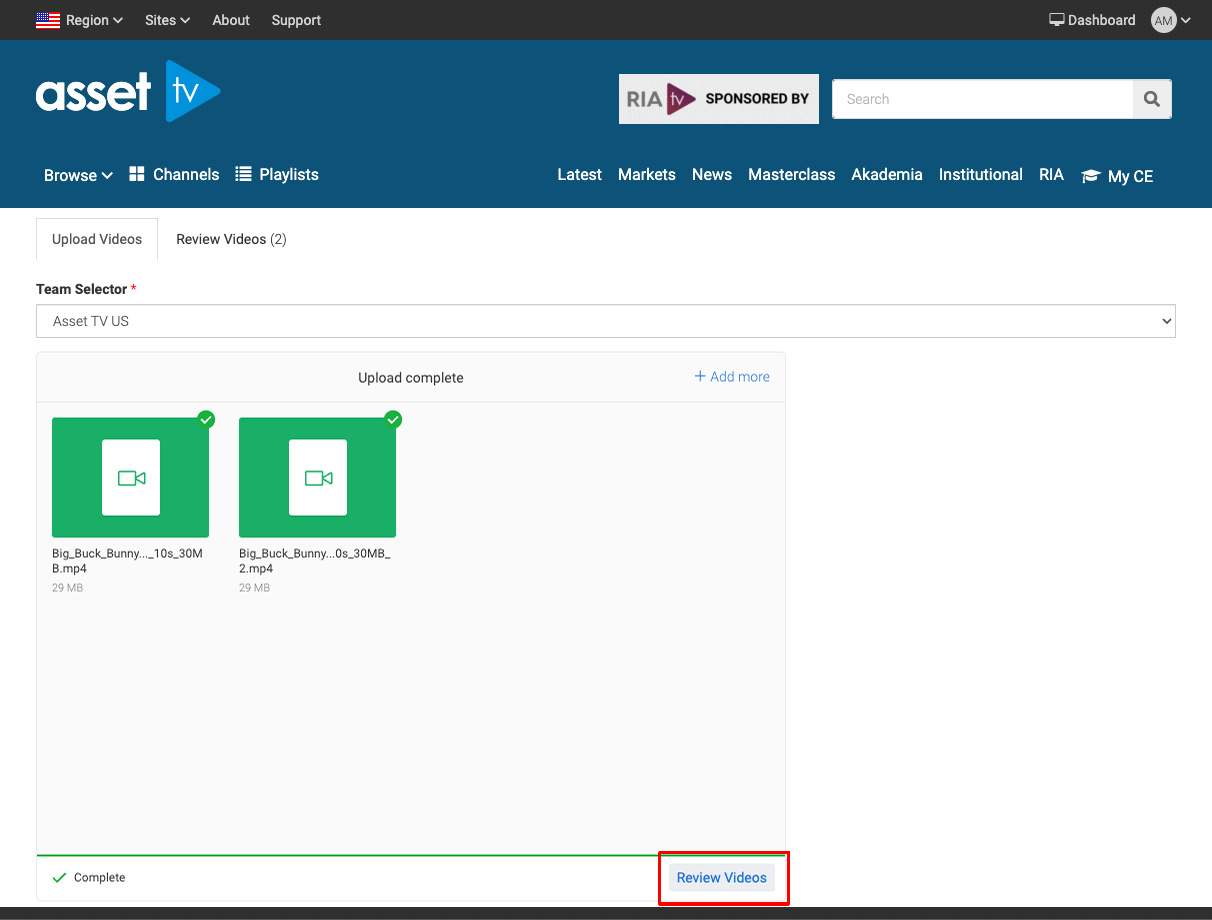
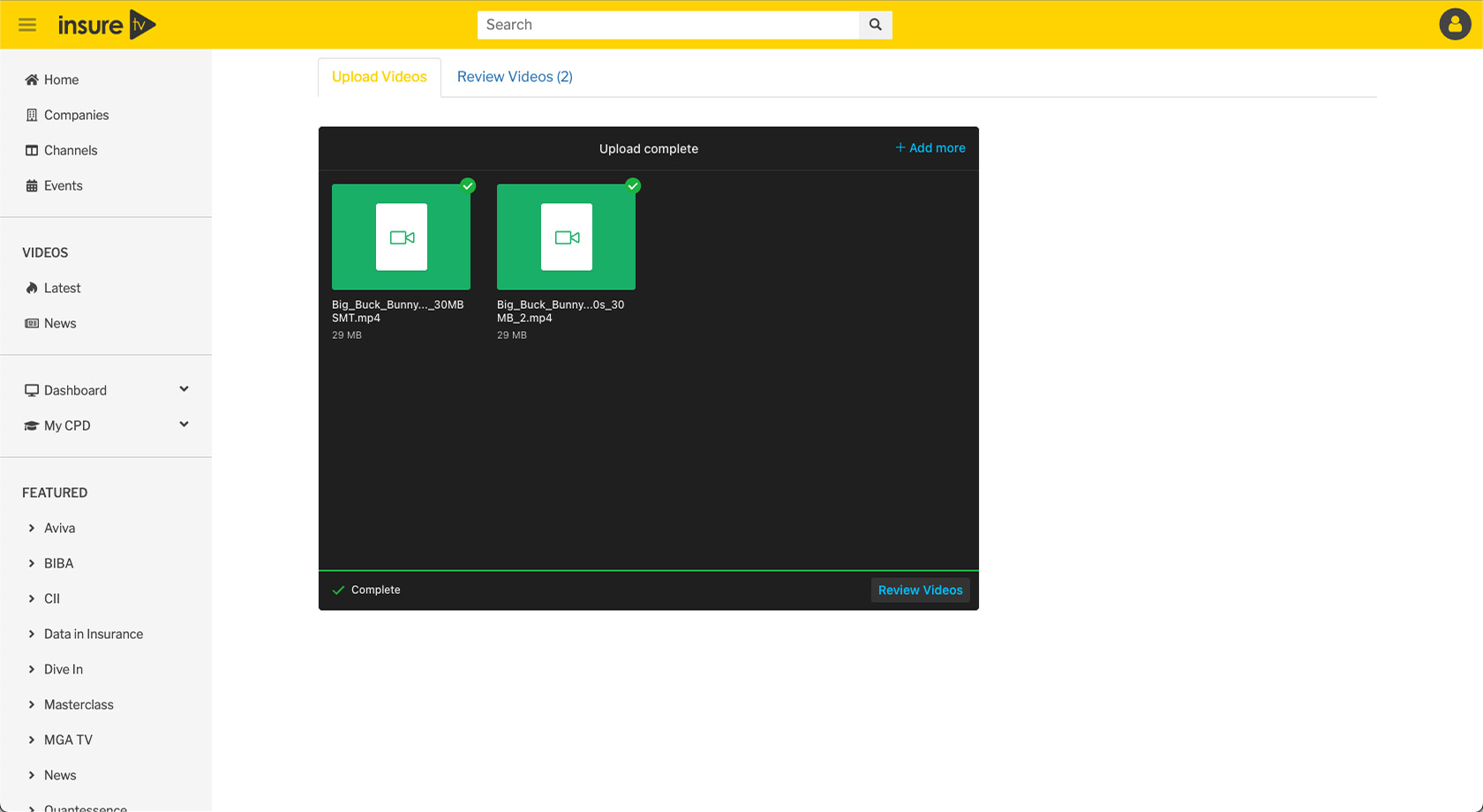
Step 4. Once you've added your video(s), click 'Upload files'. As soon as the videos have been uploaded, you should see tick mark with Complete where the upload button was.
| UK | US | Insure TV |
|---|---|---|
 |
 |
 |
 |
 |
 |
 |
 |
 |
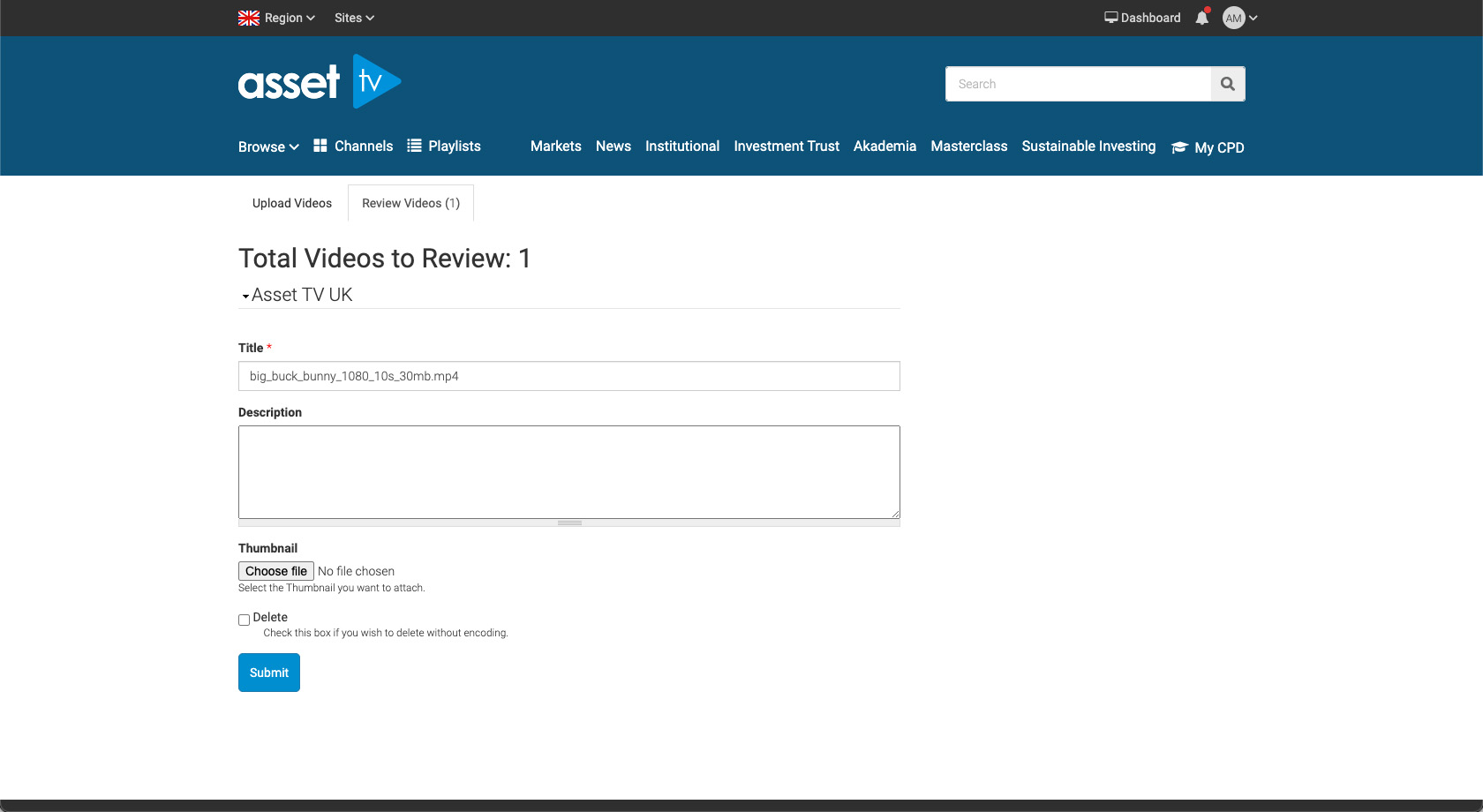
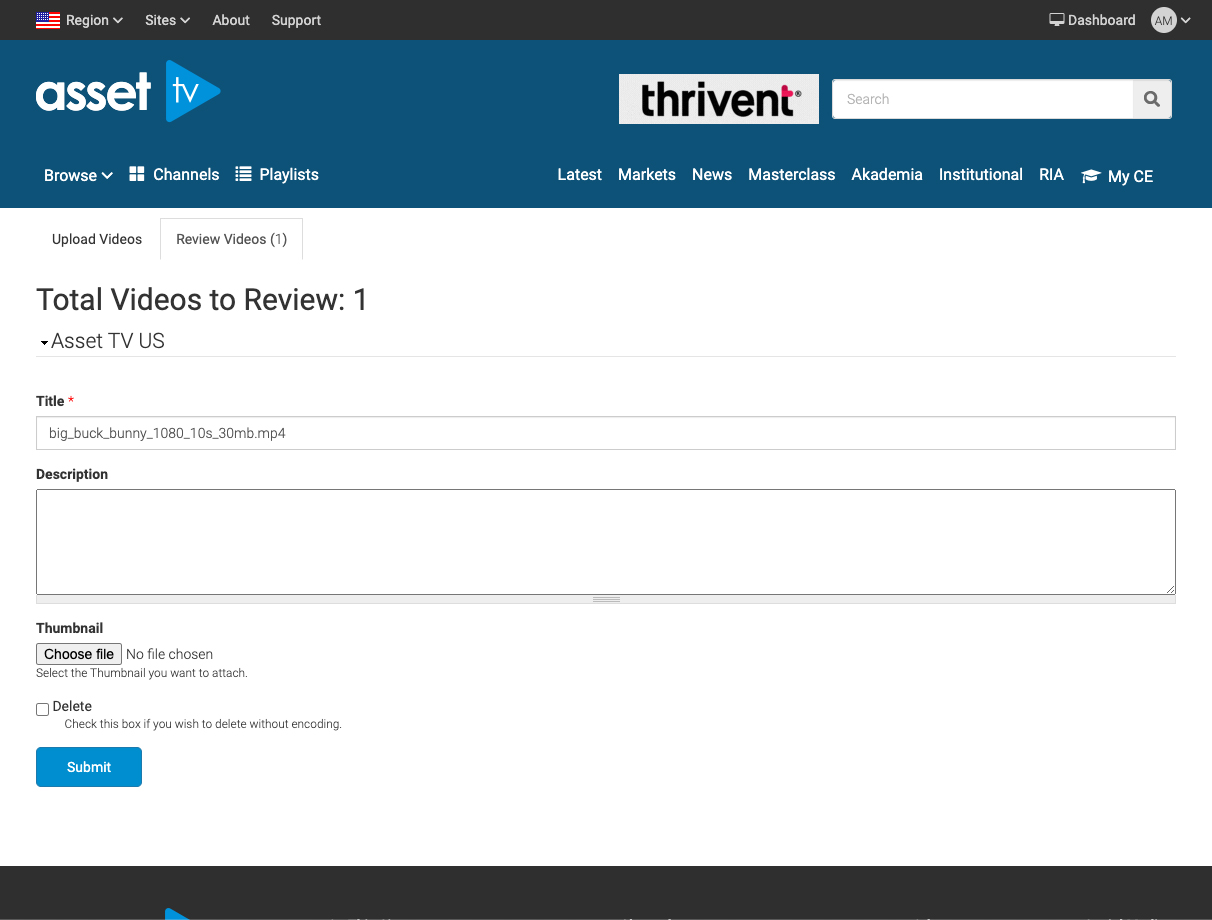
Step 5. Now you need to review the videos you've uploaded.
| UK | US | Insure TV |
|---|---|---|
 |
 |
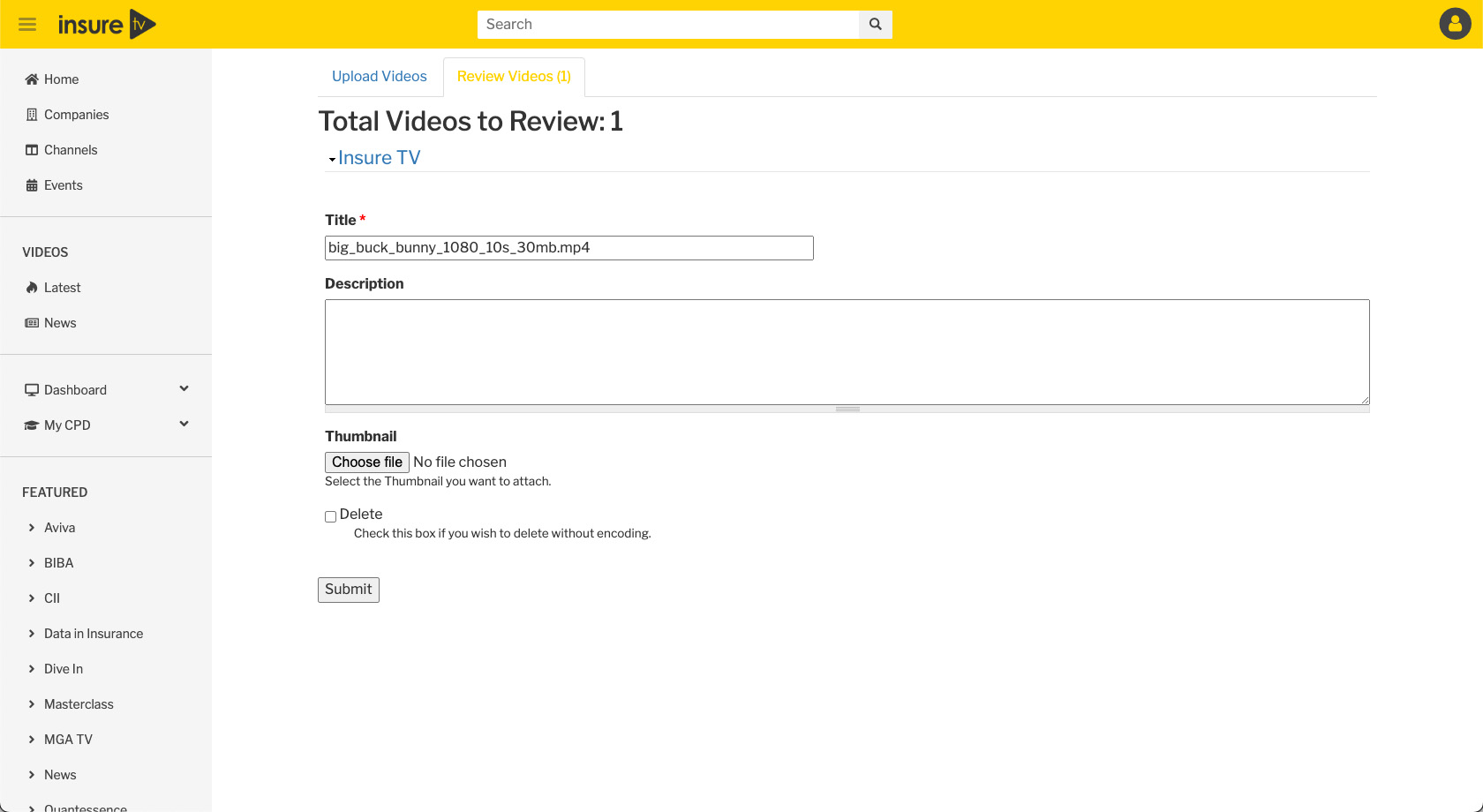 |
Step 6. For you each video you've uploaded you'll need to complete (or check) the following:
- Video Title,
- Description,
- Thumbnail,
- Delete - use this option is to delete the video if the incorrect one has been uploaded before it goes off for transcoding.
- Click 'Next' if you have uploaded multiple videos and complete the above fields for all videos.
- Once all video have been reviewed on the last one select 'Submit'.
Step 7. All complete, your videos will have been uploaded and sent to us.
Once a user has uploaded their video(s)
Asset TV / Insure TV
After the uploads have completed and Media Manager has finished processing the videos, they will appear on the Supplied Media page in the admin (Admin > Dashboard > Supplied Media).
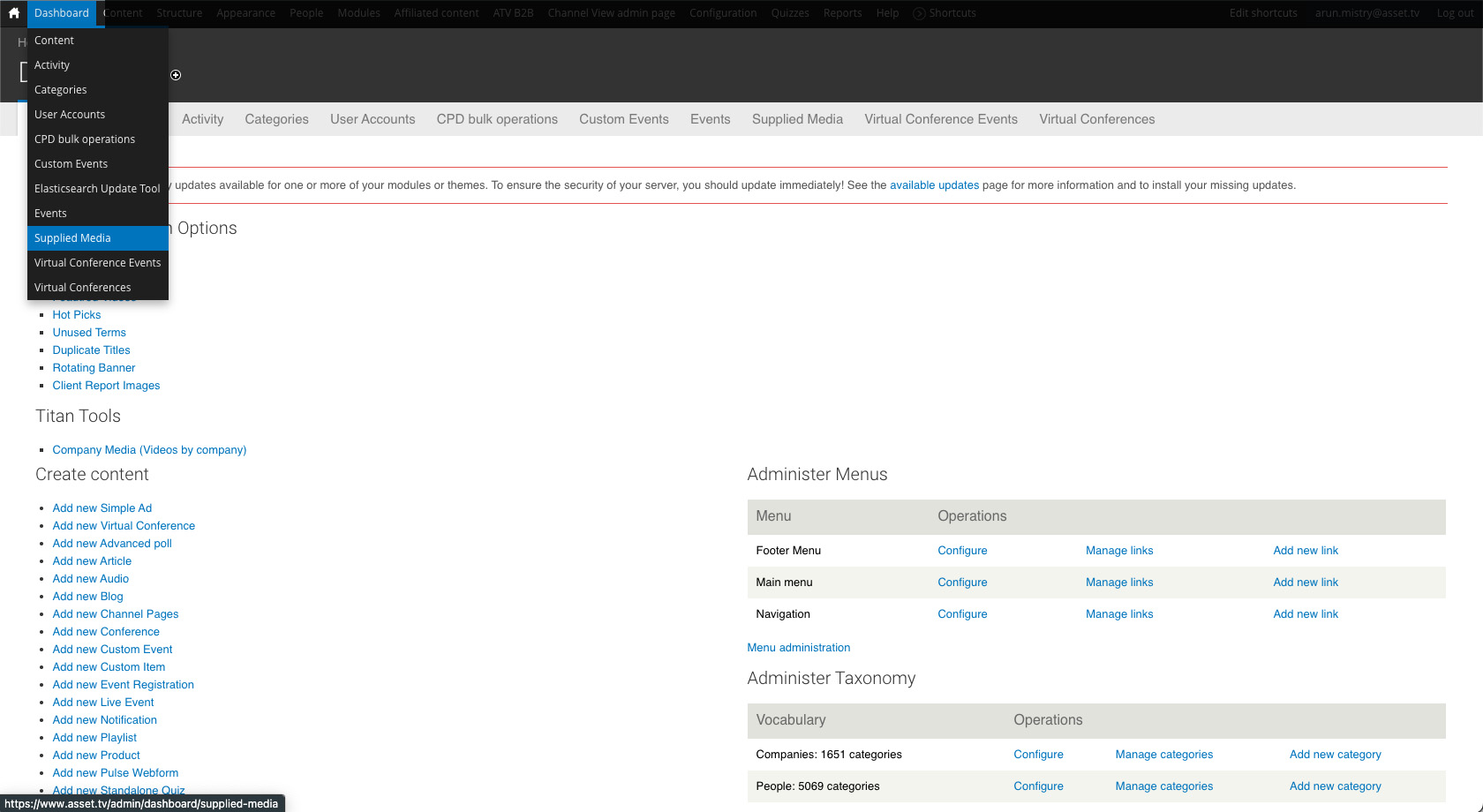
All the videos will be unpublished and need all the details checking/updating. Once a video has a Channel attached to it, it'll appear in the normal content view.
Info
It can take up to an hour for videos to show in Supplied Media.
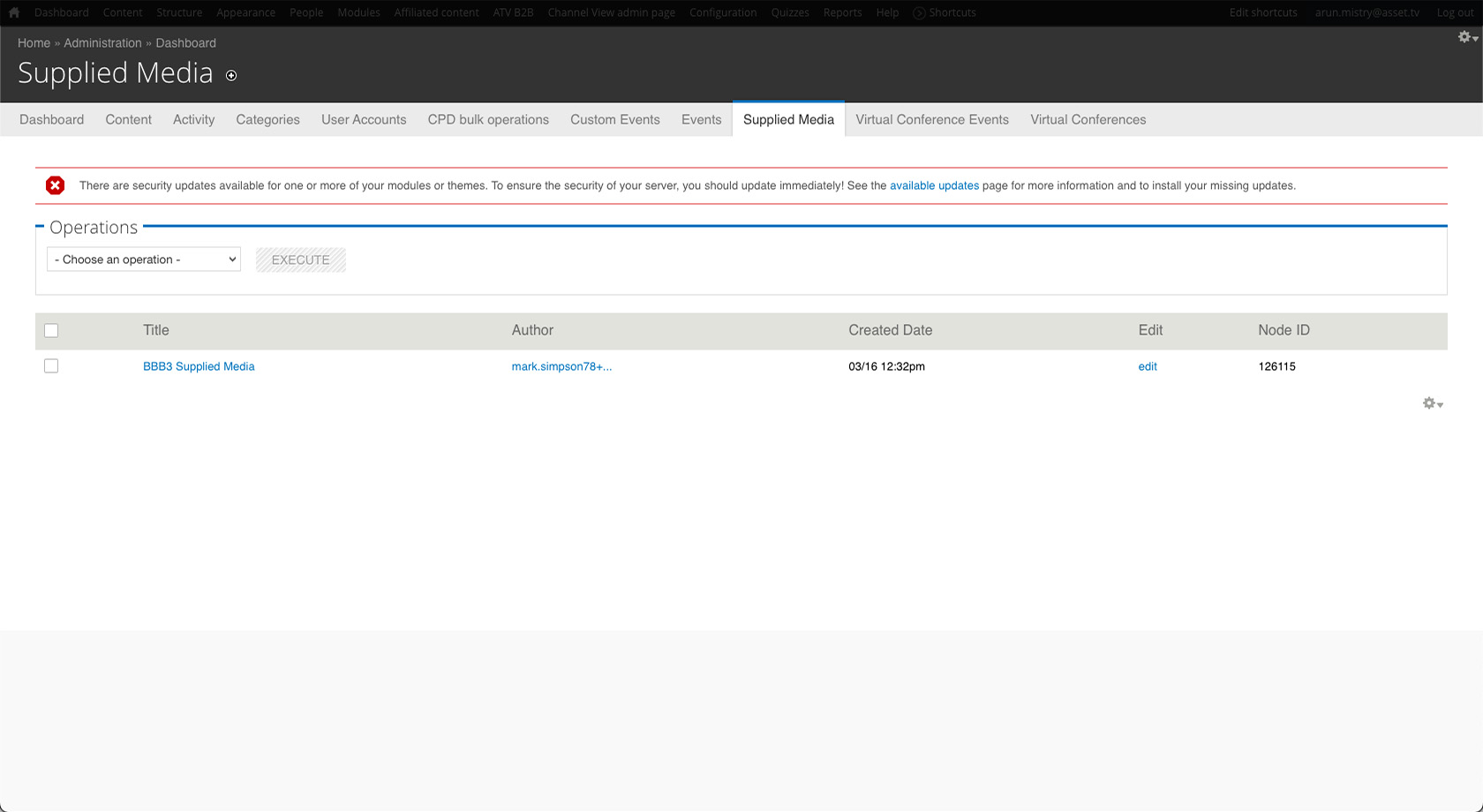
From here, it's like editing a video as normal, just check to make sure all the required fields are complete and correct.
Media Manager
Once a user uploaded their video(s) they will be accessible on Media Manager 3 for you.
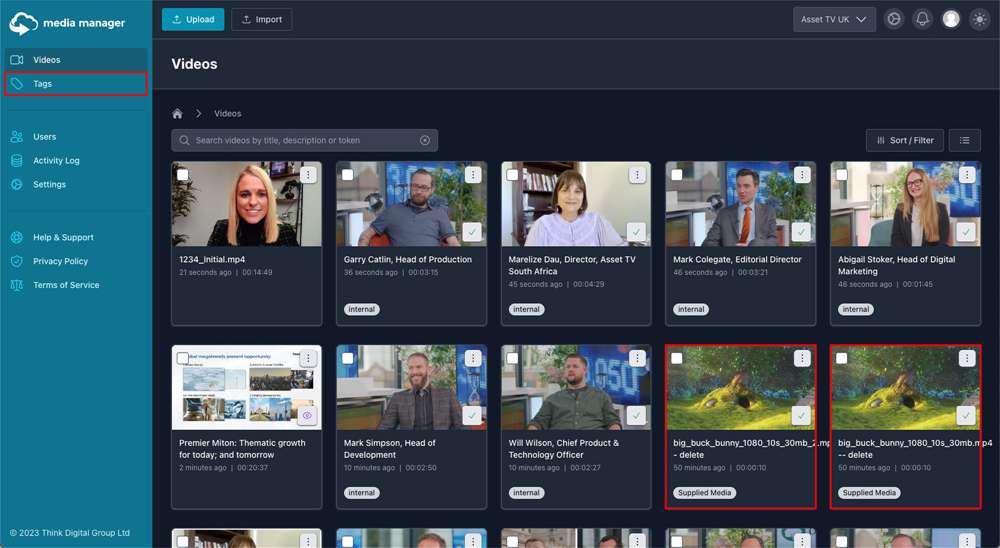
All videos added to Media Manager 3 via Supplied Media (from all platforms) will have the tag 'Supplied Media' added to them. This is how you can differentiate between videos uploaded directly to Media Manager and those uploaded via Supplied Media.