Setting up or removing a redirect for an unbranded channel page
Introduction
Redirects allow us to automatically take users to other pages. They can be useful in situations such as a link being promoted to email lists incorrectly - redirects allow us to redirect the incorrect link to the right content.
Another use can be for unbranded channels, as they are not accessible on Asset TV sites but are created for the Primary Channel dropdown on Video forms.
The company A-Z list of companies now links to a 'term' page for a company tag rather than a channel page. Companies previously linked to an unbranded channel page need a redirect to take viewers to the term page instead. The below guide focuses on setting up a redirect for this scenario, but the core process can be used to set up other redirects if required.
Setting up a new client's 'channel page' and the search redirect
New clients should still have an unbranded channel. This will apply to the mandatory 'Primary Channel' field on a video record.
To do this follow the standard Setting Up a Channel Page guide and create an unbranded channel for your client.
N.B. Remember to 'Exclude from Apache Solr' when you create the unbranded channel so it does not appear in search results on the site! Once the channel has been created you will then need to set up a redirect. This can be done by accessing via the black admin bar - Configuration > Search and Metadata > URL Redirects:
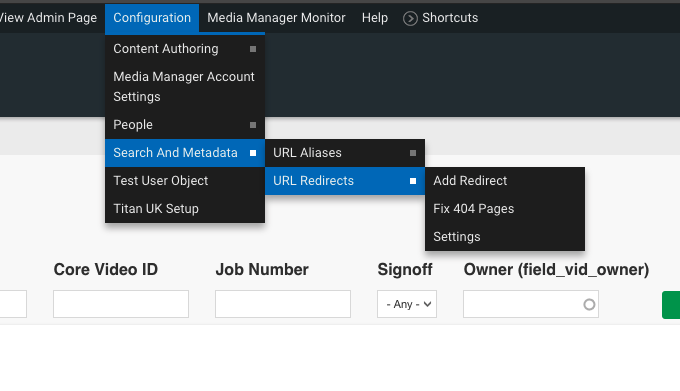
This will present you with a list of all the redirects that have been put in place across the site. To correctly set up your channel page's redirect click the blue 'Add Redirect' at the top of the page.
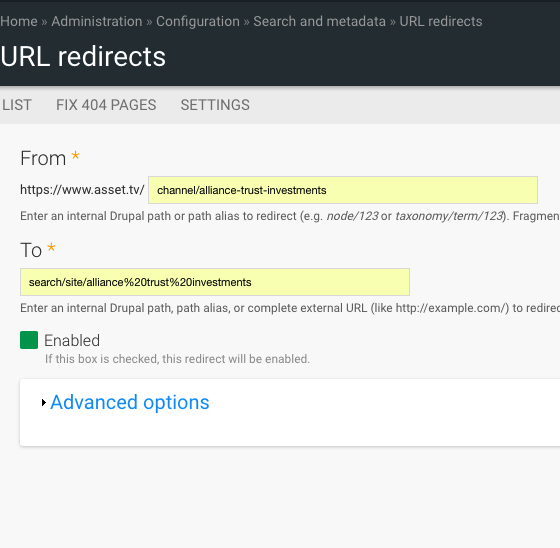
Enter your channels URL as shown in the below screenshot in the 'From' field, and then in the 'To' field in a separate tab perform a search for your companies full name to generate the URL as per the example below:
Removing a redirect for a client who upgrades to a branded channel
If a client opts to upgrade and have their channel styled to their brand then we will need to remove this redirect. To do so return to the URL Redirects page and using the 'Filter Redirects' field enter your client's name (try and stick to one word from their company name as the redirect will not account for any spaces).
Once you have found the relevant redirect you simply need to disable or delete it.
To delete it you can use the quick link in the table.
To disable click edit and simply untick the 'Enabled' box and save.