Creating a Standalone Quiz
Introduction
A Standalone Quiz allows you to publish a quiz to its own separate page. For example if we’re hosting only a quiz for a client, then this would be the way to host it for them.
Standalone quizzes also allow you make them public for non site users to complete the quiz.
All results for Standalone quizzes are recorded in the system. For non-public quizzes these required a user to be signed in and are added to a users CPD/CE as an item and recorded against the Standalone page created.
For public quizzes, the results/submissions are solely stored in the system and must be manually processed by an admin.
Special instructions for public quizzes are highlighted below.
Prerequisites
In order for you to create a Standalone Quiz, you’ll first need to make a quiz like you would when creating it for a video.
You can follow these guides to do that:
Instructions
Creating a Standalone Quiz is very simple, as long as you’ve already got the prerequisites complete.
- Also make sure you’re logged in to the admin panel.
- From the menu at the top, go to:
Content > Add Content > Quiz. - On the screen that follows complete the appropriate fields paying particular attention to the following:
- Title - The title of the Standalone Quiz and what will appear as the title of the page.
- Domain Access - Like usual this will allow the page to be seen on specific sites.
- Quiz - Here is where you choose which quiz you’d like to appear on this page.
- Duration - How much CPD the user will receive in seconds.
- Domain - Same as Domain Access above.
- Primary Channel - This is where the branding for the page will come from.
- Once you’re done, click Save.
To get your Standalone Quiz page link
- On the menu at the top click:
Content. - The filter for type:
Quiz. - From the list that appears, the title of your quiz is a link to the page.
Making your Quiz Public
This is the only change you’ll need to make a quiz public. Getting the results is the same as normal, go to the quiz and select view submissions.
- Go to
Quizzesfrom the top menu in the admin. - Edit the
title. - Check to make the quiz
public. - Save.
Doing this means when you visit the Quiz (on a Standalone page, or on Video page) you’ll see this screen before being able to complete the quiz:
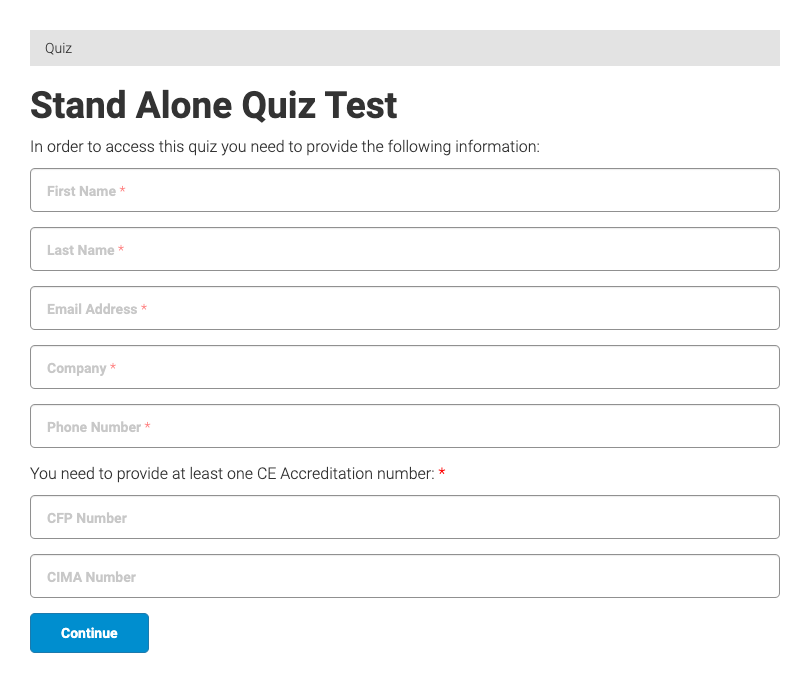
If you are an Asset TV user, these details will be prefilled, but if you are not an Asset TV user (or aren’t signed in), these details will need to be filled manually.
Creating the standalone quiz for a VCP event
There is an extra configuration required in additional to all the above so that the url for the quiz is the same as the VCP event and it takes the branding for the event.
- You need to edit the config under
URL Path Settings. - Uncheck Generate automatic URL alias.
- Change the URL to this format:
[conference-url-segment] / [survey-url-segment]- Conference URL segment - this is the section of the address after uk.vcplive.com/[this bit] for the particular conference this survey needs to belong to.
- Survey URL segment - this is usually automatically generated in this field;
content/[this bit]for this survey.
An example would be: