Retrieving a Player Embed code or Link
Introduction
To provide a client with a player to feature their media on their site requires you to link the video to the desired player, and then retrieve the code/link from the player details.
Instructions
Adding the video to your player
- When you're client has signed off their media and is ready for you to provide a player go to the video record and select edit.
- Go to the 'Site Player' tab:
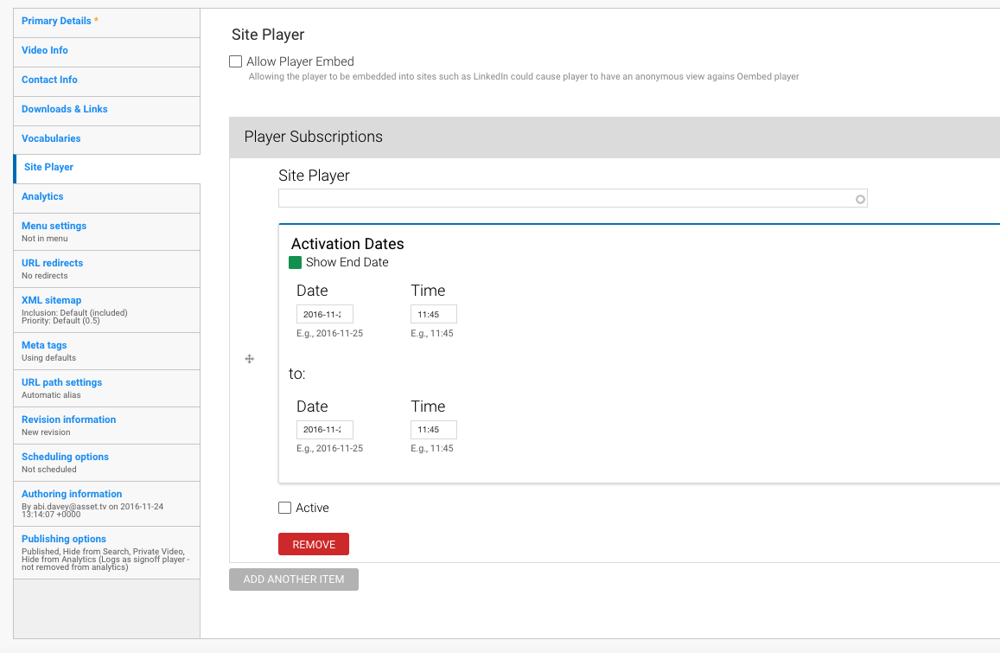
- The 'Site Player' tick box relates to embedding in social media sites such as LinkedIn and for the purpose of providing an Asset.tv player to our client we can disregard it for now.
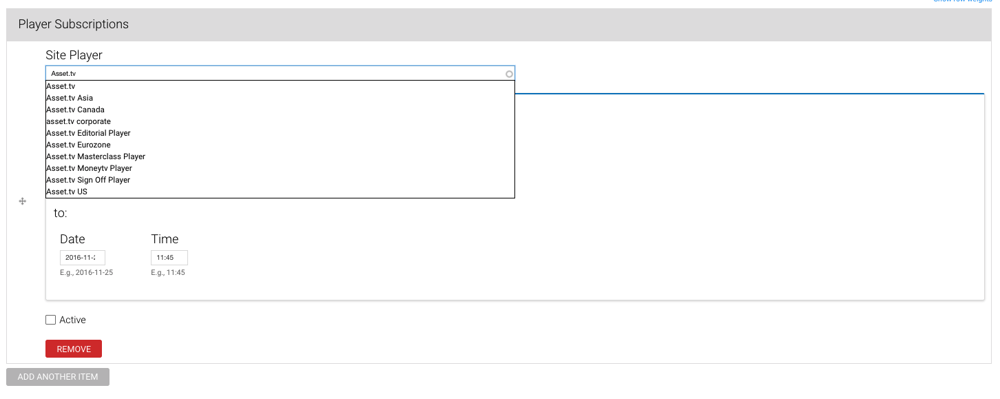
- Under the 'Player Subscriptions' heading is a text field where you can start entering the name of your player and the system will autocomplete allowing you to select the desired player:
- When you've selected the player you can then set 'Active from - to' dates. These will autocomplete to today's date so at the least you will need to update the 'To' date to ensure the player is active when sent to client:
- The 'To' date should be set to be one year after the date the player being supplied to client unless the job has specific requirements regarding the length of time a player is hosted.
- Click the 'Active' tick box to ensure your player is enabled:
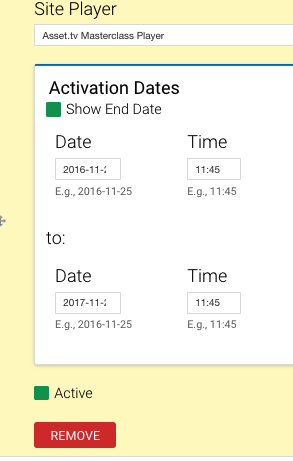
The active tick box can be used as a quick means to switch off a player should it ever be required, otherwise it will automatically untick on the date and time we've set it to. - The video can be added to multiple players by selecting the "Add Another Item" button.
- Once the details have been completed you can then save the video record.
Retrieving the Stand Alone Link or Embed Code
- Once you've updated your video record accordingly navigate to the Taxonomy Term page for players by selecting
Structure > Taxonomyin the menu and then selecting List Items next to the 'Sites' Taxonomy: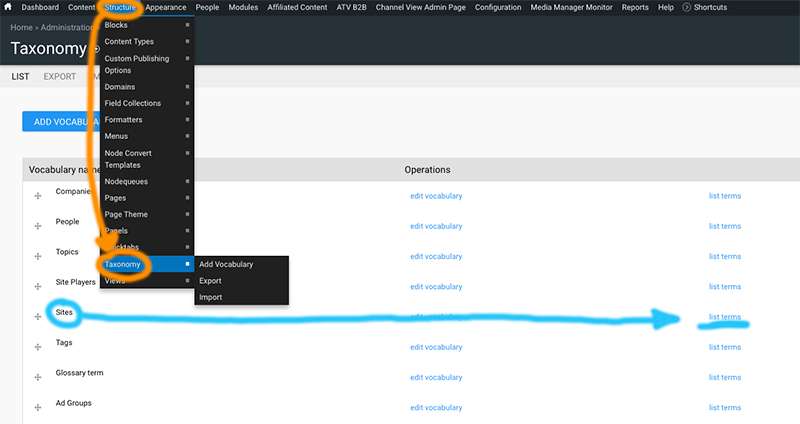
- This will show the list of players in the system. For convenience you can use the text field at the top of the list to filter based on the player name. Once you have found your player click 'Edit':
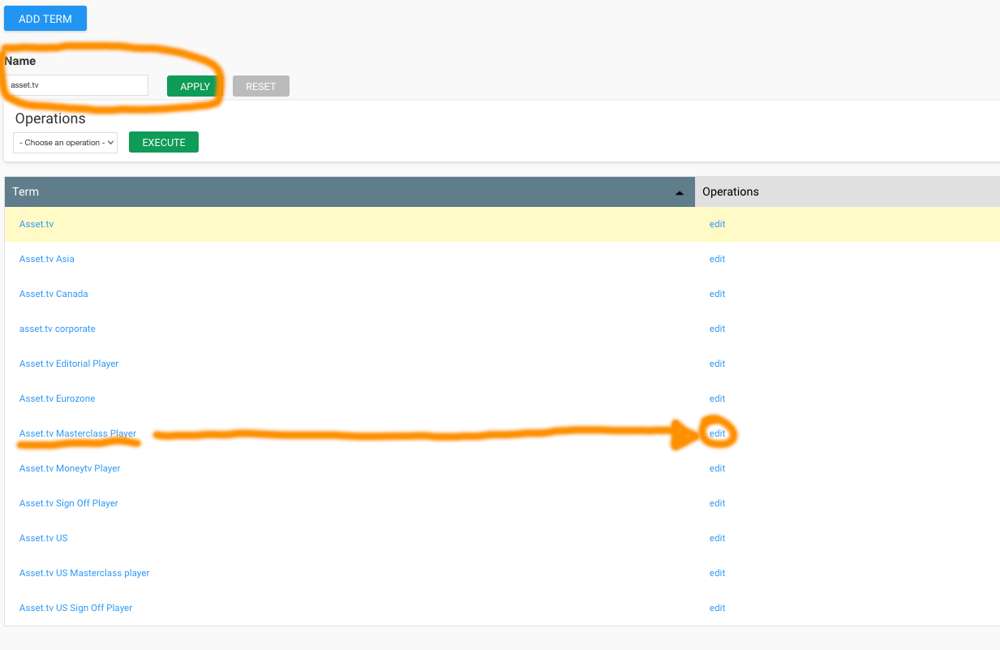
- On the player edit form select the content tab to see a list of videos attached to your player. Next to each player is a 'Stand Alone Player' link which will open the player in a new tab - this URL can then be copied and pasted and sent to client.
If your client wants to embed the player click on the 'Embed' button and a pop-up will appear offering two codes, already set for your media: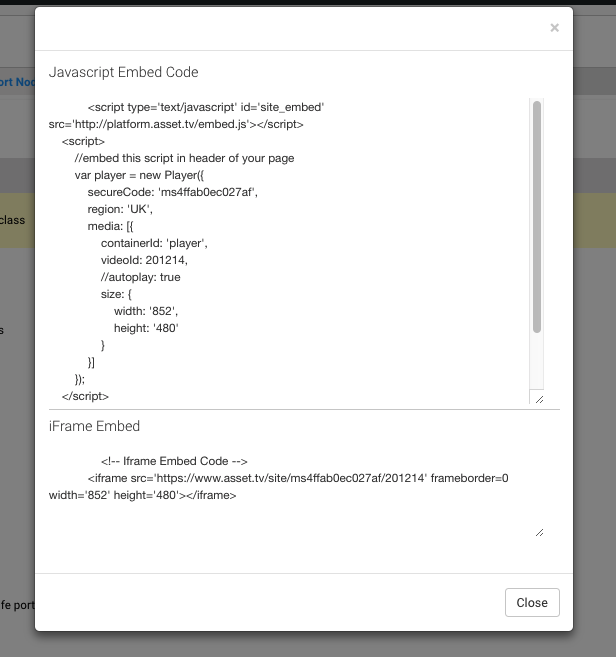
The full Javascript Embed Code at the top is our standard embed code and should be used as the default as existing customers will be used to it and some have set up automated systems using this code.
If you're client is unable to see the player using the full script and has checked they meet the minimum requirements (as outlined on our support pages for System Requirements) then it may be they're using a system that is stripping vital tags from our embed code. In these instances you can provide the stripped down 'iFrame Embed' code instead.