Sending Custom Notifications
Introduction
The Viewer Engagement features available on Asset TV websites allows us to send notifications to users' Dashboards.
Some Notifications are automatic - for instance when a video is published to it's Primary Channel an automatic notification will be sent to any subscribers of that channel.
We can also send Custom Notifications to users.
Instructions
- To send a Custom Notification, in the admin select '
Content > Add Content > Notification', on the form that shows you can: - Give your notification a title - this doesn't appear on the user's screen but would be how you would find the notification in the system later.
- Add a description - this is the message the user would see on their Notifications screen.
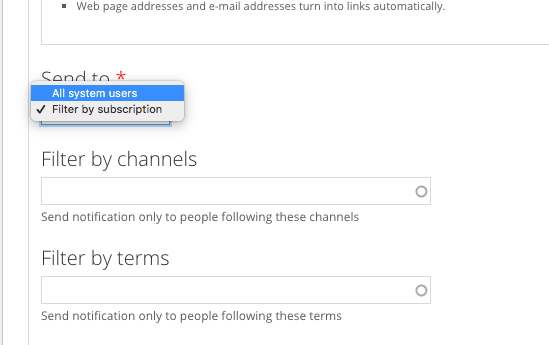
- You can then target the notification at specific users based on their subscriptions
- By default your notification would be sent to all users,
but using the dropdown option you can set this to: - 'Filter by Subscription' and two additional fields would appear allowing you to select either the term or the channel subscribers before sending your notification.
- By default your notification would be sent to all users,
Tip
We would advise always 'Save and Test Notification' for any Custom Notification. This will add the notification to your account only so you can review how it will appear for users. Once checked and you're happy you can then return and click 'Save and Send Notification'.
Notifications for subscribers to non-Primary Channels and terms.
Due to how the system works when you add new content to the site, the automatic notifications will only go to subscribers of the Primary Channel that has been set on the video record. Any other channels that would feature the video would not have it's subscribers issued a Notification.
This means when we add content to our own channels, such as Hot Picks, subscribers are not being informed. We can now use the Custom Notification tool to correct this:
- When you've added your content by giving the video the '
Hot Picks' tag (or the tag relevant to the page you're looking at) simply 'Save' the video (Save and Send Notification would only send it to the Primary Channel subscribers again!). - Then navigate to the channel page and select the video and copy the video's URL (this will give you a URL that will apply this Channel's branding rather than the videos Primary Channel).
- Start your Custom Notification as outlined above remembering to use the copied URL as a link - if you do not do this the notification won't redirect the user, it would simply appear as text!:
- Click 'Save and Send' to push this notification to the selected channel's subscribers.
Info
We would recommend 'Save and Test Notification' first as stated above.