Creating a Premiere Video
Introduction
Asset TV Premier allows you to make a video on Asset TV appear as though it is being broadcast live.
It will free up production team time when they must stream a video to a live broadcast system. It can be used for videos that are pre-recorded but broadcast as a live event such as a Masterclass.
It works by the editor adding a premier date and time to a regular video. From this time to the end of the video’s duration the video will appear as though its being broadcast live and cannot be scrubbed past the current duration played.
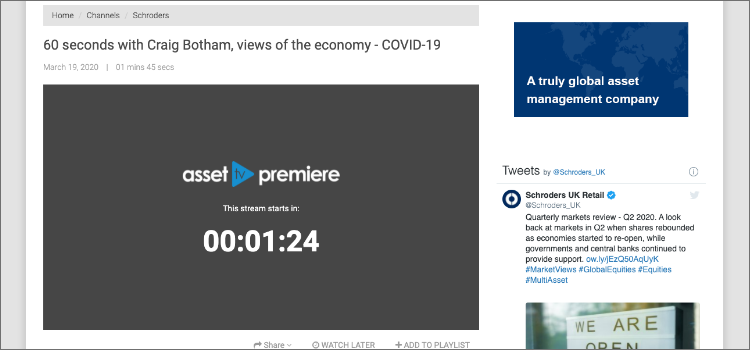
For example if the current time is only 10 minutes into the video and the video duration is 30 minutes, viewers will taken to the 10-minute mark and cannot go any further forward, but can go backwards.
As this is now a normal video, all reports and analytics will be updated almost instantly and an editor will not need to download MI and upload it to Analytics.
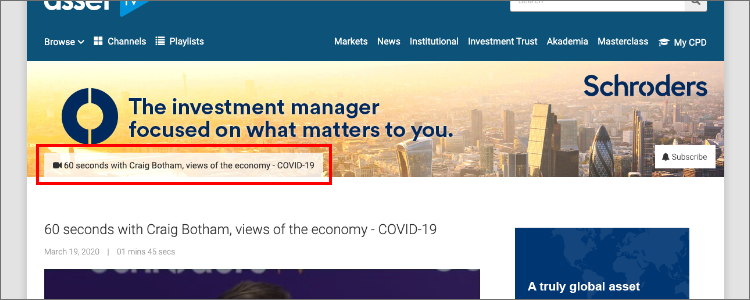
On the channel the Premier video belongs to it’ll give a tab showing when the video will go live.
Tip
Please note you’ll need to create a normal video record before being able to use the Premiere functionality.
Instructions
Follow these steps to make a premier video.
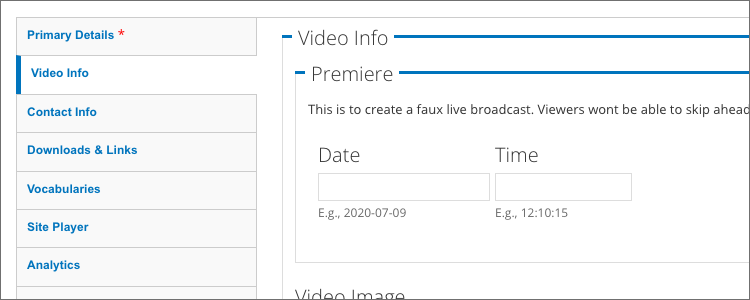
- You need to first make a video record by following this guide Creating a Video Record.
- Once finished go to the video again and
editit. - Go to
Video Info Tab. - Put in a
date and timein the future forPremiere. Savevideo.- Now the video will have a countdown and when it hits that date and time, the video will start playing.