Controlling Asset TV Homepages
Info
This guide will refer to the sections as highlighted in the image below.
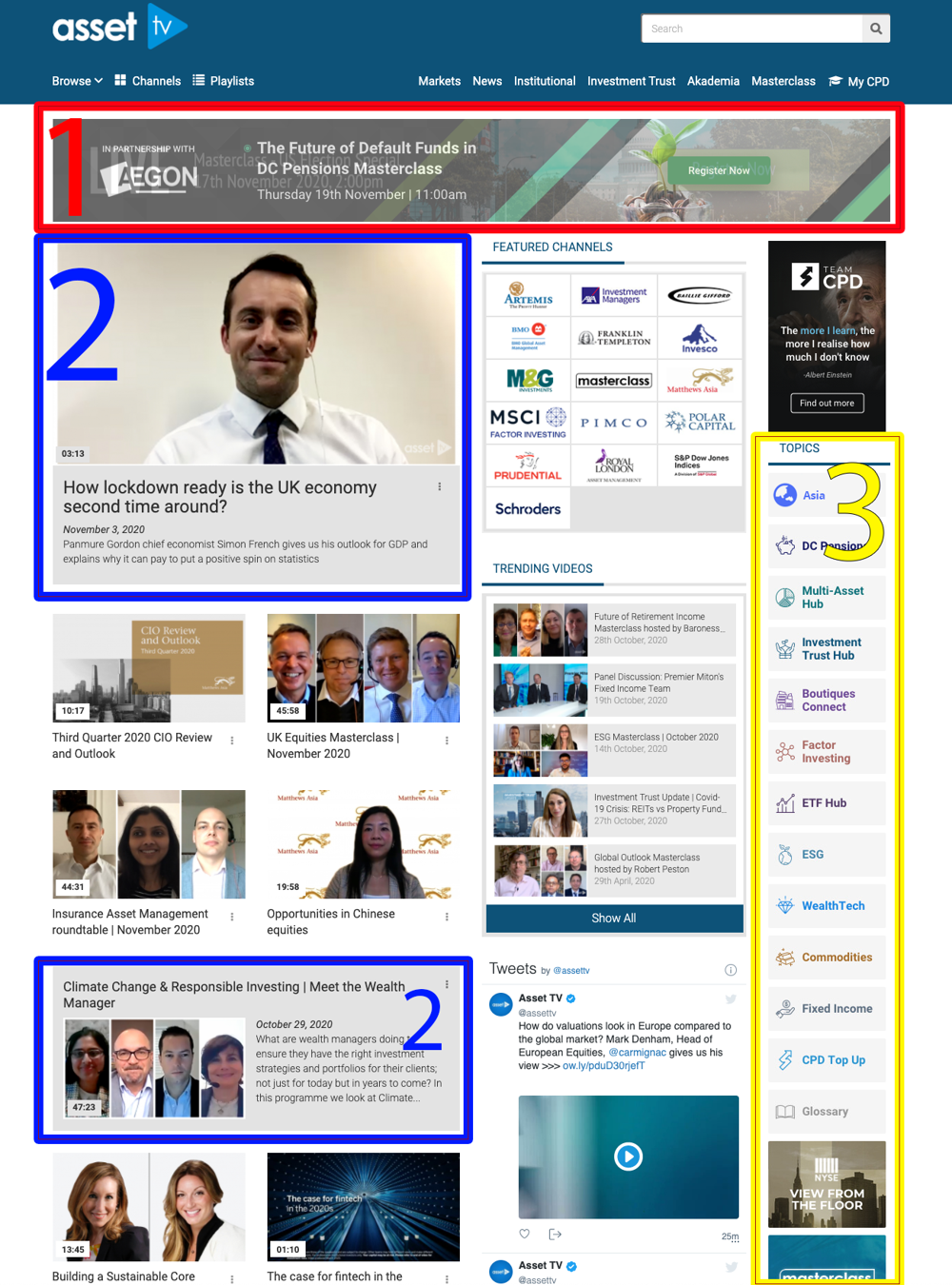
1 - Homepage Banners
To update the homepage banner we simply need to create a new "Custom Item" using the option in the admin menu or from the "Add new Custom Item" link on the dashboard.
For the system to pick up that this item is for the front page banner we simply need to ensure the name of the item starts "Banner -" before adding a more appropriate/descriptive title.
Then simply upload your image - the Homepage Banner should be less than 1140px wide and either JPEG or PNG format - and set the link as you normally would for a "Custom Item" (i.e. for external URLs include https:// and for pages within the Asset TV site you can remove that portion of the URL).
You can have your banner appear on the US or Canada sites (UK, Europe or Asia for www.asset.tv) by selecting the domain you would like it to be distributed to at the top of your Custom Item form.
A Good Tip!
The banner displayed on the homepage is selected by the system based on the publish date of the Custom Item so that the most recent item created is displayed. This means it’s possible to reinstate a banner than has previously been used without having to create a ‘duplicate’ Custom Item. You can simply update the Publish date of the older banner to today’s date and this will push it to the front page again.
2 - Featured Videos
There are three featured slots on the homepage for videos you’d like to promote above others. These will sit on the homepage regardless of the published date.
The featured slots are spread over the page with the first being the primary video at the top of the page. The second and third are in the middle and bottom of the page respectively. To highlight them they are given a line of their own rather than falling into the two columns for normal videos:
To control the three featured videos you will need to select "Nodequeues" from the "Structure" menu.
Note
You can ignore the submenu that appears and just click ‘Nodequeues’
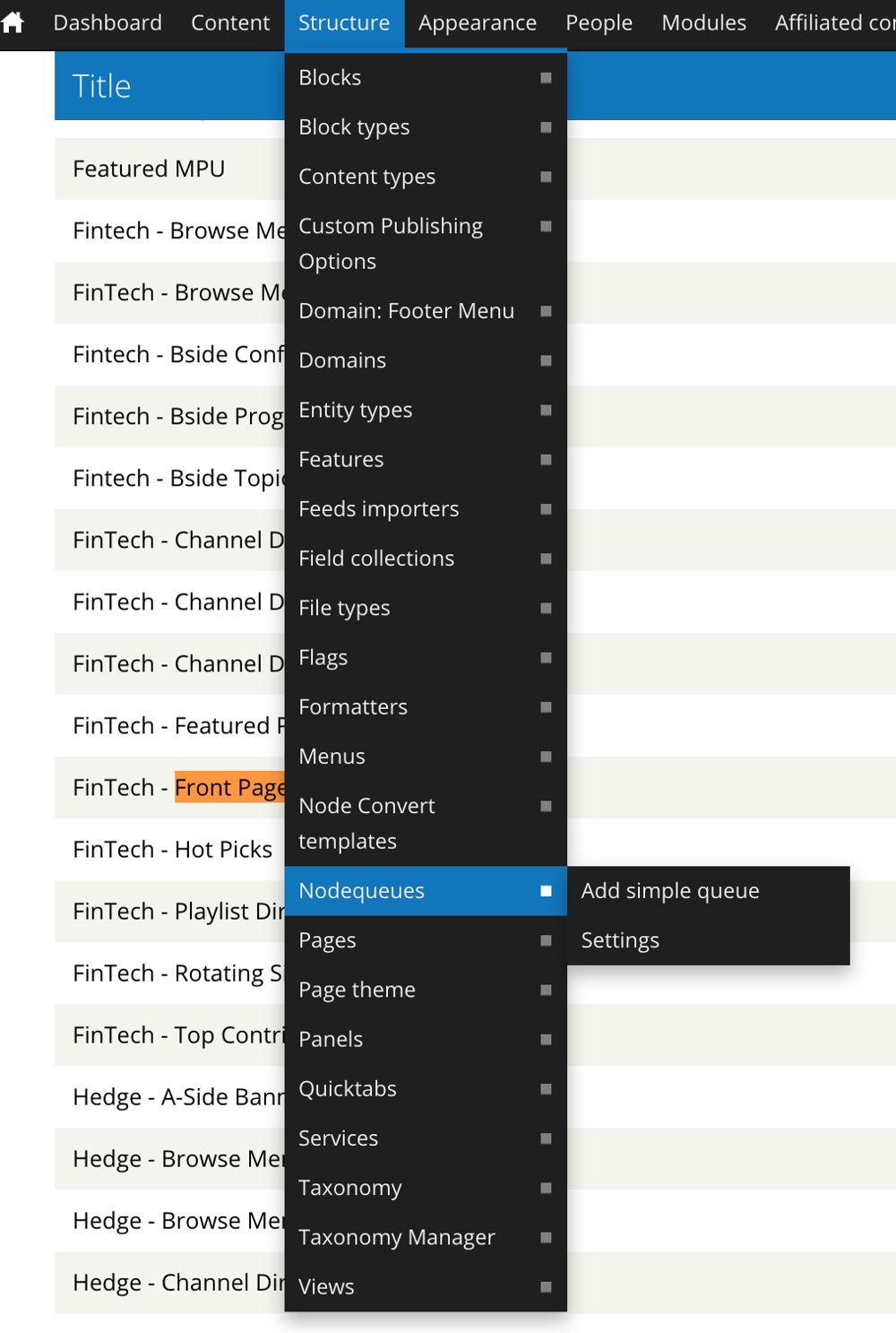
This will list a number of elements from across the site. For the Featured videos we want to select view on the "Front Page Featured Videos" nodequeue – edit changes how the Nodequeue itself operates, whereas view shows us the content and allows us to edit that accordingly.
The view link will show you the current three featured videos and allow you to change the order by dragging and dropping, removing completely via the remove link or adding a new video by typing into the Add Content field.
As you type the field will autocomplete from your video content allowing you to select the desired video.
If you add a fourth video (i.e. there is already a list of three and you haven’t removed one) it will remove the video at the top of the list (your primary featured video), push the other existing two up and place your new content at the bottom of the list.
Changes to the videos listed will be reflected immediately, but if you drag and drop them to change the order you will need to select "Save" at the bottom of the form.
3 – Front Page Bside Adverts
Bside Adverts are created using the "Add Custom Item" link on the Titan Dashboard.
On the form you will just need to give your Custom Item a title and upload an appropriate image – the image should be a JPEG or PNG at 220px wide. At the bottom of the form you can enter the URL you would like your Advert to go to.
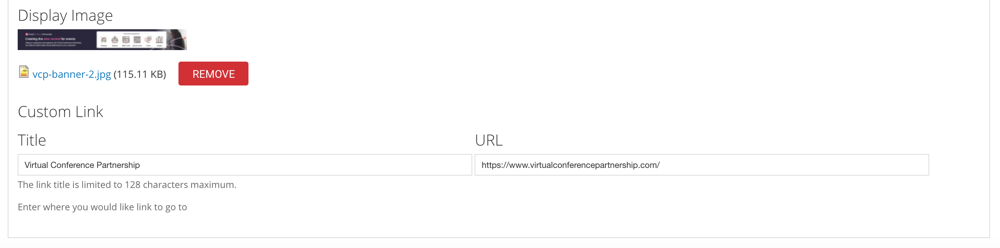
Once you have created your "Custom Item" we can now add it to the front page.
As with the Featured Videos the Bside Ads are created using a Nodequeue so you will need to select "Nodequeues" from the "Structure" menu again.
This time you will want to select view on the "Front Page Bside Adverts" nodequeue:
The view link will list the current Bside Adverts and allow you to change the order by dragging and dropping, removing completely via the remove link or adding your new Advert by typing into the Add Content field the name of your "Custom Item".
As you type the field will autocomplete from your "Custom Item" content allowing you to select the desired content.
There is no limit on the amount of Bside Adverts you can place on the Homepage so adding a new one won’t remove any of the others. We can then reorder by dragging and dropping each item.
Changes to the number of adverts (i.e. removal or additions) listed will be reflected immediately, but if you change the order you will need to select "Save" at the bottom of the form.