Logging with Linked In
Introduction
Asset TV sites now allow users to register, or login using LinkedIn accounts. This feature could raise a few issues with user profiles, but they can be easily resolved by following the guides below:
The user's LinkedIn account details aren't the same as their Asset TV profile
If an existing user links their LinkedIn account to an existing Asset.tv account then this will appear on their profile as an 'identity'. It will not change their existing profile so they could still login using their original Asset.tv username. If we needed to we can simply edit their profile and using the email address listed under the Linked In information you can update the email address as you would normally.
A user has accidentally linked their LinkedIn profile to an incorrect account
It's entirely possible that a user could link an incorrect LinkedIn account to their ATV profile, or vice versa. Viewers who use shared computers are particularly at risk as another user may have left their ATV or Linked In account logged in and then the second user has either linked the first's Linked In profile to their account, or their LinkedIn account to the first user's profile.
It is practically impossible to set up an automatic way to prevent this from happening, so it would be up to the viewers to submit a support ticket for us to correct this. They should be able to remove the 'link' to their LinkedIn profile via their user profile page on ATV, but some people may not realise or look for this and contact support instead. To correct this you simply need someone with Administrator privileges to edit the profile via the users profile page in Titan/Hydra (click 'People' on the black admin menu bar). When then click edit at the top of their profile it will list the details of the LinkedIn account with the option to simply delete:
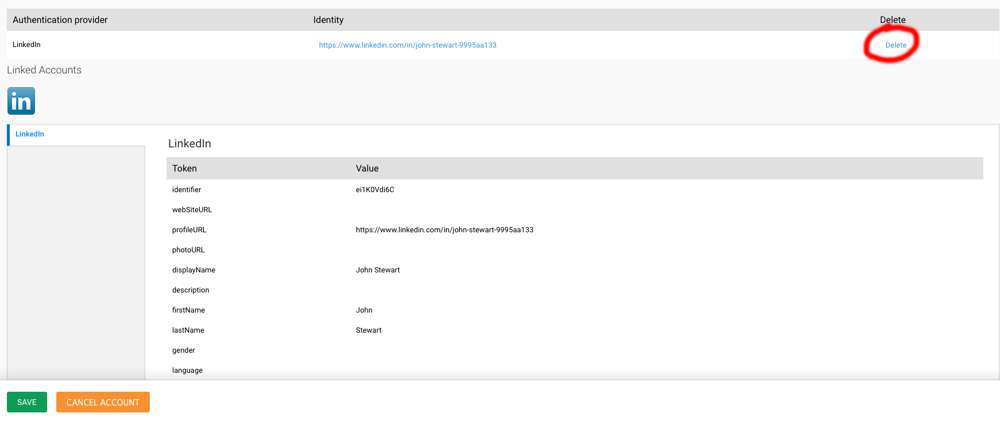
A confirmation screen will appear asking you to click you're sure, then the connection between the Linked In and their ATV accounts will be terminated. If they wish the Linked In identity on another account they will simply need to ensure they log out the other user beforehand.
Warning
This should not be done on new accounts created using the Linked In option as it will delete the whole ATV account not just the connection to their LinkedIn profile!
An existing user has created a new account using the LinkedIn login option
Another issue that may crop up is if an existing user clicks login with LinkedIn without already being logged into their ATV profile. This will generate a new account for that user IF the LinkedIn account email address differs from the ATV profile's one. Where the email addresses match the site will simply log them into the existing account and create an 'Identity' connecting it to the LinkedIn account.
If a user ends up with two accounts due to the Linked In option we can then simply merge the accounts by following the below process:
- Go to the edit page for the old profile.
- Copy their email address and SSO ID from the Admin part of the form (about halfway down):
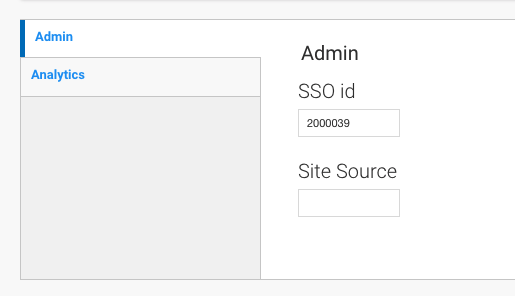
You will need these, so you should make a note, or continue the next step on a new tab. - Delete the old account! If you complete the following steps in a new tab you can enter the details and then come back to delete before pressing save.
- Click to edit the new account that was created with LinkedIn.
- Paste the old email address over the new one taken from LinkedIn.
- Paste the old SSOID over the one that will have been automatically assigned when the account was created.
- Once those have been entered, and the old account deleted, you can click save.
Any existing CPD from the old account will be linked to the SSOID so won't be lost or kept on a different account meaning your viewer can carry on as normal from then on.
Advice for users
Part of the updates we've made to user accounts means that people can edit their own profile details to update personal information and passwords. Below is some advice you may wish to pass on if people are still contacting support@asset.tv to update these details.
Accessing their profile page:
To access their profile page users simply need to click on their email address in the top right of the site:

Info
If the user has only logged in with their email address they will be prompted to enter their password. Once entered they will be taken to the CPD profile page and will need to select the email address again to go to their profile page.
Once logged in with a password (or via their LinkedIn profile users will then be taken to their profile page:
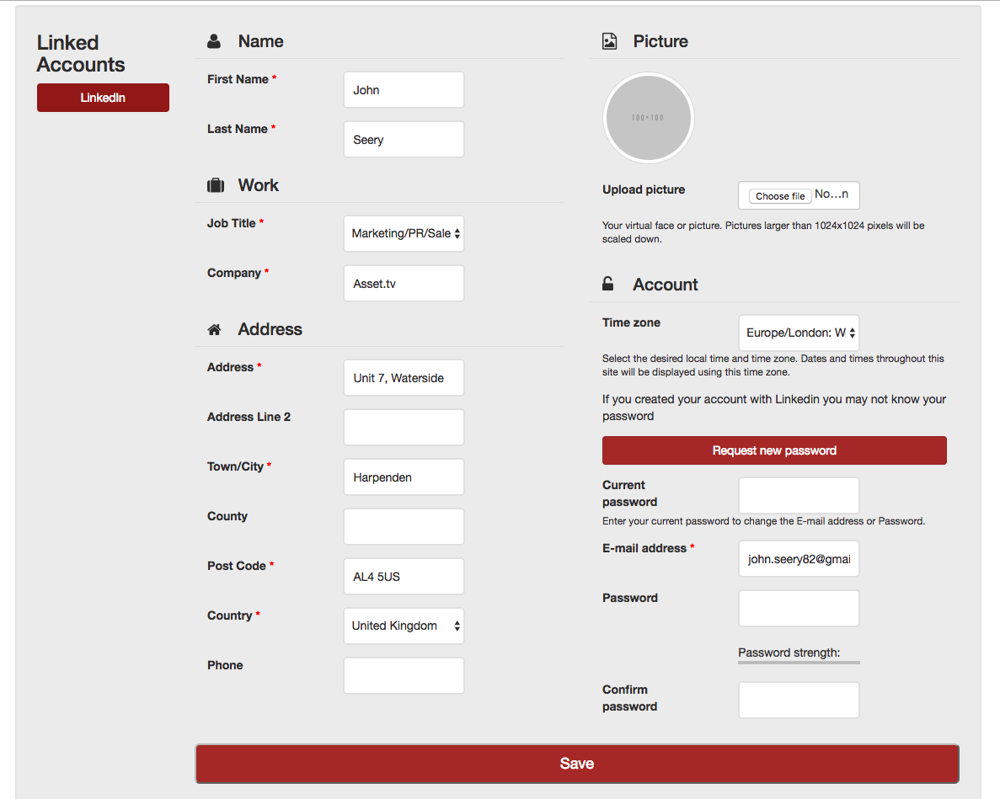
Users will see and update their email address, personal information or change their passwords.
The profile page will show if the user has associated their LinkedIn accounts, or if not will allow them to create a link.