Setting up Redirects in your site
One way to ensure that your site's users are easily able to navigate the site and are taken to the pages we want them to see is to use the redirects tool.
Redirects allow you to, for example, take a user who searches for a specific term to a relevant channel page, article or video instead of a potentially confusing search result page.
Setting up redirects can be done in two locations - the first and probably simplest is within the content's node form. All content, whether it's Videos, Articles, Channel Pages, Custom Items, Live Events etc. all contain a URL Redirects tab. This allows you to set up redirects from one page on the site to your content. The best example of this is redirecting searches for specific company names to immediately go to that companies branded channel page where relevant.
The second place is in the dedicated Redirects section in the admin. Both methods are described below.
Setting up a redirect a content page
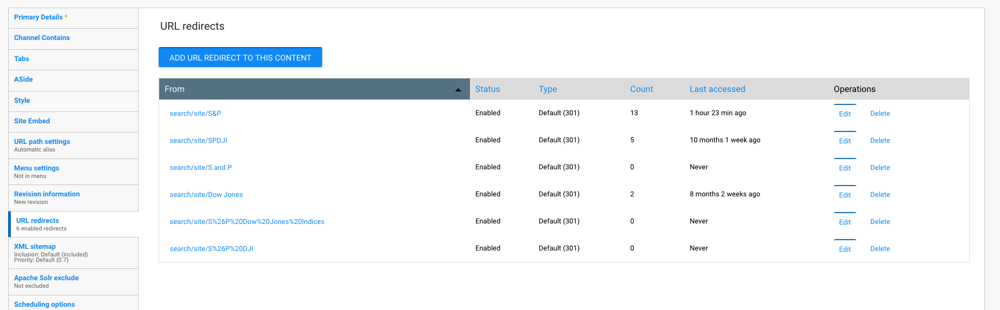
In the example above a number of search redirects have been set up for the S&P channel allowing site searches for terms such as S and P, S&P, Dow Jones, to take the user directly to the channel page. To enter a redirect via the content's form simply click on Add URL redirect to this content.
This will take you to a form where you can enter the URL to redirect from and to.
When accessed via the content's form the 'To' section will already be complete and can be left alone. The 'From' section will enter the start of the URL for you (we can only redirect from our own sites so this just reinforces that). Enter the end of the URL you want to redirect from (for search redirects or term pages often the simplest way to get the URL is to perform the search and enter the URL that you go to).
Warning
Please note that spaces in urls will be replaced with a html tag '%20' which should be removed for your redirect and replaced with the space again.
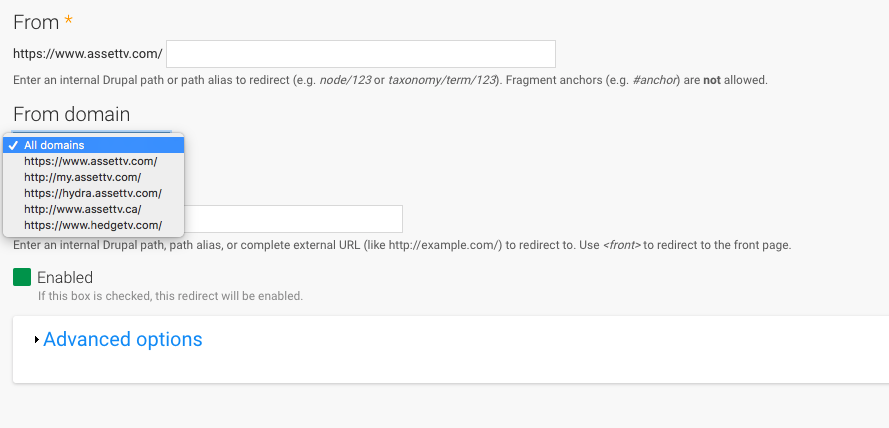
The 'From Domain' section would allow you to set a redirect by region. For example you may want a search redirect for the US site but not the Canada site. This allows you to set the region by selecting the appropriate domain for the redirect to be enabled on.
Setting up a redirect in the redirects admin section
From time to time you might find you need to create a redirect from one URL to point to another. You can create URL redirects via the admin bar and also check existing ones - Configuration > Search and Metadata > URL Redirects.
Or you can go directly using these links:
- US - https://www.assettv.com/admin/config/search/redirect
- UK - https://www.asset.tv/admin/config/search/redirect
Note
If you don't have access to any of the URLs below after logging in, you will need to raise a ticket with the web team.
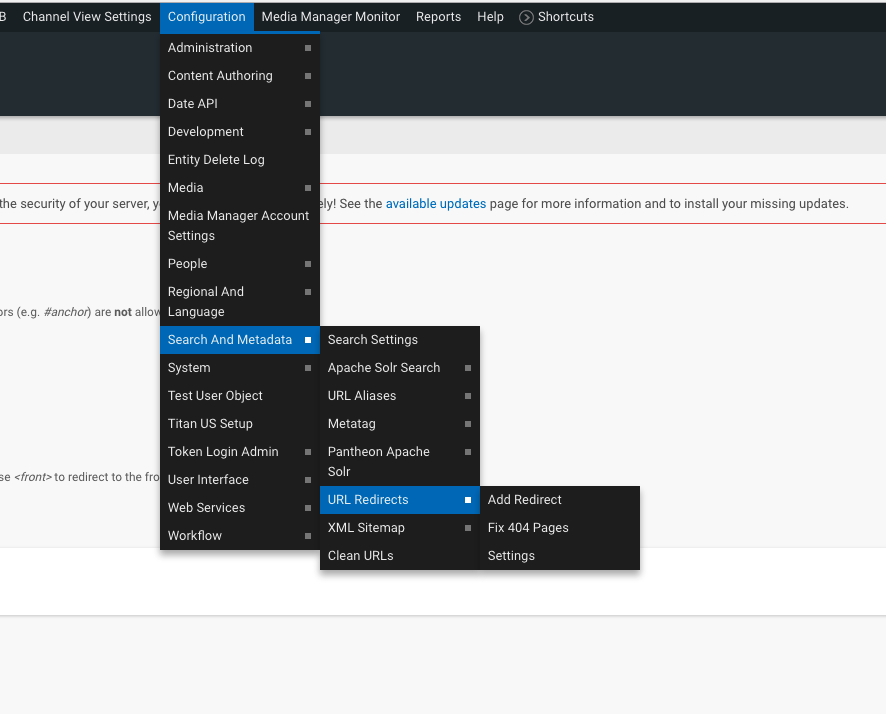
This will take you to a table listing all the redirects set up in the site. You can use this to edit existing redirects, switch them between enabled and disabled or create new redirects. When you click "Add" from this page you will be taken to the same form as the one highlighted above. Unlike creating it directly form the content though you would need to set the 'To' URL.
Use these instructions to do that:
- Go to one of the links above for either UK/US.
- Click
Add Redirect. - In the
From field, you need to put the URL you want to redirect from (the original), but only the end part of the URL, the page gives guidance on this. - In the
To field, you need to put the URL you want to redirect to (the new URL), here you need to put the end part of the URL if you're redirecting to another place on the website. - Click
save. Testthe redirect is working.
Tip
When going to edit a redirect, if it's a node you're redirect to or from, it may be the node URL showing and not what you originally put in.