Bulk Archiving Content
Introduction
Periodically you may be required to archive in bulk, i.e. a company requests all their content be removed or you need to remove all content posted before a selected date.
Instructions
The best place to archive content in Hydra or Titan is on the 'Media By Domain' page (/admin/media-by-domain)
- Use the filters available to limit your list to those videos you want (in the screenshot example I have choosen all Masterclasses before Jan 2019).
Tip
You should always filter to published content only so you don't try to make changes to already archived or yet to be published content.
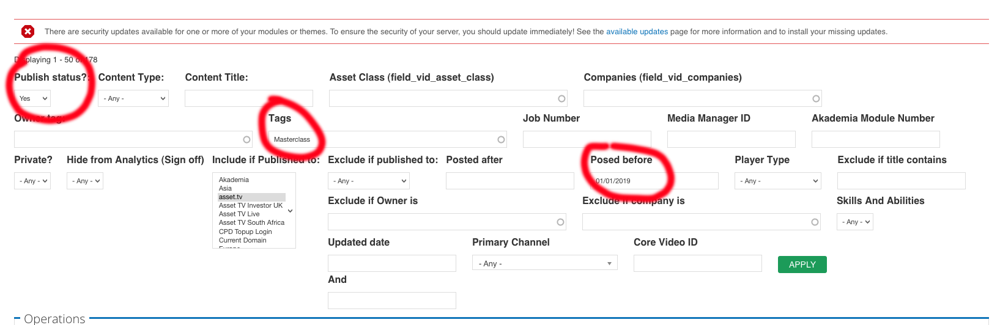
Once selected there are a few steps to take to archive the content.
When selecting all video on the page
If you use the select all option on the table you will see another option to select all videos in your results or leave it as the results on that page only.
- The first is to apply the 'Archived' check box.
- To do this select the videos from the list you wish to apply changes to.
- From the 'Operations' drop down you then need to select '
Toggle a Custom Publishing Option On'.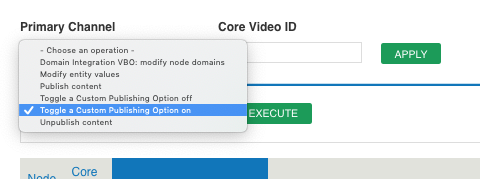
- Click Next to see the list of options you usually see on video records.
- Select the Archive check box.
- Click Next to see a Confirmation screen.
- Then click Okay to apply this status.
- When you have applied the Archive check box then we need to add the date archived.
- From the 'Operations' dropdown select '
Modify Entity Values'.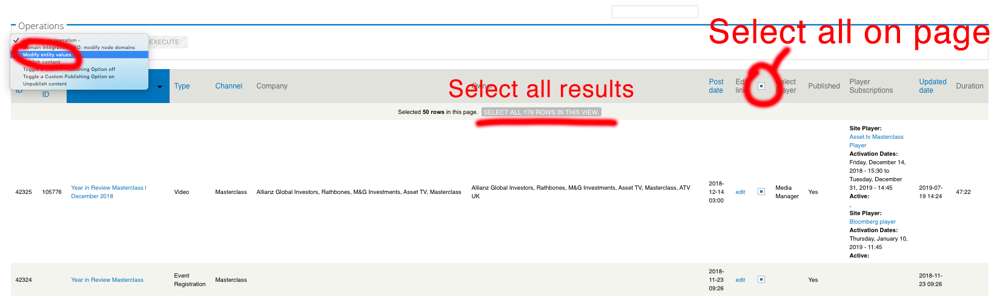
- When you click 'Execute' on the '
Modify entity values' option you will be taken to a new page listing content types and the information you can change. - The screenshot below shows how I would add the 'Archive Date' to the videos selected. If you've selected other forms of media such as Articles or Channel pages you will need to select the value you wish to change under the appropriate heading.
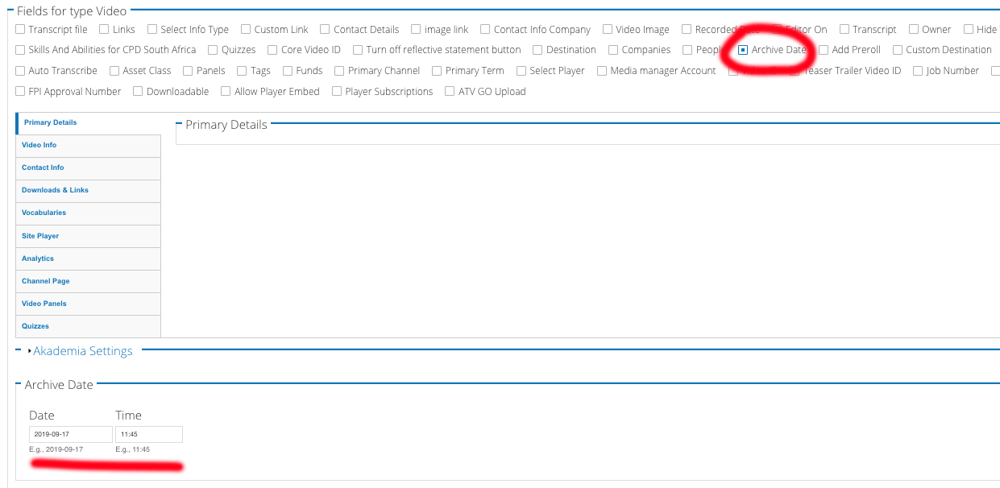
- Once the check box for the value you wish to edit is selected the field will appear below.
- You can modify the value, then click Next which will ask for confirmation of the change.
- From the 'Operations' dropdown select '
- Once this has been applied, with the same videos selected I can then use the 'Operations' dropdown to '
Unpublish content'. You will be asked to confirm and when applied your search results will disappear.
Warning
The videos will only disappear as they are no longer published which hopefully you remembered to make as part of your filter query right at the beginning.