Getting Content Signed Off (The Recommended Method)
Introduction
When producing video content for clients it can be important to consider how the initial edits are sent to them for review. We don't want their video to show on the site before they give the go-ahead, but we want to show the client as close a representation of how the video will look as possible.
There are two options we would recommend for obtaining sign off:
- Use the Sign Off settings on a video record to provide a link that will show how the video will appear on the Asset TV site(s), including descriptions, a-side elements, transcript (where applicable), channel branding etc.
- Assign the video to a sign off player and send a player link for review. It won't be an accurate visual representation of how the video would look published to Asset TV but allows the client to review the content and accompanying description and/or download links.
Using the Sign Off Setting
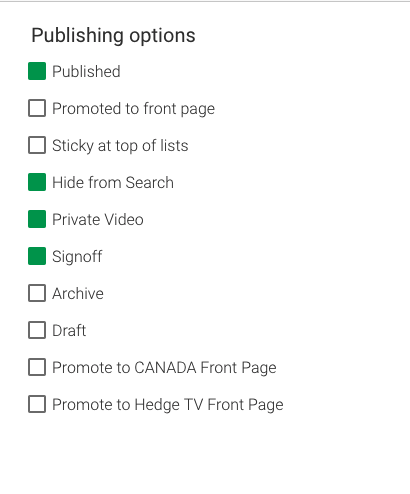
When creating a record there are a few additional options on the Publishing tab. Three of these are designed to help with providing links for review:
| Item | Description |
|---|---|
| Published | For anything to be viewed outside of an Asset TV admin account the 'Published' box will need to be checked. If this isn't checked anyone not logged into an admin account will get an access denied error. |
| Hide from Search | This option does exactly as it suggests and removes your content from any site searches. Even a exact title search would fail to present your content to the searcher. |
| Private Video | This option prevents the site from presenting the content on any live portions of the site where it may otherwise show - primary example being a company channel page. Regardless of tags when this is checked your video won't show on any live pages. ** |
| Sign off | This prevents stats being generated for your 'in review' content. The primary reason you would want to select this is to maintain an accurate engagement figure. When content is in review, as it gets nearer to sign off being confirmed, clients will generally only check for the section of the video they asked to be edited. This could result in a number of views where only a tiny fraction of the video was played (i.e. a 50mins Masterclass has repeat checks on a 1 minute edit that was requested which can drastically impact the engagement total in reports). With all of those options selected, when you save the record you will be taken to the video page as it would appear when live - the URL itself will be the same as when it will go live. This can then be used to provide to clients for review, the content can only be accessed via this URL provided. If you wish to obtain stats during the sign off period you can deselect 'Sign-off'. Hide from Search and Private will still mean your media can only be obtained via the URL. Stats would be indistinguishable from normal stats (except perhaps by date range). |
Private Video
The only exception here is if a channel is also set to Private. This allows us to create a channel page for review and show the relevant content that may also be embargoed until the channel page goes live.
Using a Stand Alone Player for Sign Off
There are a few reasons you may wish to use a player for sign off purposes over the above method:
- A player allows you to create a link that wouldn't require sign in if your client is unregistered for example
- If the video is not going onto the main Asset TV site then the player is a good demonstration of what can be provided for use on their site
- It allows you to collect stats during the review process which are easier to separate from main site views in Site Analytics
To add your content to a specific player (you can learn about creating players here - How to create a stand alone player) you can go to the Site Player tab on your video form.
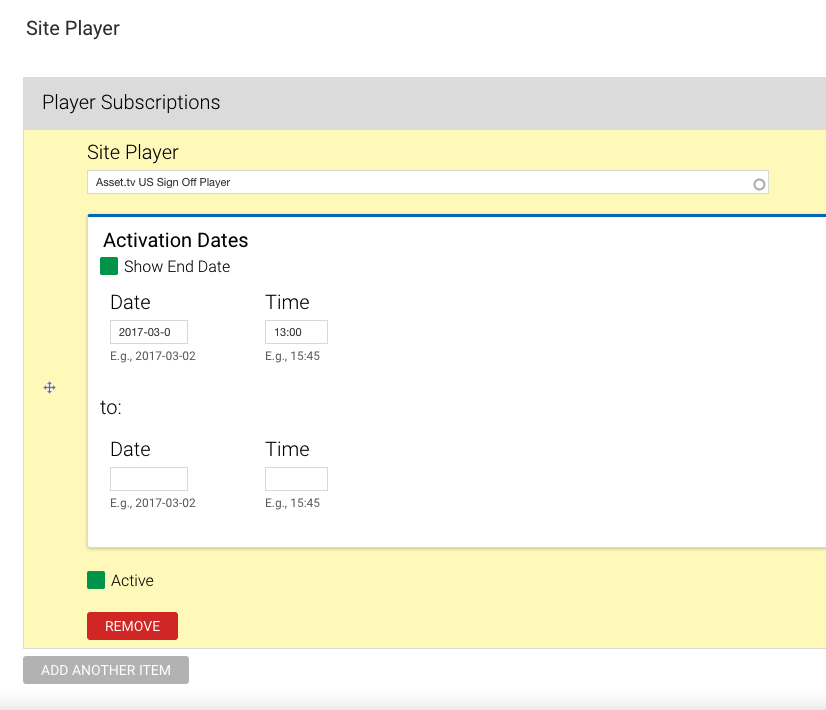
When you start typing into the Site Player field it will autocomplete using existing players.
Tip
Your player must be created in advance!
You can set an expiry date using the fields - but leave this blank if you do not want your video to expire on the player.
When you save the record you can then obtain a link from your player as per the instructions here - How to retrieve a player embed code or link.
Once your content is approved!
When your client has approved the content to go live you should edit the existing record to remove the three 'approval process' settings - Hide from Search, Private Video, Signoff. This will allow your video to appear on the relevant pages such as the client's branded channel page, the sites latest page and the homepage (if you've selected Promote to Front Page).
Remember to update the Authored on Date to ensure your video appears at the top of lists, as well as the display date (US sites only). It would be advisable to remove the Site Player details too - this will kill the player link you may have used for sign off which could generate unwanted anonymous views depending on the player settings. If you wish for the player to remain active you may simply want to add any relevant expiration details.