Adding a Conference to CPD/CE Records
Introduction
We can now add client’s conferences to our Users CPD records. This will allow our viewers to keep a record of their CPD points in one place and may bring new viewers if conference attendees weren't familiar with Asset TV before.
Note
Any new email addresses on your list will automatically generate a user account which will allow them to access their CPD and Asset TV content.
To start we need to add the clients’ conference to Titan. This can be added in the same way as other content such as videos or blog posts.
Note
A clients' conference is something done externally of Asset TV and any of our platforms and does not include Conferences taking place on our VCP platform.
Creating a new "Conference" in Titan.
To create the conference, you can either use the "Add new Conference" link on the main dashboard page, or by selecting "Content > Add Content > Conference" from the black admin menus bar.
Under the first tab "Conference" you can add the conference title (N.B. there is a description box but this doesn’t appear anywhere so can be left blank).
You can then add the conference details such as location, display image, duration and date and time of the event – this will appear on the users CPD record of the event so should be completed as accurately as possible. There is also a tick box to mark the event as structured if applicable.
The XML sitemap, URL redirects, URL path settings & Meta tags tabs can be ignored. These are advanced features for your record and should only be altered/completed by the Web Team.
The Authoring information tab is useful to see who and when the record was originally set up. As any future ordering of Conferences will rely on the "Event Date" already completed this should be left as is.
The Publishing options tab allows you to set the record live. When the conferences calendar is available on the site this will push your event to appear there. Until then the options won’t affect the site as Conferences don’t feature anywhere.
Once the calendar is active we can use the publishing options to post or remove the event from the site as we would with other content records such as Videos.
Adding the event to user CPD records
To add the event to user CPD records there is a tool available on https://my.asset.tv under Admin Tools called "Conference Uploader".
You will need a list of the email address of attendees as a CSV spreadsheet. If the event organisers have provided you with a different format then you can download the "example" spreadsheet and paste your email addresses into it there.
The format is very simple to recreate though as it is just a list of email addresses, with the column title 'email'
Info
To check your upload works it's always a good idea to add your own email address to the list and ensuring the event shows correctly on your CPD record when uploaded.
On the Conference Uploader tool you can then start to type the name of the record you created in Titan – this will autocomplete and allow you to select the record.
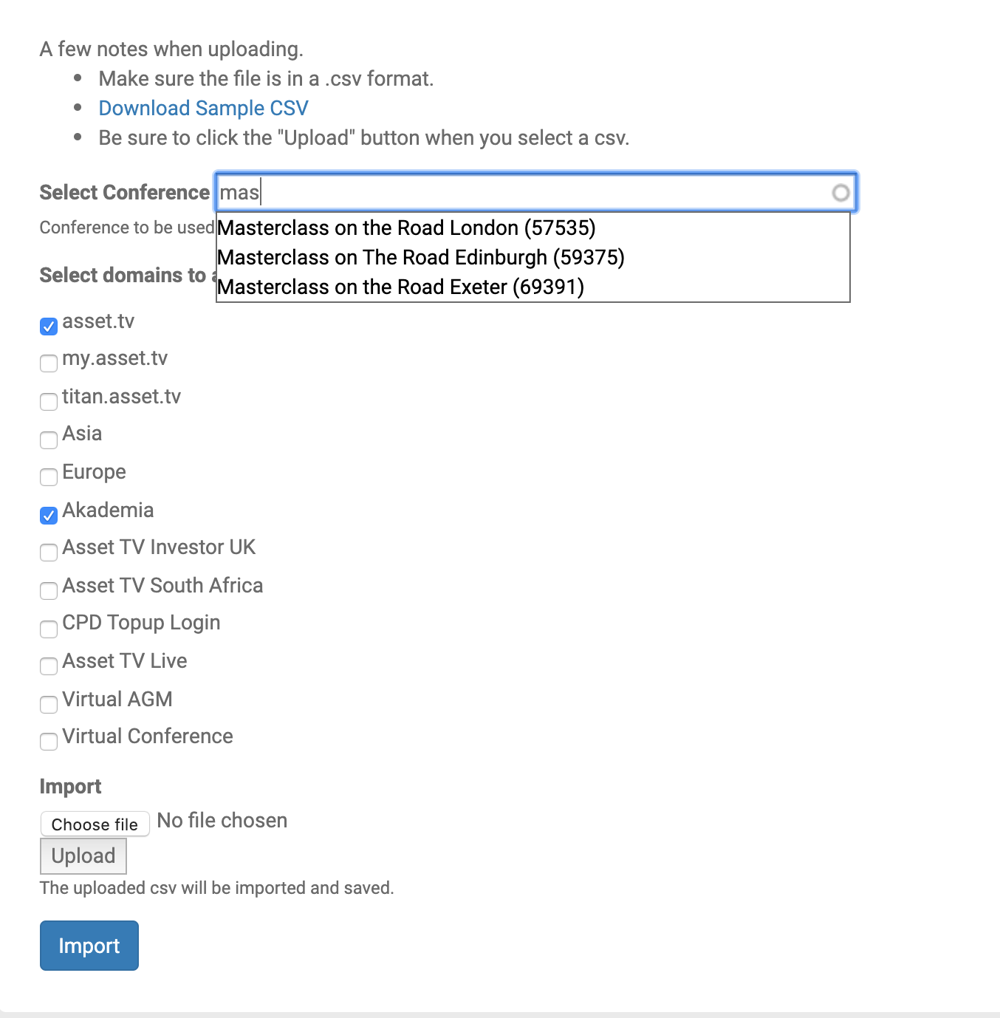
Once you have selected your Conference you should then select the domain you want the CPD to appear on (i.e. if the conference is for South African viewers you need to deselect Asset.tv and Akademia and select Asset TV South Africa). You can then click "Choose File" to locate your CSV document. Once selected click "Upload" and then "Import".
Once the records have been added you will be presented with a confirmation screen listing the user records to be updated.
After a short period, user CPD records will then feature the conference on their CPD listing.