User and Sponsored Playlists
User Playlists
Users can create their own playlists using one of the following methods.
| Name | Image |
|---|---|
| The three dot menu on a video | 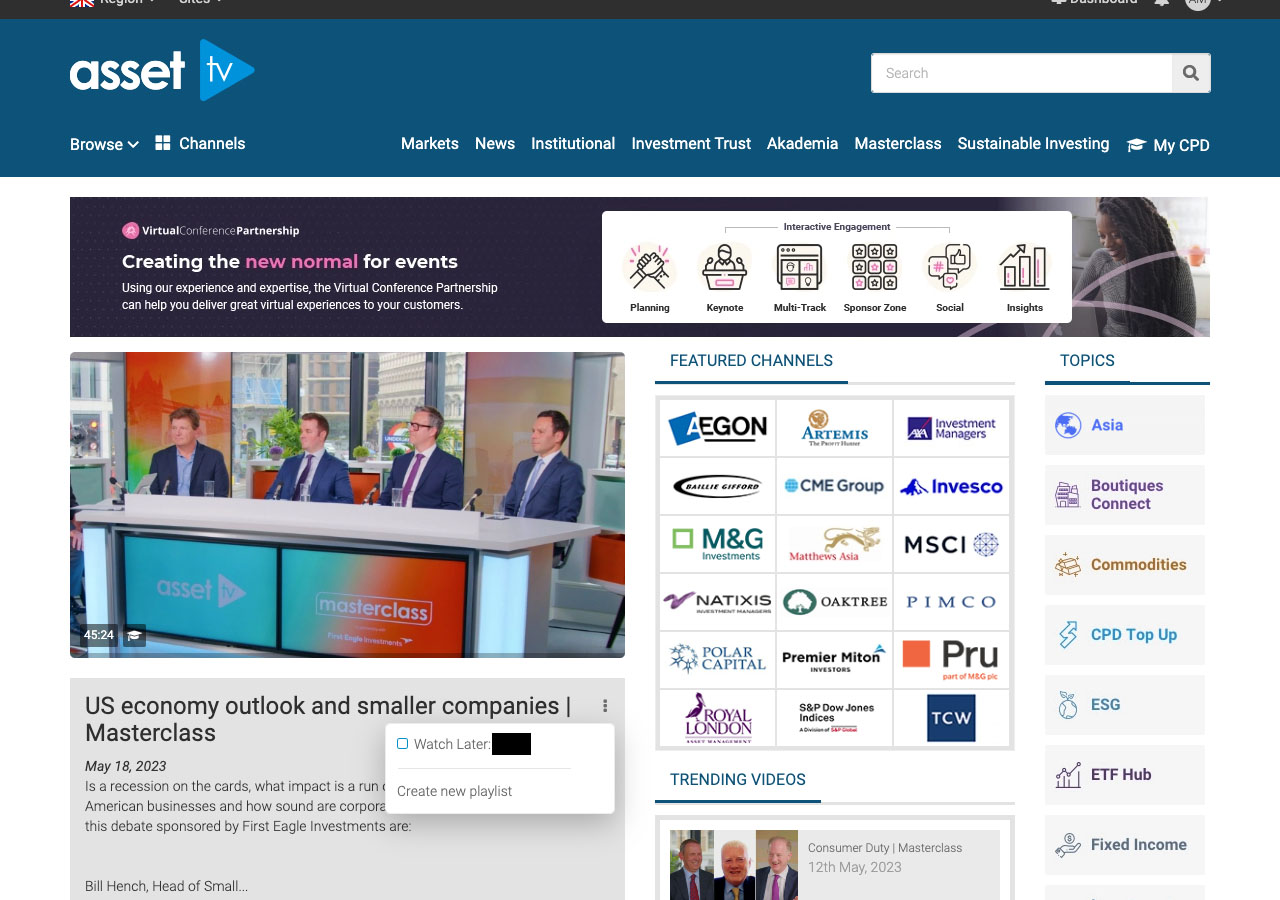 |
| The link underneath the video player | 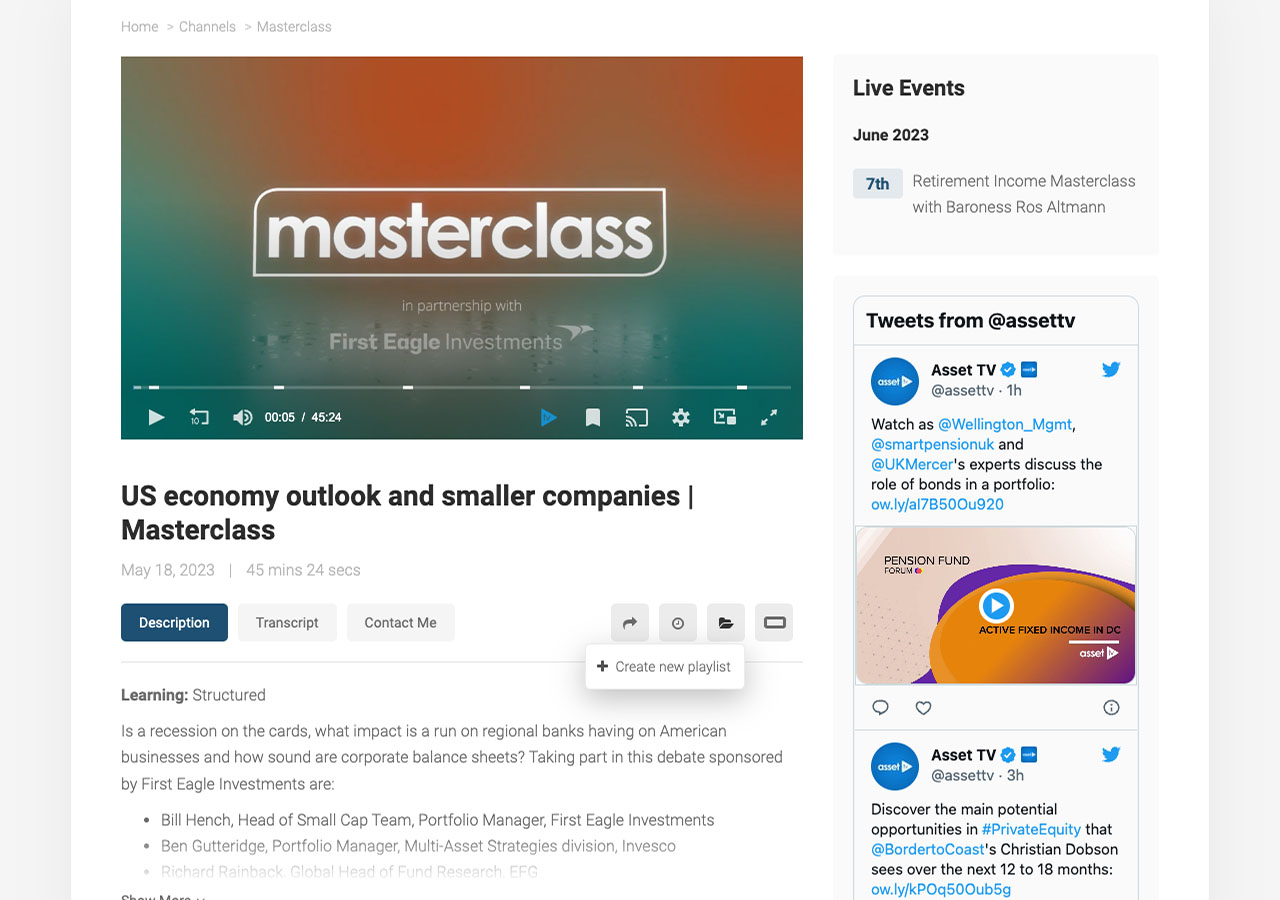 |
| Via the Playlists page on their dashboard | 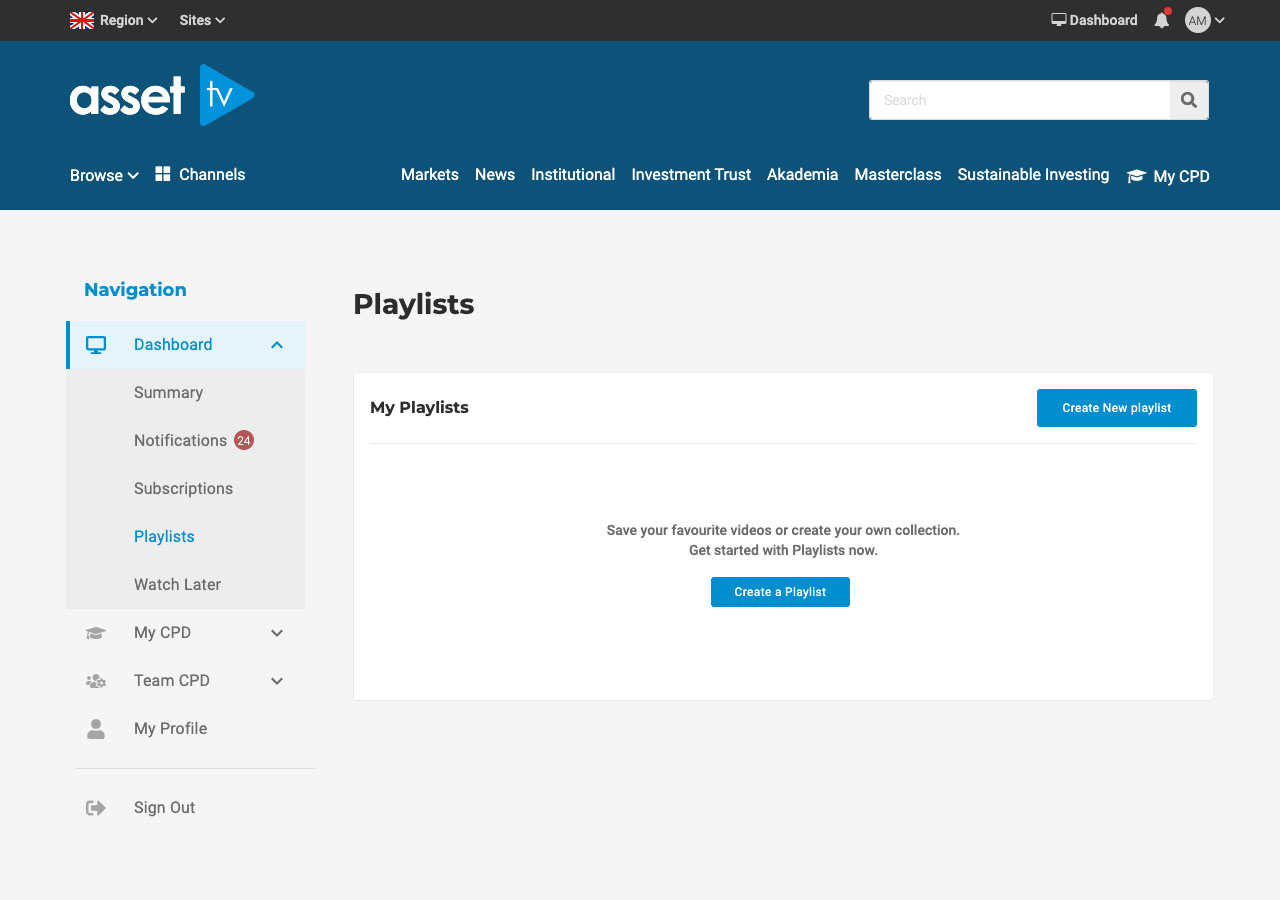 |
Once a playlist has been created it would appear above the 'Create New Playlist' link on the video player page and under the three dot menu.
All user playlists are private - this means they can only be accessed by the creator when logged into their Asset TV account.
Sponsored Playlists
Sponsored Playlists
Some users may wish to share their playlists in which case we can offer them a 'Sponsored Playlist'. But there are cost implications so please speak to a member of the sales team before going ahead with a sponsored playlist!
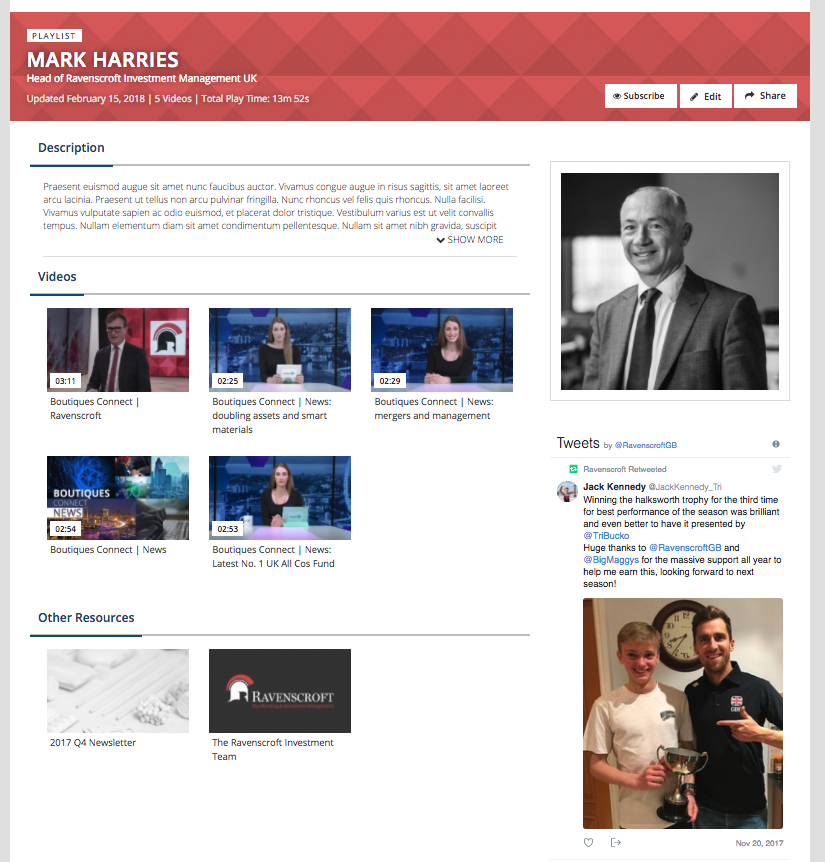
Sponsored playlists would allow the user to share the playlist with other Asset TV users, apply their own branding to the playlist page, and also would enable them to add additional resources links to enhance the information they share with the other users.
Setting up Sponsored Playlists
Asset TV admin users would be required to set up the branding of the page but the user would maintain the ability to edit the content - including the 'Other Resources' feature that is not included with the standard 'User' playlists.
There are two ways Sponsored Playlists can be set up:
- Either the initial creation can be done by Asset TV staff who can then assign the playlist to a user who would then be able to manage it via their dashboard, or
- Asset TV staff can convert an existing User Playlist to sponsored and apply the branding. The user would continue to maintain management via their Dashboard.
Applying Branding to Sponsored Playlists
When creating a new playlist an Admin User would be immediately taken to a more extensive form than users see. The form presented is similar in style to a Channel Page or Video record. At the top of the form you can give the playlist a title and description.
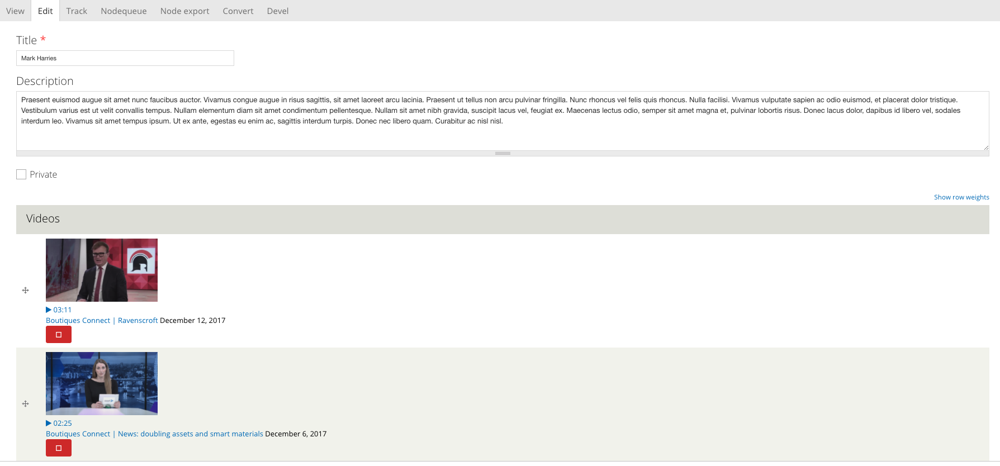
Info
If you are creating the playlist you can ignore the 'Private' check box. If converting a user playlist this will need to be unchecked to enable other users to see it.
Below this you can then add videos as a user does - i.e. start typing the title of the video and select from the options the autocomplete presents. You can rearrange, remove and add as necessary even after the playlist has been issued to the client.
Under the sponsor tab below you can then add a company, if relevant, to 'Sponsored by'.
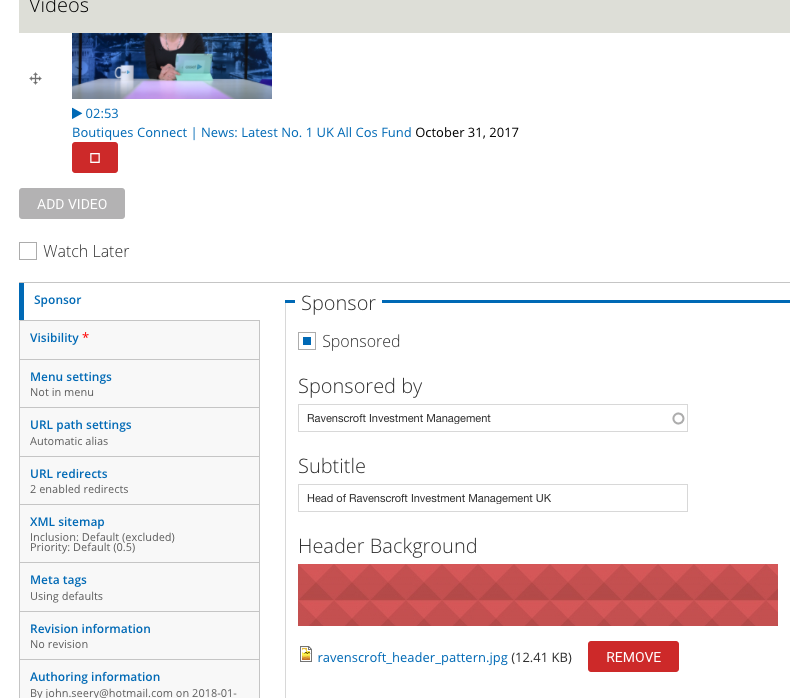
This doesn't show on the channel pages but may be useful when searching through multiple playlists to find specific ones.
The Subtitle field allows you to add text which would appear under the title on the playlist page.
The Header Background works in the same way as the Channel page headers (although is only required to be uploaded once). It should meet the same dimensions as the Channel Page headers (1200px wide and less than 2mb) for optimal display.
Sidebar (ASide)
Sponsored Playlists can also have custom side bar elements. This works in the same way as setting side bar elements on a Channel page.
Sidebar elements will appear on the right hand side of the playlist page. Using the drop down you can select a number of options.
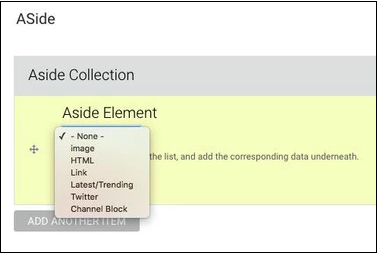
| Item | Description |
|---|---|
| -none- | No ASide element. |
| Image | A non-interactive image can be uploaded directly to Titan. |
| HTML | The most adaptable of the elements HTML will allow you to enter HTML code for dynamic elements such as animated MPUs or RSS feeds. |
| Link | A simple text link – you can enter a title (the text to appear as the link) along with the URL. |
| Latest/Trending | This block will feature quick links to the five latest videos published to the site along with a tab option to see the top five videos based on recent views. |
| Show a twitter feed either using the clients twitter handle, or if appropriate a particular hastag. | |
| Channel Block | A block of featured video channel. |
Custom CSS
Custom CSS can be applied to the playlist, this is an advanced feature and if you're not certain of what CSS you need to add for your desired effect please open a request via the Helpdesk.
Content
The content section of the form allows you to add links to external resources that compliment the playlist. Once the playlist has been assigned to a user they will have this added to their 'edit' page and will be able to manage it themselves.
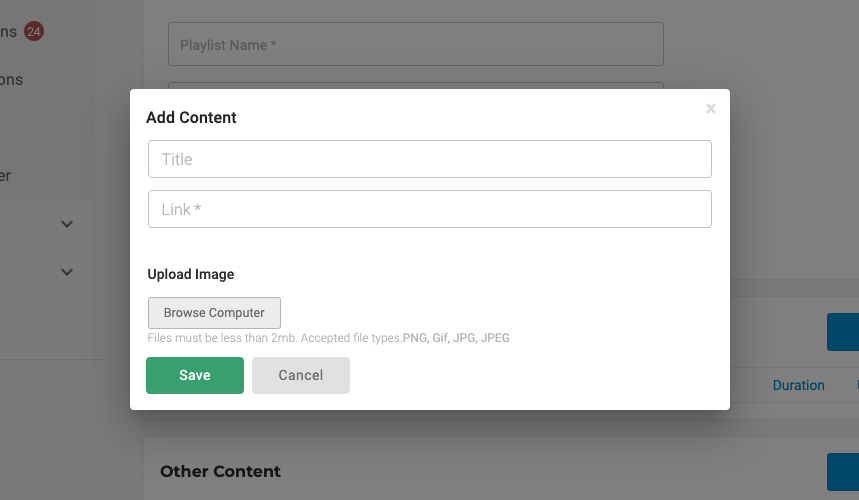
To add an item you need to give it a title, a holding image/thumbnail and enter the link.
These items would then appear on the playlist page below the list of videos.
Assigning an Admin created playlist to a user
If you have edited a playlist created by the user you simply need to remember to un-tick the 'Private' check box at the top of the form. It will remain in their Playlists section on their User Dashboard maintaining their ability to manage the content.
If you have created the playlist on a users behalf you need to assign it to them (the playlist can be found on the content search tab in Titan/Hydra).
Tip
Only one user can be assigned to a playlist so clients will need to nominate someone as it cannot be given to multiple users.
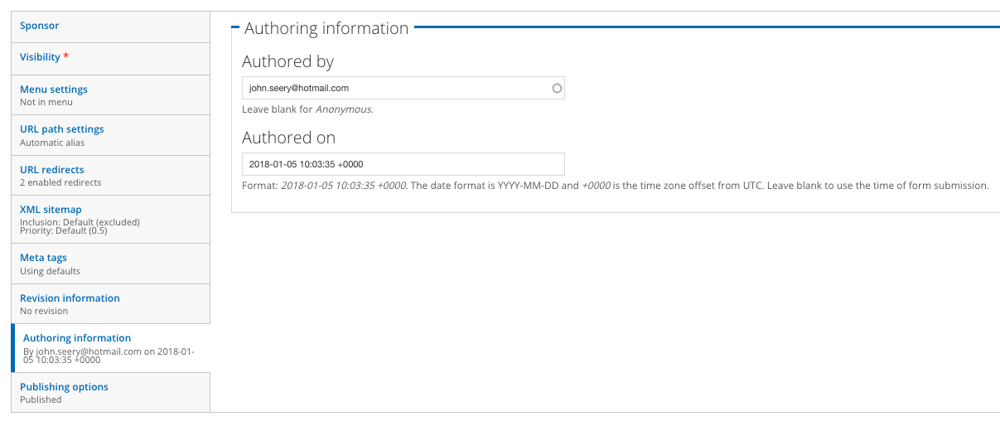
To reassign you need to enter the user's email address under the Authored by field on the Authoring Information tab.