Adding a Delegated Mailbox
Introduction
Once someone has left the company you may need access to their mailbox for a short period. Provided it hasn't been deleted already, you need to put in a request with the web team via the helpdesk.
After it's been set up you'll need to follow this guide to add it to your account.
Instructions
| Step | Image |
|---|---|
| 1. Click on the cog in the top right and select 'See all settings'. | 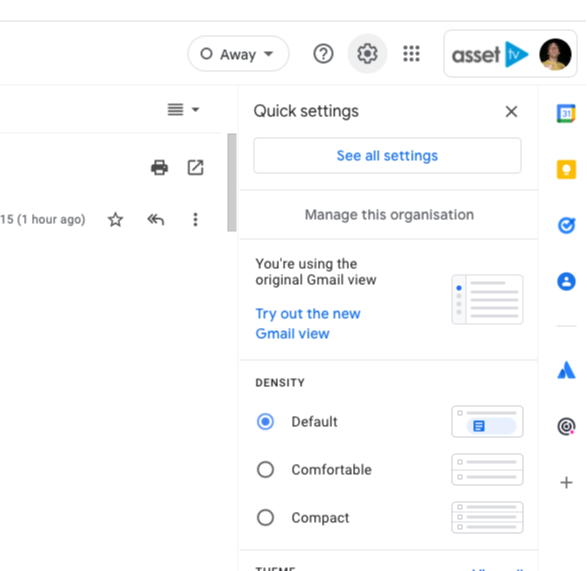 |
| 2. Next go to the 'Accounts' tab and under the 'Send mail as' section click 'Add another email address'. | 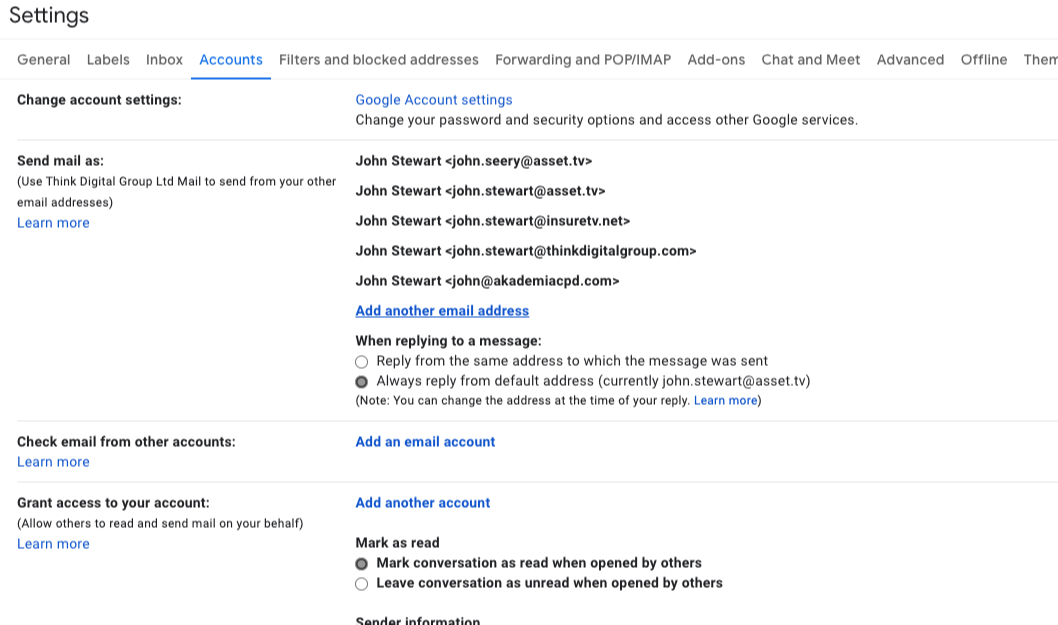 |
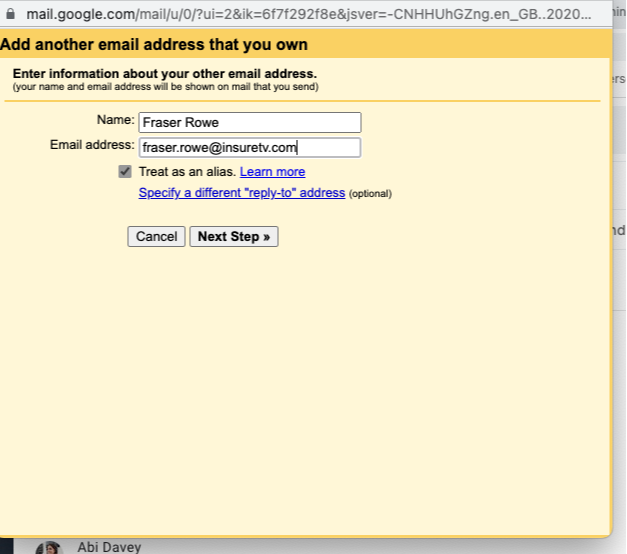
3. A window will pop up and you need to complete the fields for the account you want to add, such as firstname.surname@asset.tv and then click 'Next Step'. |
 |
| 4. This will trigger an email to be sent to your account and once you receive it, you'll be able to change the sender address on new emails and replies you send. Replies are automatically be sent from the account the email was sent to - eg. replies to emails sent to user.name@asset.tv will go from that address. |