Team CPD/CE Features
Introduction
As companies look to monitor the learning of their staff we have developed a Team feature for Asset TV sites. This allows companies to create a team where a manager can view the CPD/CE activity of their team members. The below outlines how to set up a CPD/CE Team and use its features.
Setting up a CPD/CE Team
While we’re in the features infancy to set up a team you will need to open a help desk ticket requesting one be created for your client. The request should list the following:
- Name of the team as you want it to appear on members CPD/CE pages.
- Include at least one email address to be set up as a manager.
Managers
When the CPD/CE Team has been created in Titan/Hydra the email address you provided will have been set up as the team’s manager.
Adding or Editing Managers
To add more managers you will need to submit a ticket - this includes changing a Team Member to a Team Manager.
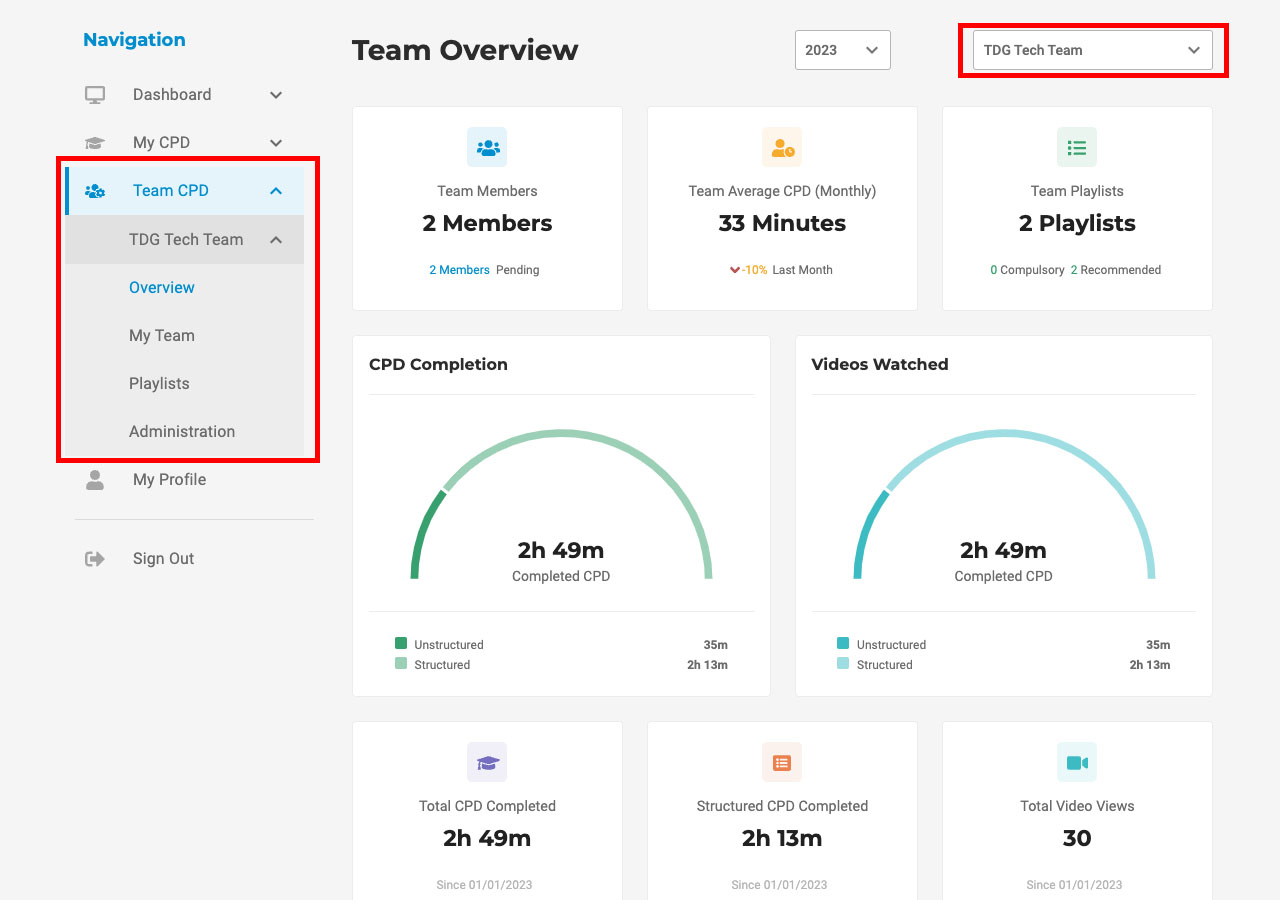
When a Manager next logs in to their CPD profile in the sidebar they will see details of the team(s) they manage:
| Section | Description |
|---|---|
| Overview | Contains a brief overview along with statistics on the team. For more information look at the section below labelled 'Overview'. |
| My Team | Show a list of users who are in the team. For more information look at the section below labelled 'My Team'. |
| Playlists | Lists all playlists attached to the team. For more information look at the section below labelled 'Playlists'. |
| Administration | Allows invites to the team to be send and see outstanding invites. For more information look at the section below labelled 'Administration'. |
Info
If a Manager manages multiple teams, they'll see a dropdown in the top right of their Team CPD/CE pages allowing them to switch teams. There will also be a list in the sidebar of their different teams.
Overview
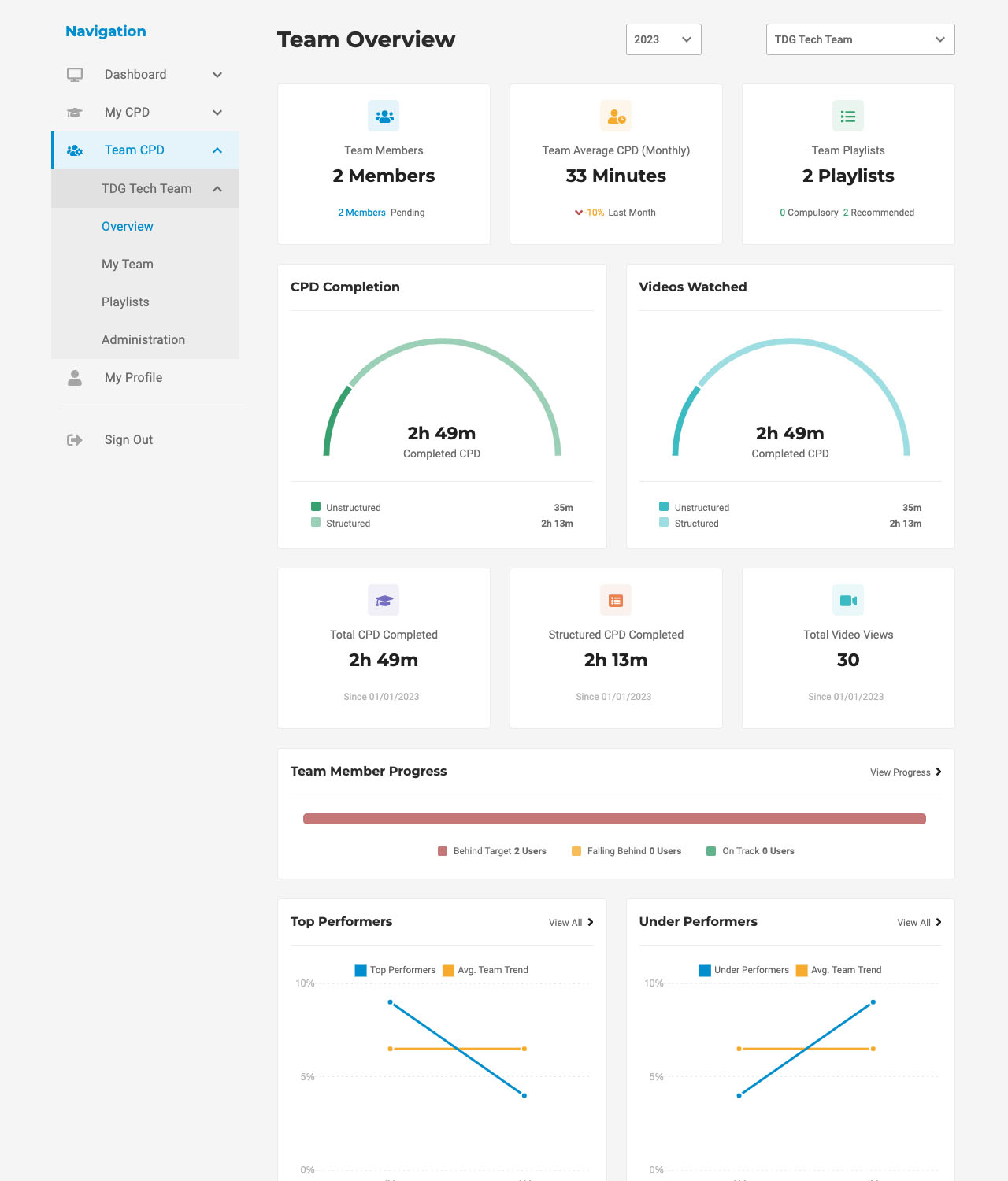
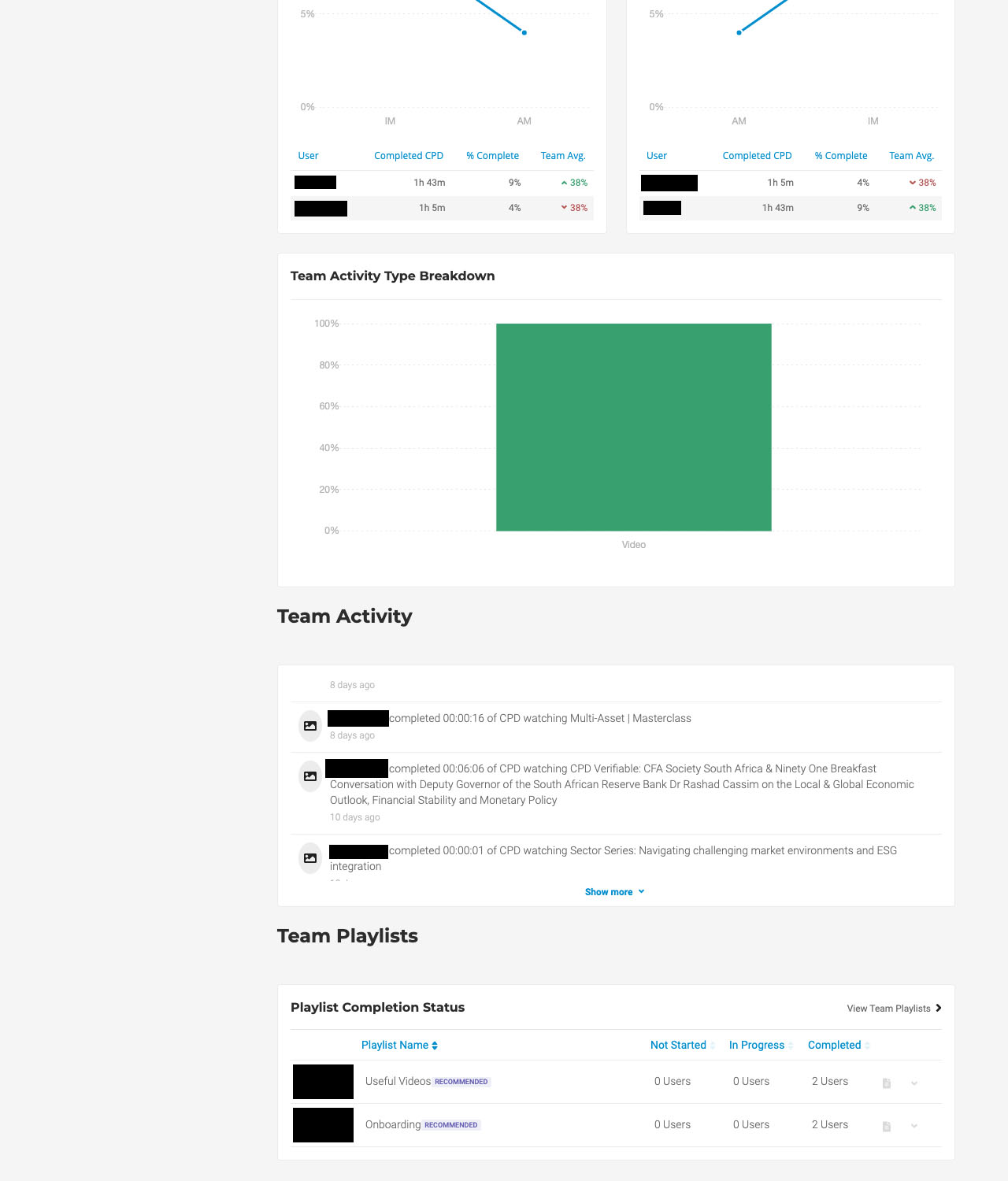
This is a summary page with lots of widgets giving different statistics about the team.
 |
 |
| Widget | Description |
|---|---|
| Team Members | Gives a count of the members in a team and a count of invites that are still pending. |
| Team Average CPD/CE (Monthly) | Shows the average monthly CPD/CE consumed by the team and the difference compared to the previous month. |
| Team Playlists | Counts the amount of playlists associated with the team and shows a breakdown for compulsory vs recommended. |
| CPD/CE Completion | Shows the total CPD/CE completed by the team breaking it down via category. |
| Videos Watched | Shows the total videos watched by the team breakin git down via category. |
| Total CPD/CE Completed | Gives the total amount of CPD/CE completed based on the date range selected. |
| Structured CPD/CE Completed | Gives the total amount of Structured CPD/CE completed based on the date range selected. |
| Total Video Views | Shows the total number of videos watched based on the date range selected. |
| Team Member Progress | Tracks team member progress based on who is keeping on track with their CPD/CE and who isn't. |
| Top Performers | Shows the top performers in the team vs the team average. |
| Under Performers | Shows the under performers in the team vs the team average. |
| Team Activity Type Breakdown | Breaks down the number of different activities the team has consumed by types. |
| Team Activity | Lists all the activities the team has been doing. |
| Team Playlists | Lists all the playlists associated with the team summarising the number of user who haven't started them, are in progress with them and have completed them. |
My Team
The My Team section lists all the team members who have accepted their invitation to the team.
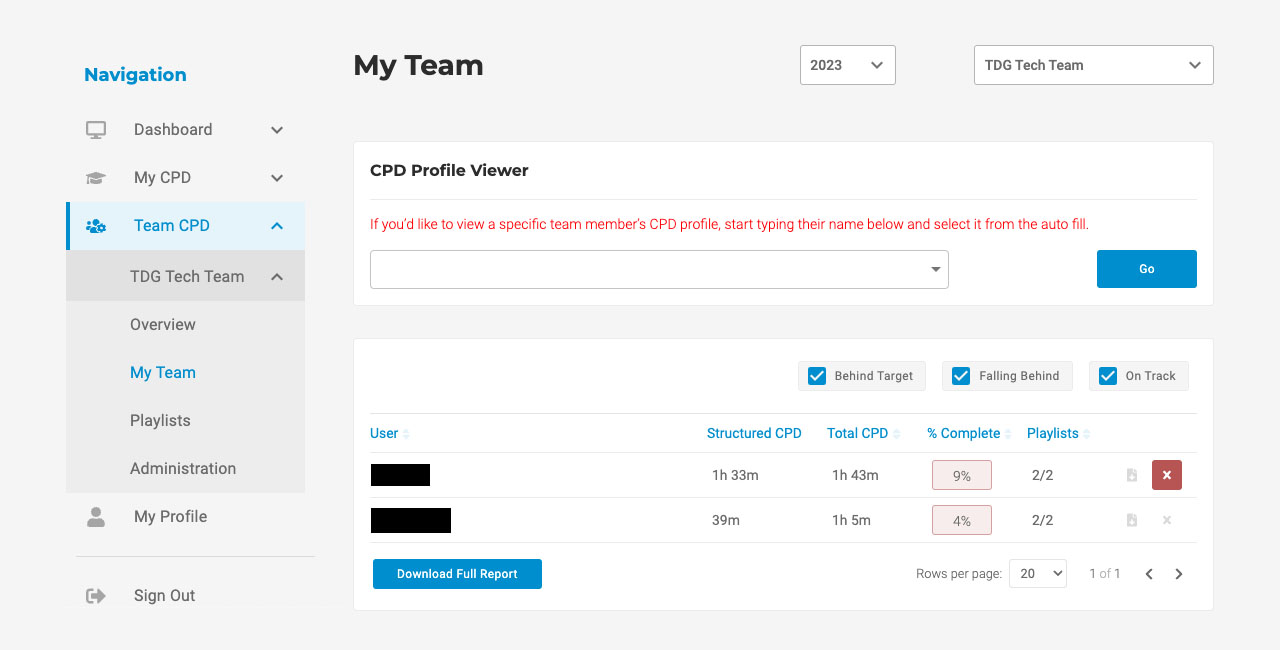
There is a section called 'CPD Profile Viewer' which allows a Manager to view a summary page of any member of their team. This gives them a combination of that user's CPD Statement page and a cutdown version of their analytics page.
It also shows a table containing the following information:
| Column | Description |
|---|---|
| Name | The name of the user. |
| Structured CPD/CE | Total structured CPD/CE the user has completed. |
| Total CPD/CE | Total CPD/CE the user has completed. |
| % Complete | The percentage of the users target they've completed. |
| Playlists | The team plasylists the user has completed. |
| Download Statement | The little button with a document download icon allows you to download a users CPD/CE Statement. |
| Remove User | The red button with a cross allows you to remove a user from the team. |
Playlists
Playlists show you all the playlists assign to the team.
To add a new playlist a manager much create a personal playlist (this can be done from the users' dashboard or the Create New Playlist button) and then request via their account manager it gets added to their team.
Note
If a mananger manages multiple teams, they will need to specify which team they'd like to add the playlist to.
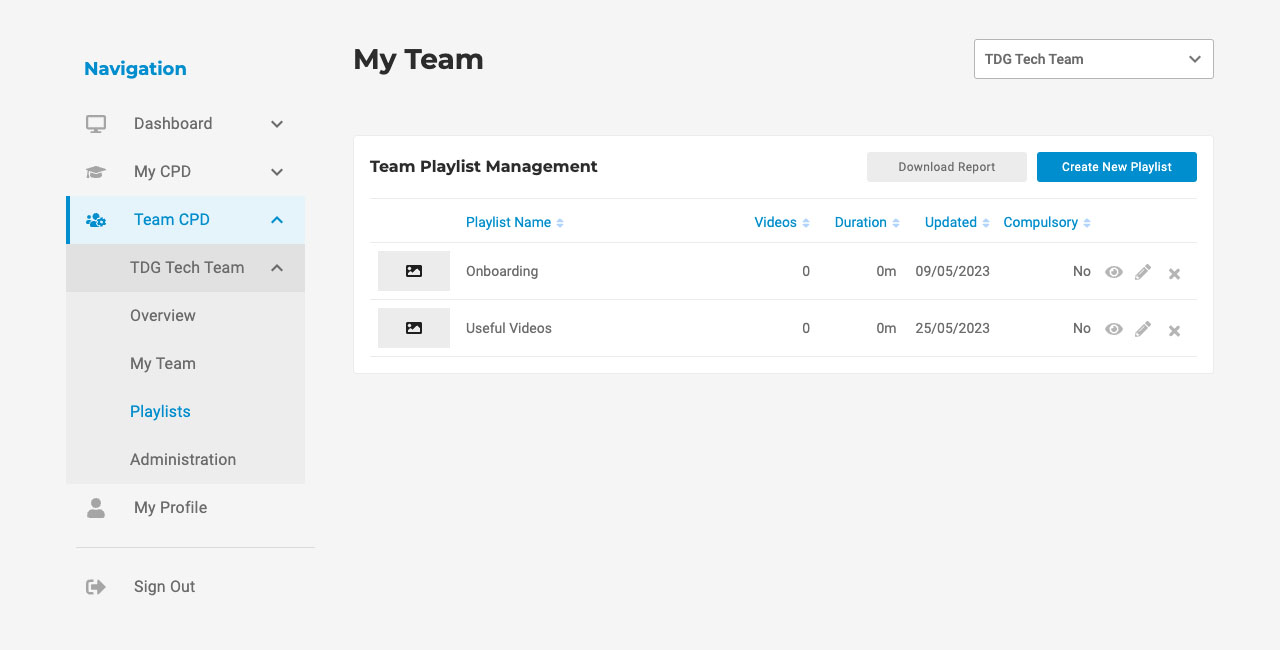
| Item | Description |
|---|---|
| Download Report | Downloads a CSV giving information on who has watched what. |
| Playlist Name | Gives the name of the playlist. |
| Videos | Shows the number of videos on the playlist. |
| Duration | Gives the total duration of all the videos on the playlist. |
| Updated | Shows the last date the playlist was updated. |
| Compulsory | Indicates if the playlist is compulsory for the team or not. |
| View (Eye Icon) | Takes you to view the playlist. |
| Edit (Pencil Icon) | Take you to edit the playlist. |
| Delete (Cross Icon) | Deletes the playlist. |
Administration
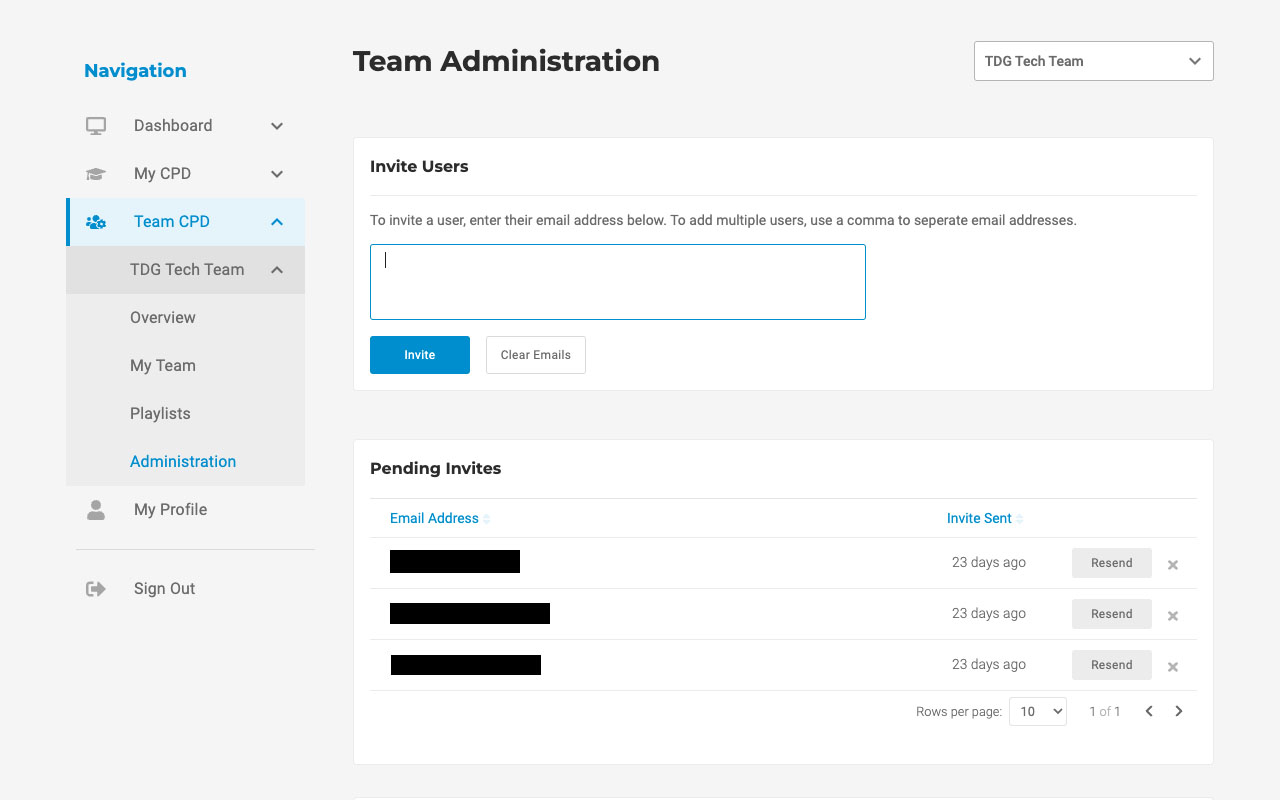
The Administration section for Team CPD/CE lets a manager Invite members to the team and see which invitations are pending.
Setting up a CPD/CE Team Channel
To help further we can allow Teams to have their own private channels, only accessible by members of the team. This would be created by the Digital Team.
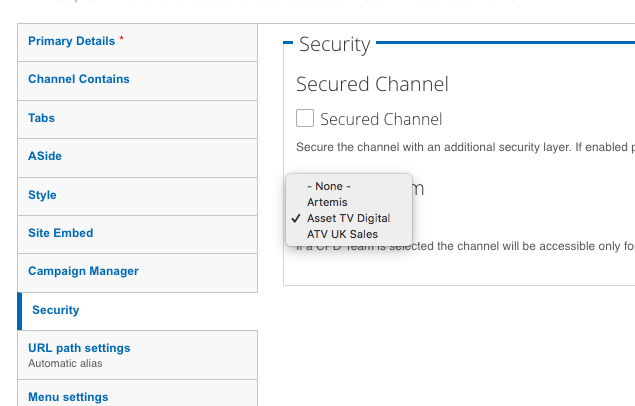
To make a channel a Team channel you just need to select the relevant team from the dropdown on the Channel’s Security tab:
The Team Manager would need to request content be added by contacting the Digital team. Further customisation such as branding or segmenting the channel into tabs would need to be agreed with their account manager as it may be chargeable.
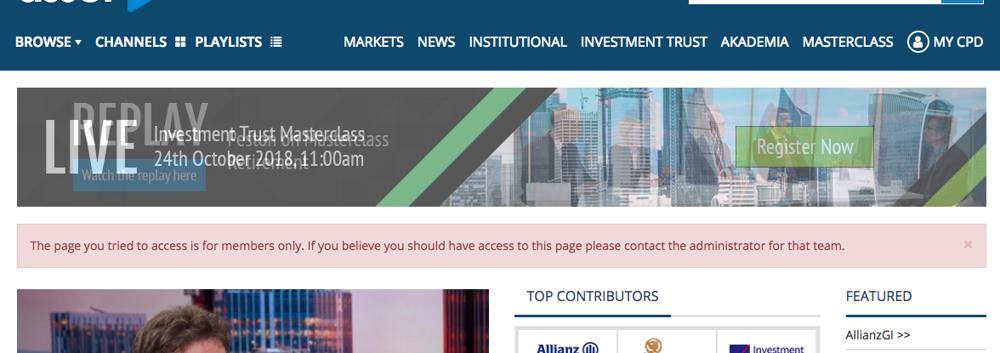
Anyone not in a CPD/CE team attempting to access their channel would be redirected to the homepage and see a message to inform them they don’t have access:
To add media to a Team CPD channel you will need to set the vocabularies on both the channel and videos to be added. As 'Owner' tags do not appear on the site for other users it is suggested you create an Owner tag relative to the team name and add it to the videos you wish to add.
Setting up a CPD Team Playlist (Compulsory or Recommended)
Playlists can be assigned to a team by the Digital Team. The playlist itself could be created by the Team Manager and then converted, or the Digital Team can create a new playlist.
As with the channel pages to assign a playlist to a team you simply need to select the team name from the Security tab on the Playlist edit form:
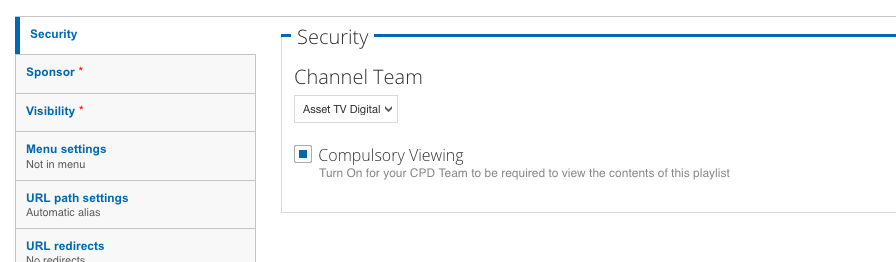
When selecting the team it can also be allocated as a 'Compulsory' playlist. This will be a highlighted to members in their sidebar.
When a playlist is converted to or created as a Team Playlist it automatically gets added to the Users sidebar when in the CPD section or to the My Learning page under their Learning Objectives:
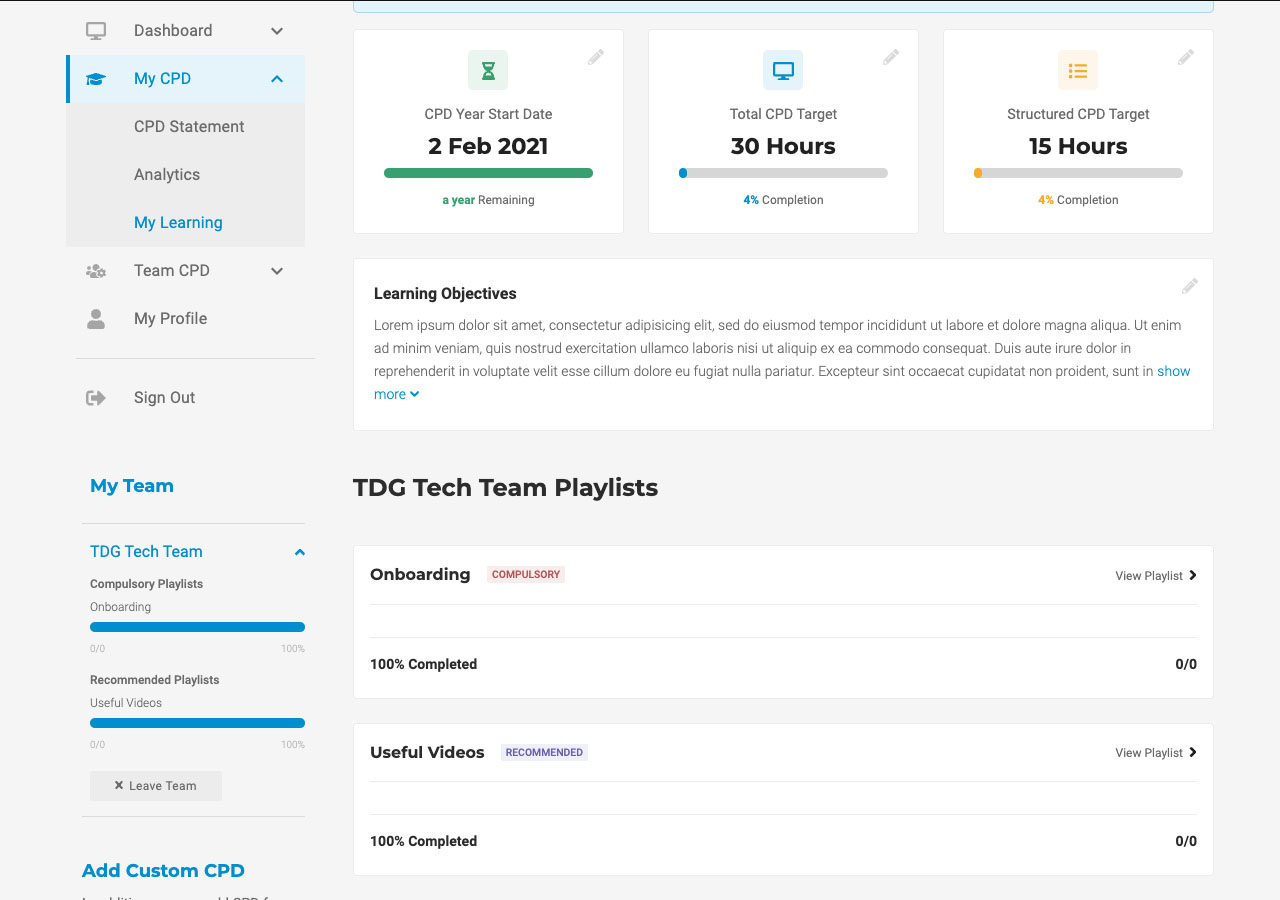
Team members won’t be able to unsubscribe from these playlists and would automatically lose access if removed from the team.
All Team Managers would be granted permission to edit the playlist (they would not have access to the security tab, simply the permission to add and remove content).
Team Members (Users)
Accepting an Invite
Once a user is invited to a team by a manager, they will get an email invitiation with an accept button.
If they are already a user, then pressing accept will do just that, or maybe make them log in if they aren't already.
If they aren't already a user, they will be taken to register before the invite gets accepted.
Leaving a Team
Leaving a team is as easy as pressing the Leave Team button in the sidebar under the list of Playlists.