Creating a Standalone Player
Introduction
When clients produce or have media hosted with Asset.tv the video can be provided for them to use on their own websites alongside their Asset.tv distribution. There are a couple of options on how they can do this, depending on their requirements. Either a stand alone player featuring one video or by embedding their Asset.tv channel page.
Creating a stand alone player
- Navigate to the list of existing players by selecting Structure > Taxonomy from the black admin menu and then click on "list terms" next to Sites:
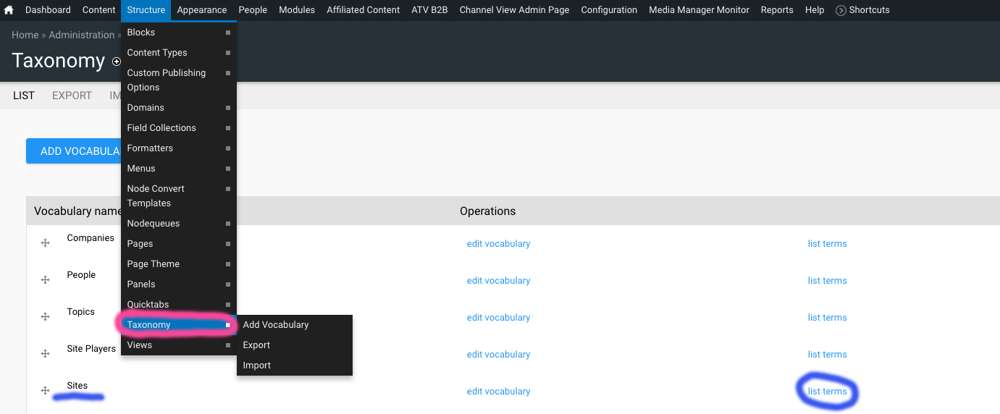
- You will then see a list of existing players. It would be worth using the "Name" search field to check your client doesn't already have a player created. Once checked if you still need to create a player click on the "Add Term" button at the top of the list.
- A form can then be completed to create the player. The form will show tabs down the left hand side (Basic info - Site settings - Design etc.) and some additional sections underneath the main section (URL path settings - XML sitemap etc.). To create the player we will only need to focus on the top section. The others are for advanced use only and you should contact the web team for assistance before using these.
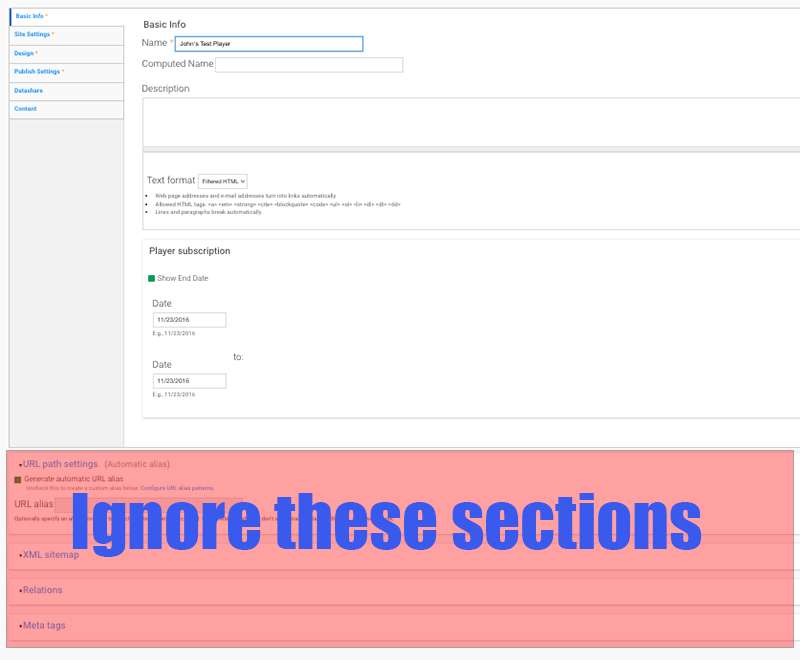
- Complete the form by adding a "Name" for the player. The "Computed Name" should be left blank as this will be auto-generated when you save the player.
- The description field can be left blank as this will not show on our player when created.
- The "Player subscription" fields allow you to set dates for the player to become active and inactive. This can be utilised if you know the player will only be used for a set amount of time. Otherwise clear these fields (they will be auto-populated with today's date) and add expirations to individual video records (see How to create a video record for more details).
- Under site settings the Site ID and Secure ID will auto-fill and you cannot edit these.
- Under the "Requires Login" heading are a few different options:
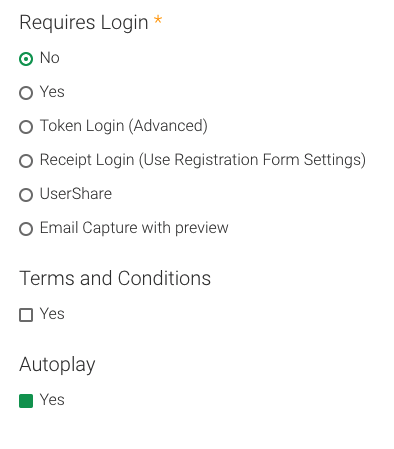
The most used options will be "No" and "Yes" at the top of the list. If you select "Yes" any Asset.tv registered users will be given access when they enter their email address. If they're not registered they will be invited to register via an onscreen message.
The additional options provide us some advanced features:- Token Login
- Reciept Login
- UserShare
- Email Capture with preview
- Terms and Conditions and Autoplay are as the names suggested. Clicking Yes to Terms & Conditions will activate a description box where unique T&Cs can be entered which would be presented to users accessing the player to accept. Autoplay will start the video as soon as the player is rendered on a webpage1
- Under the Design section you will be prompted to select UK or US as the Player Country. This should be set to the region your client's media is primarily distributed to as this is where the player will look to find the media, and log the analytics
- From the "Site Type" dropdown menu please only select 'Player'. The additional options are mainly there to support legacy sites. If you believe you should be selecting one of the other options please contact the web team for assistance.
- You can edit the size of the player by inputting the height and width. As our players are now responsive these settings are mostly redundant and you can leave them at the defaults that will auto-populate these fields.
- If your client is planning to use the player in a stand alone link rather than embedding directly into their site (see Asset TV player options) you can add their logo to provide some branding. The logo should be sized appropriately and uploaded to the term record:
:
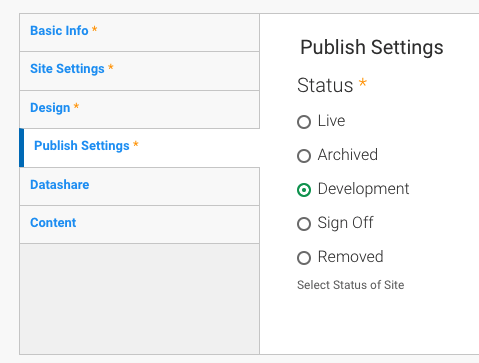
Changing these settings will affect access to the player as per the below:- Live - The player is active and can be viewed by anyone (if you've activated registration for the player it will load with the login box)
- Archived & Development - The player is not active and will only load for admin users of Titan or Hydra, provided they are already signed in
- Sign Off - the player is accessible to all but will not log analytics.2
- Removed - this is the equivalent of deleted but without removing the player (and any analytics it collected in it's lifespan with it!). The player will become inactive for all users.
- The DataShare tab is redundant as the feature was created for old sites so the tab is empty.
- Under content you will find a list of videos attached to the player and obtain the Stand Alone link or embed codes.
-
This can sometimes cause issues for clients when placing them low on a page (so a user would hear the video before they've scrolled down to see the player) or on pages where more than one video is featured as they will all play at once including the audio! We would recommend leaving this unticked. ↩
-
This should be used to allow clients to sign off any branding on a stand alone link only! ↩