Using Video Panels
Introduction
Video panels are a feature that will allow featuring extra information during playback. This could be as simple as having a slide to appear when discussed in the video or include some HTML featuring links to further information, websites, or articles.
The Panels Tab
When you create a video record, you will see that there is a tab called Video Panels.
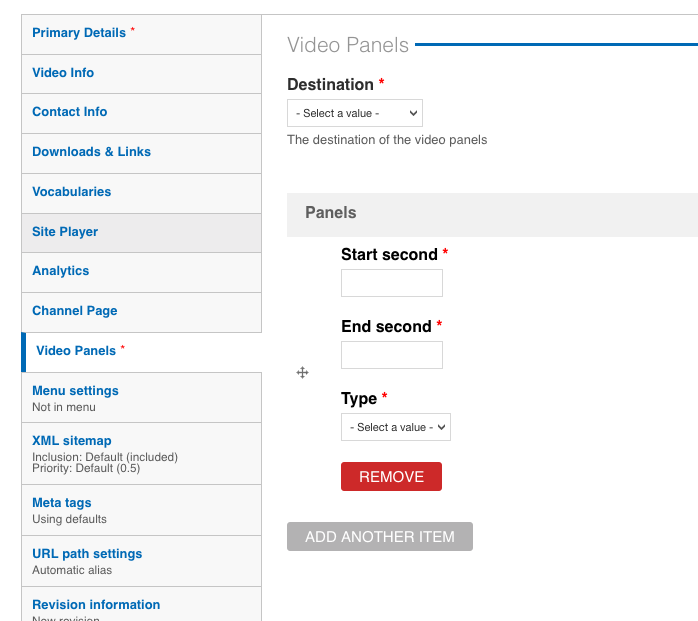
This is where we will set up the information to show alongside the video.
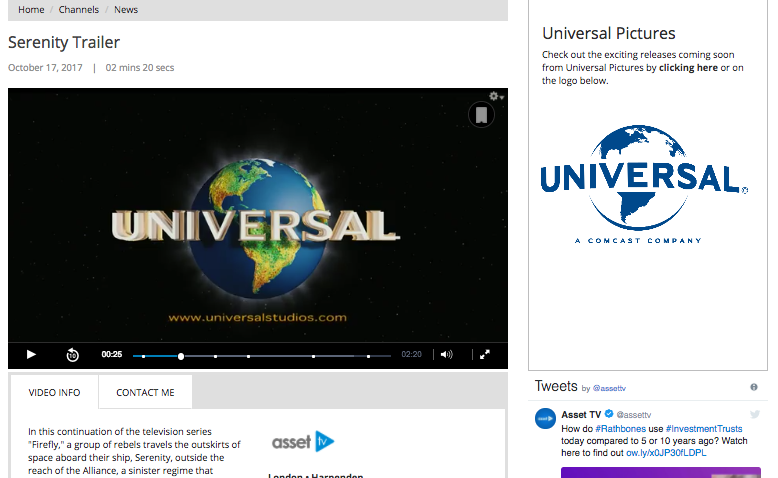
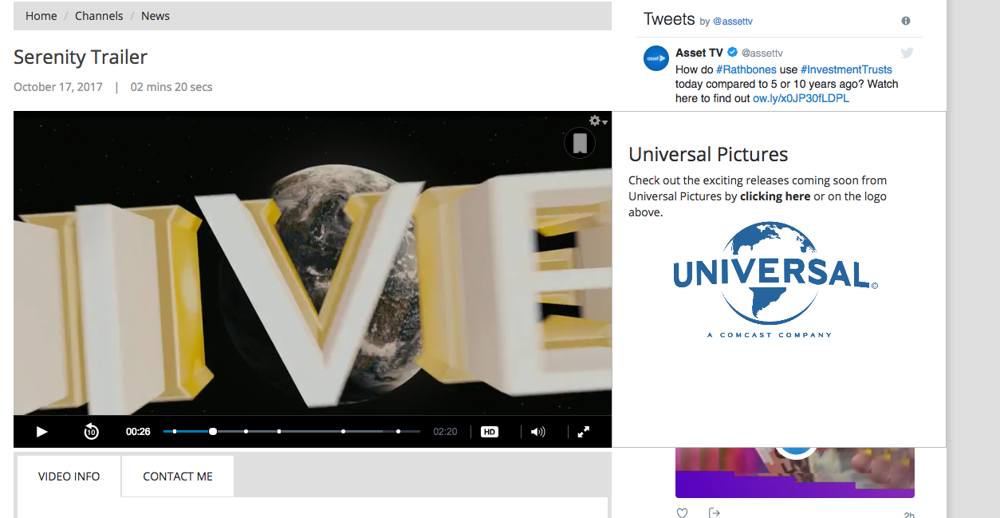
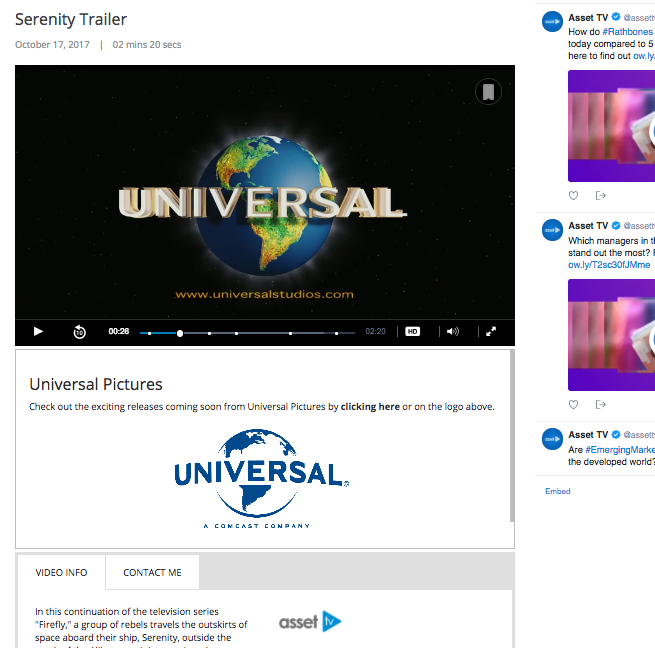
First we need to decide where this additional information should appear, there are 3 options specific to the Asset TV websites (in the Destination dropdown), Sidebar column, Right of the video, and Below the video. There are all explained below:
- Sidebar column – this will load the panel into the Sidebar, pushing down any existing content while the panel is on screen.
- Right of the video – this will load the panel on the right hand side of the player over any page elements that may already exist (i.e. over the sidebar rather than pushing content down to make room)..
- Below the video – this will push the contact/video information down to make room for the panel to appear below the player.
There is also a fourth option available, ‘Custom DOM Element’. This opens up any other positioning we may not have considered by allowing you to enter the HTML class or ID of an area on the page you wish the panels to appear.
Info
If using this option, you must know where on the page you want the panels to appear and may wish to speak to someone in the web team on how to obtain the class or ID required.
Adding Panels
To set a panel to appear you need to enter the start and end time it should be shown, this is done in seconds (so if you wanted it to appear 1 minute and 16 seconds into the video you would enter 76 in the start field).
You can then decide on the type of panel you wish between Image and Text.
Images
Images are simple in that a field will appear allowing you to upload the image you wish to display.
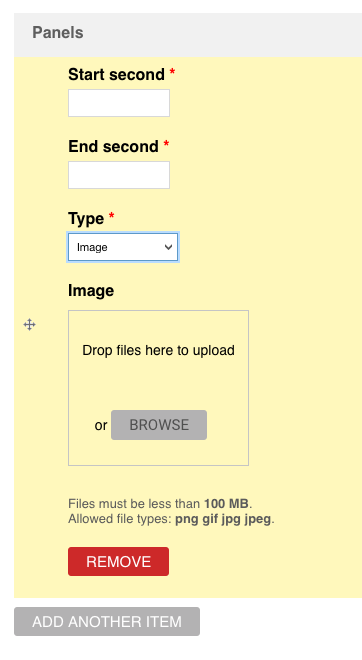
As well as the standard JPEG and PNG images the system will also allow you to upload GIF files. This means we can add animated GIFs should they complement the video.
Images will be centred in the panel when it loads meaning the size of the image isn’t too important – the file size could be restrictive so check the file size against the max allowed (shown next to the upload field).
Warning
While that means there are fewer restrictions on what can be uploaded it also means it is even more pertinent that you review the panels when added to ensure the image is displayed as well as it can be.
Text
Text allows the panel to be utilised to its fullest as it accepts HTML mark-up. This means you can style the text, insert links, interactive images and anything else that can be translated to HTML.
Using common HTML tags such as <h1>, <p>, <em> etc. the text layout can be styled in an appropriate way.
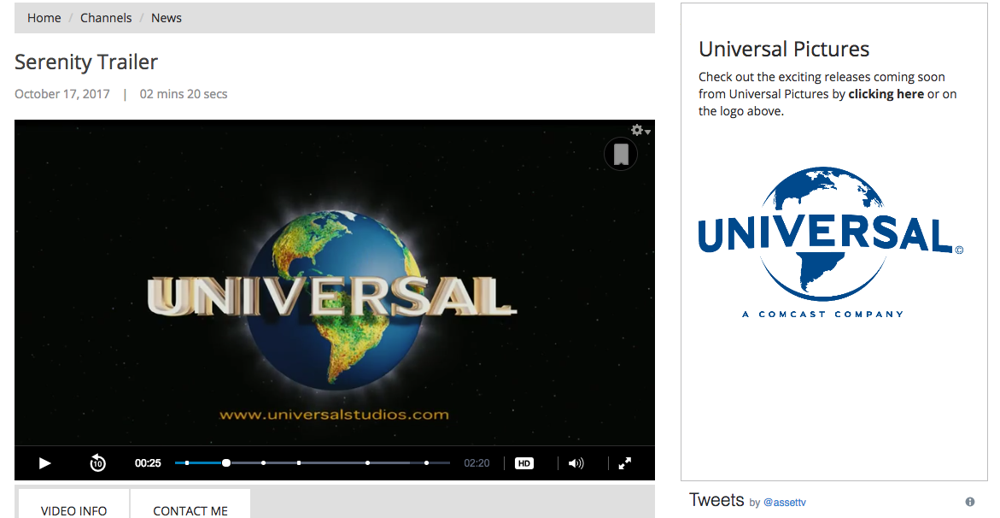
The above visual example utilises tags to create a heading, paragraph (including emphasis on a link) and an image.
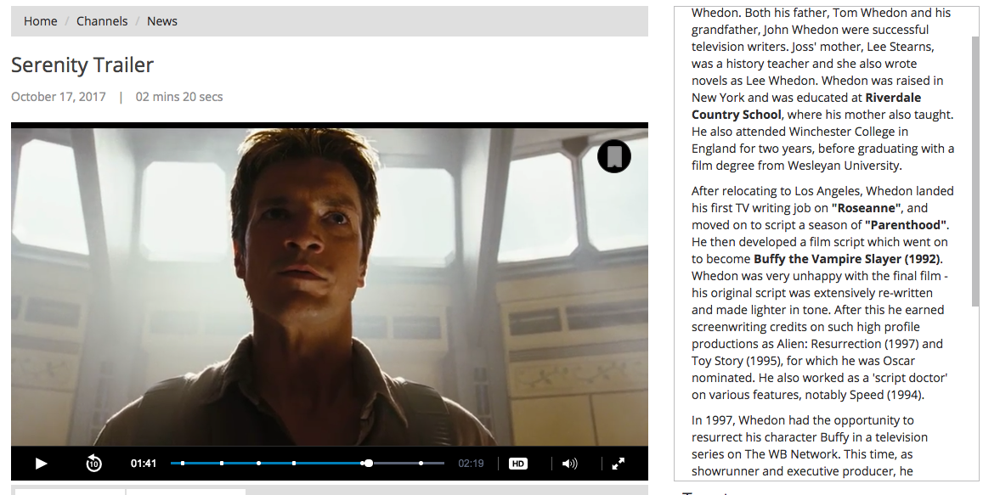
The panel also won’t limit you on space when applying Text. Rather than expecting you to find a place to split the content into two panels it will simply become a scrollable box:
The web team will always be willing and able to advise you on HTML mark-up if you’re not entirely sure how to get the exact look desired. Simply request IT Help at helpdesk.asset.tv.
Panels within a standalone or embedded player
Important
Currently the Panels feature will only be available for media on Asset TV sites or embedded channel pages. Standalone or embedded players will not include this feature for now.