Creating Articles, Blogs, and White-papers
and creating a channel page tab for them
Creating an Article
We can add non-video content to Asset TV in the form of Blogs and White-papers. These can then be categorised and set up to show on relevant channel pages.
To create either a blog or a white paper we need to create an Article. This can be done via the Admin bar Content > Add > Article or by selecting "Add new Article" from the Dashboard. This will load the Article form to be completed.
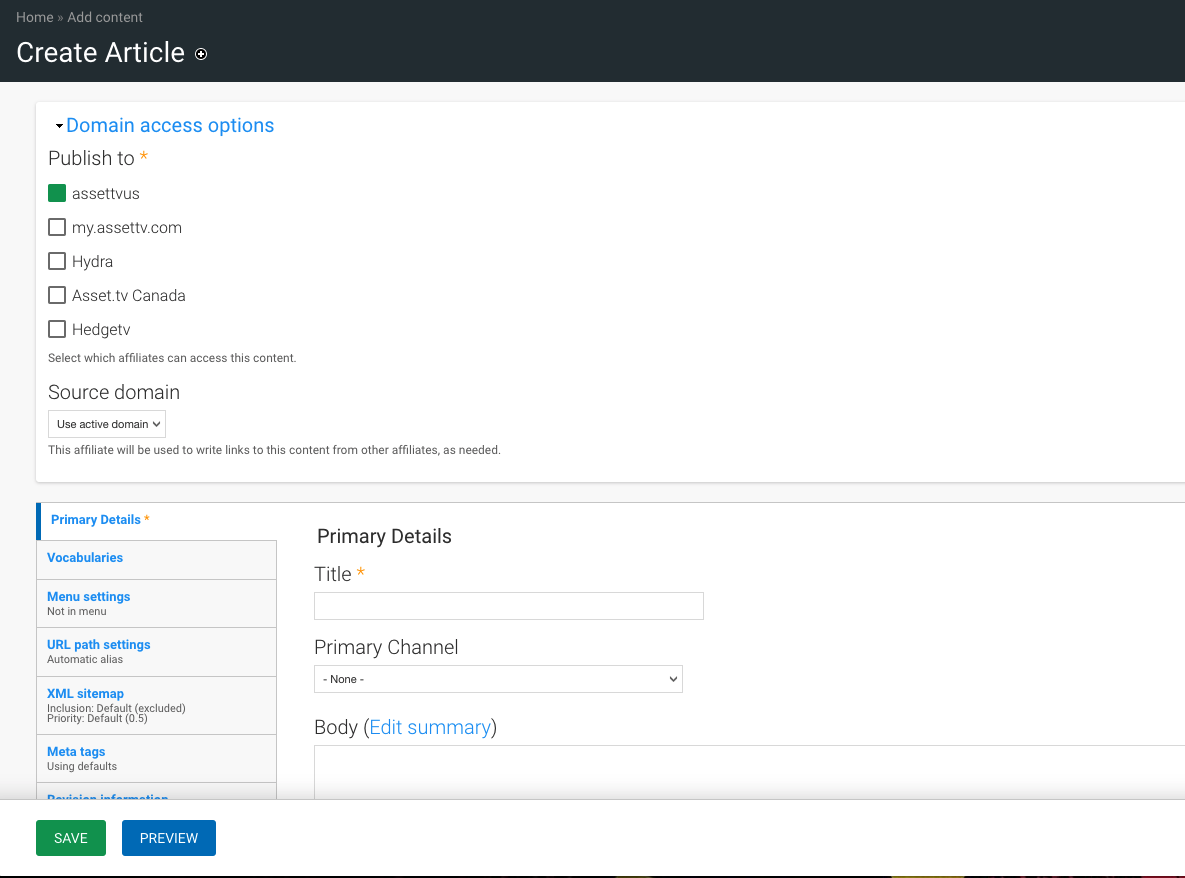
Under Domain Access Options, as with videos, select the sites you would like your content to be published to.
Primary Details
The Primary Details tab contains the majority of the information that your viewer will see on the site.
| Item | Description |
|---|---|
| Title | The name of the content as it will appear when live on the site. |
| Primary Channel | Select the channel that relates to the main owner of the content i.e. the company that has provided the content or one of the Asset.tv channels if this is our own editorial content. |
| Body (Edit Summary) | The body is essentially your article/blog/whitepaper’s text and can be placed in this field. If you wish to control the layout you can apply HTML tags. If you use HTML tags it is recommended that you change the "Text Format" dropdown underneath the body field to Full HTML so they’re not stripped out. If you click on the ‘Edit Summary’ link another box will appear allowing you to place a short teaser/description of the article. The Summary text will then appear on pages where your Blog or Whitepaper is featured. If you don’t add Summary text then those pages will simply display a short snippet from the beginning of your description text instead. |
| Display Image | The display image would be used as a thumbnail for any pages displaying the content in a Grid format (see section on adding to channel pages below). |
| Duration | This is to record the duration of any video or audio content contained within your article (the article content type allows for podcast or audio posts). |
| Display Date | This will show on the website on it’s publish date so should be set to the date the article went live, unless specifically advised to set a different date. |
| External URL | For some Whitepapers you may need to link to an online document. The title and URL can be entered here. ** |
| Video ID | The video ID field generates a Media Manager like ID number to allow tracking. This field should be ignored! |
| Upload File | This will allow you to link a PDF document to the article. This will appear as a download link below the main body text. |
External URL
Links that go to a client’s website (they aren’t specifically related to the article/blog/whitepaper) should be entered in the Body using HTML tags. This is because where the article appears on the site, the ‘Read Full Article’ link will go directly to this URL bypassing the Asset TV content page.
Vocabularies
The Vocabularies tab works the same as it does for Video content. You can add company, people and topic tags to assist with organising the media on the website.
The one addition is the Category dropdown list which lets you select the type of Article.
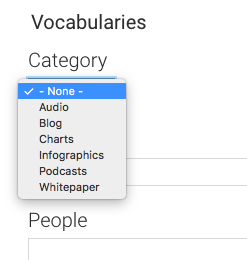
The main function of the Category is to help organise the media on the website.
Remaining tabs
The Remaining tabs work as outlined in the How to create a Video Article.
Ultimately the main ones you’ll use are likely the scheduling options (allowing you to set the date for the content to be published and/or removed from the site) and the Authoring information. The Authored on date is used to organise the media on the website (more recent content being at the top of lists etc.)
Adding a Article type to a Channel page tab
To feature your Article based content on a Company or Programs Channel page you will need to set up a tab on that channel page.
To do this click edit on the desired channel page and go to the “Tabs” tab.
Info
When creating tabs for your channel page we would suggest creating a "Latest videos" tab as the first tab – this will allow your viewers to navigate back to the channel’s video content without having to go via the channels menu again.
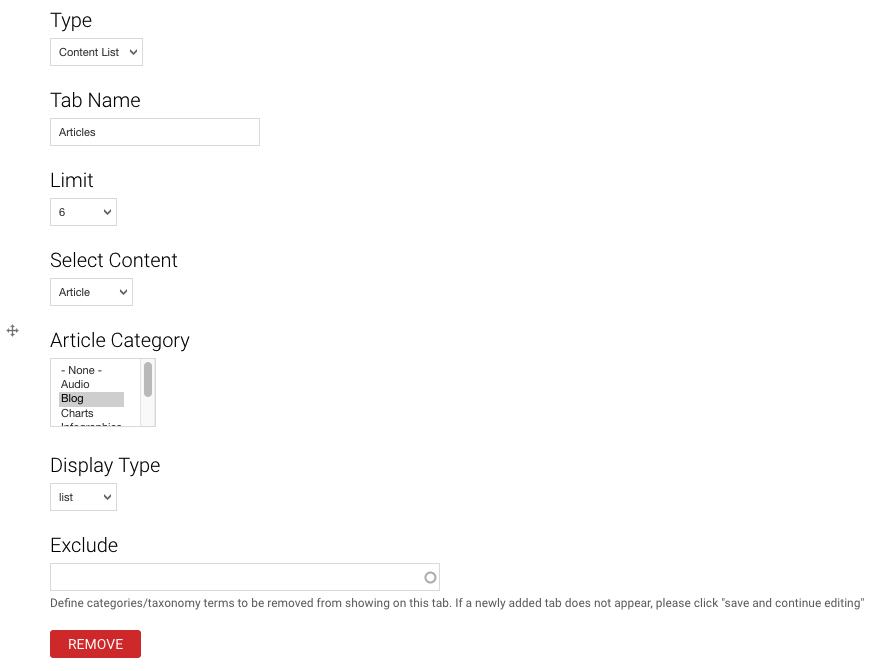
- Using the Type dropdown select
Content List. - Give your tab a name - this is what will display on your channel page tab navigation.
- You can set a limit of how much content is presented when the tab initially loads in multiples of 6 - for articles over this limit a Show more button will appear.
- Select Content should be set to
Articlewhich will then reveal an additional option to set the Article type (we can set this to Blog, White paper or any of the other Article types). - Display type should be set to
Listfor written articles as this is the better looking display (featuring the Summary or a snippet of the body text to let viewers know a bit about the content) but you can selectGridto have the page appear in a similar way to videos (just the Display image and title). - The tab will pull in all Articles of that type that are tagged with the Channel pages tag (Channel Includes tab) so we can use the exclude option to remove some content based on contents’ other tags (placing the Channel contains tag here would cause your tab to load no content!).
- Click "Save" and your tab will appear on your channel page.
Adding White-papers to a Channel Tab
- Using the Type dropdown select
Content List. - Give your tab a name - this is what will display on your channel page tab navigation.
- You can set a limit of how much content is presented when the tab initially loads in multiples of 6 - for articles over this limit a Show more button will appear.
- Select Content should be set to
Articlewhich will then reveal an additional option to set the Article type, here you set White paper. - Display type should be set to
Grid. - The tab will pull in all White-papers that have set the Primary Channel to this one.
- Click "Save" and your tab will appear on your channel page.